


It is common for people to work with videos nowadays. Whether it be for professional purposes or personal requirements, people are processing videos on almost a daily basis. In such a situation, a need for efficient video tools arises. Thanks to technology that there are video editing tools available nowadays to help users in editing and process their videos in the desired manner and save their precious time as well.
For instance, a YouTube vlogger might find it difficult to launch a new video because the size is not acceptable on the application. Here, the YouTuber cannot choose to cut down on the quality or content of the video and need an option that allows them to upload the entire video with high quality. It could be a time and effort-taking process to process video, and it does not sound to be a preferable option.
Here, the user can choose an application that allows them to Compress video without compromising the quality or content. Today, we shall discuss the best online and offline solutions available to reduce video size while maintaining its quality as well.
Introduction Wondershare UniConverter
The best offline solution that you can find to compress videos in the finest manner possible is Wondershare UniConverter. This is a comprehensive video processing tool that allows users to convert, compress, download, edit, burn, and more. The management tools available in this application can help users to increase their video quality in a variety of possible methods.
This free video converter can be used in converting video files into more than a thousand formats. A variety of parameters like video resolution, bit rate, format, encoder, and more can be changed by using Wondershare Uniconverter.
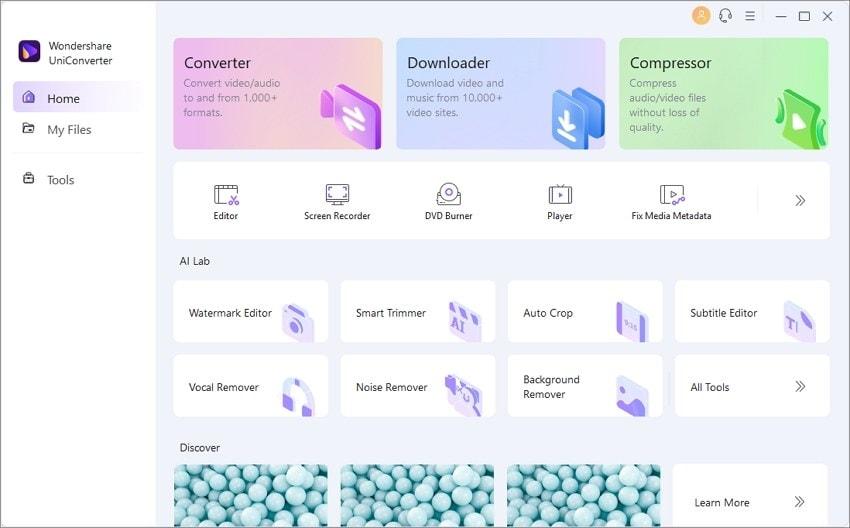
Your video compression process gets more effective and enhanced with this wonderful video editing tool. As a user, you are likely to find this video compressor quite beneficial and easy to use as well. The technology used in this tool can support compressing videos with resolutions up to 8K. And the best part about this tool is that maintains the video’s standard of excellence without compromising it.
Multiple compression modes are now present in UniConverter, giving users alternatives based on their needs. The compression settings can be more specific now with the option available for the low, medium, and high quality.
How to Reduce Video Size With UniConverter
With lots of capabilities for video compression, Wondershare UniConverter comes as the best video tool. There are compression settings available to best match your unique needs and the batch process option allows you to work with several videos at the same time. With the preview tool, users can also assess if their experience has been nice enough while working. The following are some simple steps that users can follow to reduce video size with UniConverter:
Step 1: Add Videos to Wondershare Video Compressor
As the very first step, users need to download and set up the most recent version of the application to their device. Then, visit the home page and navigate to the compressor tool available. Users will be taken to the next screen where they can choose the target videos and desirable settings to compress them. Import your videos for compressing by clicking on the ‘Add files’ option.
Step 2: Reduce Your Video in Different Ways
Once imported, users can individually adjust the compression settings for each video. It is simple to use the slider and set the quality for compression. You may choose ‘Format’ for previewing results. Choose ‘Ok’ to finally apply the setting and finish processing.

Step 3: Export The Videos
When you’ve finished configuring the compression for each video, specify the “File Place” field and export them to the desired location. There is also an option available to upload these videos to the cloud with the ‘Upload to cloud’ option.
Introduction Media.io
As we talk about the best solutions for Online Video Compressor, UniConverter turns out to be a great choice for effective processing. Formerly known as Media.io, users can convert, compress and edit video files easily with this video tool. There are a variety of editing tasks that can be easily performed with this tool and several formats are also supported by it.
While Media.io accepts a variety of file formats, it outperforms the majority of other online platforms that users can find. This comprehensive toolkit supports both audio and video files while allowing editing and processing of both as well. With a solution like Media.io, users can effortlessly handle all significant video upgrades for no cost.

How to Reduce Video Size With Media.io
There are a variety of features available in Medio.io which can enhance your experience of working with videos. The following are the steps to reduce video size with Media.io:
Step 1: Add Video Files
Users can start the process with the “Choose files” option that allows them to import video files directly.
Step 2: Reduce Video Size Online
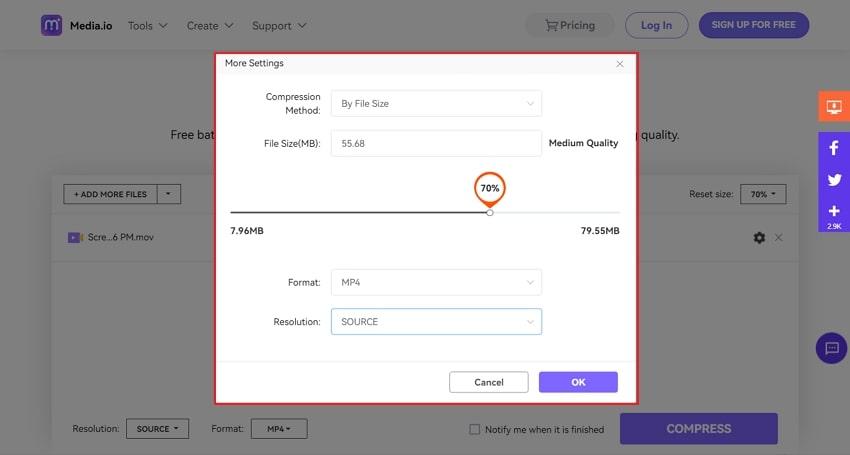
To reduce the video size online, users can now go to the compress option and select the compression method. The slider can be used to define video format and resolution. Then click ‘OK’.
Step 3: Save Your Compressed Video(s)
The ‘Download’ option can be chosen to save the compressed video on your device at the last step.
Verdict
Hopefully, you are now aware of both online and offline options to reduce the size of your videos or compress them. Use these advanced tools for the best video processing results in the most protected manner possible. Enhance your experience and productivity with the right video processing tool.


