Home Blog Page 367

MediaTek serves up Dimensity 9200 for tomorrow’s flagship phones

0

MediaTek on Tuesday announced its Dimensity 9200 processor which will power high-end handsets in the coming months. The new mobile chip features 5G support for both sub-6 and mmWave and offers up a couple of firsts.

The Dimensity 9200 is the first smartphone system-on-chip (SoC) to integrate an Arm Cortex X3 with speeds that clock higher than 3GHz; it’s bolstered by an Arm Immortalis-G715 GPU with hardware-based ray tracing. The other cores that comprise the Dimensity 9200 include three Arm A715 and four Arm Cortex A510 cores.

Leading in power efficiency with its eXtreme Power Saving Technology for AI-noise reduction and AI-super resolution tasks, the Dimensity 9200 provides up to 30% power savings with AI-NR and 45% power savings with AI-SR in all visual applications. The chipset’s sixth generation AI Processing Unit (APU 690) enhancements include up to 35% faster performance in ETHZ5.0 benchmark compared to the fifth generation APU.

  • 1x Arm Cortex-X3 at 3.05GHz
  • 3x Arm Cortex-A715 at 2.85GHz
  • 4x Arm Cortex-A510 at 1.8GHz

The new chip is the first to include support for Wi-Fi 7 (up to 6.5 Gbps data rates) as well as native support for new RGBW camera sensors. Moreover, the Dimensity 9200 supports high-end displays at Full HD+ resolution up to 240Hz, WHQD up to 144Hz, and 5K (2.5Kx2) up to 60Hz.

Rounding things out, the chip is the first to support LPDDR5X (up to 8533Mbps) memory and boasts Bluetooth LE Audio-ready technology for “best-in-class audio latency with Dual-Link True Wireless Stereo Audio for incredible sound quality.”

Look for the first handsets with the flagship processor to roll out by the end of 2022 with a wider adoption in the coming year.

DroidKit: Step by step to bypass factory reset protection

0

We recently covered iMobie’s DroidKit, an app designed to bypass Android’s factory reset protection to help recover phones that are locked out of Google accounts. That, and a whole host of other solutions.

Indeed, DroidKit is designed to provide Android users with help for issues including screen unlock, FRP bypass, data recovery, system repair, and more. In this post, we will dive further into the desktop application and how it works step-by-step.

Head over to iMobie

First, you need to download the desktop application from iMobie. DroidKit is available in both Windows and Mac formats. Following your operating system’s normal processes to add the application to your machine should then be used to get DroidKit installed.

After the installation is complete, launch DroidKit. Here you’ll be greeted with the initial home page of the application. There are many options to choose from, but here we want the bottom left FRP Bypass option.

Recovery Mode is needed

Once the wizard for FRP pops up, we just need to follow along. iMobie has done a great job here by making this informative and well laid out for users. You can’t really mess this up if you follow the steps, but we will outline them below as well.

Your first screen gives you basic declarations of supported devices and what to expect. YOu then need to plug in your Samsung device you need to be tweaked. If your phone is not detected DroidKit will let you know.

Next, the software suite will build a configuration file specific to your handset. This might take a minute but there’s a nifty progress bar to indicate the situation. Once the config file is built you are presented with a confirmation pop-up and press Start to continue.

This is the most complicated step in the entire bypass. Now, you need to manually put your Samsung into Recovery Mode. First, you’ll shut down the phone completely. Then using the appropriate key combination while powering it back on should get you to this hidden Android menu. Recovery Mode key combos are slightly different depending on the device, but DroidKit breaks this down in the top tabs of this app page.

Wipe and Bypass is Next

DroidKit has gotten you to the hidden menu of Android Recovery Mode and will now need a full wipe of the device. From the Recovery menu, choose Wipe Cache Partition and select the option by pressing the Power button.

This will fully reset and remove all data from your phone. I repeat this will completely wipe and reformat the phone. The reset will take a few minutes, but once the process is done, you will be ready to move forward with the bypass.

The DroidKit wizard will again walk you through the next steps on how to locate and identify the Android version your phone is currently using. Once that’s designated you click the “Download Now” button to start the bypass process.

The last step is to connect your phone via USB to your PC if it’s not already. You will then be prompted to wipe the cache partition via the Recovery menu and reboot. At reboot, follow the screens on DroidKit to start the first launch process on your Samsung device.

Lastly, you will click the “Send Notification” button on DroidKit. A pop-up will ask for your confirmation and press “Yes”. This will send your Samsung

 device directly to the Google Play Store to download an app called Alliance Shield X. Follow the remaining steps from the DroidKit application to complete the bypass.

Done!

That’s it, folks. After you follow all these steps you should be able to bypass the Factory Reset Protection on most Samsung devices. As a note, we don’t support anyone using this for devices they don’t currently own. This tool is meant as a last-ditch effort to recover a device in your possession.

iMobie DroidKit: the complete one-stop Android toolkit

0

Software developer iMobie makes a stable of Windows tools to help you maintain, fix, and stabilize your mobile phones. Among its portfolio of options is a tool called DroidKit which features a very specific skillset for removing Android’s factory reset protection on Samsung  devices.

What is DroidKit?

DroidKit is a desktop app that helps you navigate some situations that may arise as an Android user. These include factory reset protection (FRP) bypass, screen unlocker, recovery of lost photos or messages, and even the random black screen some Samsung devices can have.

This toolkit makes working with these issues a thing of the past. DroidKit packs all these fixes into an intuitive, well design package for you to use on your Windows or Mac computer. In less than 20 minutes you can be back to using your phone like nothing was ever wrong in most cases.

What is FRP Bypass?

There are a few instances where FRP bypass can come in handy. If you have kids, you know that sometimes that added layer of security might get in the way. Maybe they forgot their new Google account credentials, or unintentionally locked themselves out of their Google account. This leads to a parental headache of how to get back access to this device if you need to reset the unit.

Another opportunity to need FRP bypass is the secondhand Android market. Many small businesses struggle to provide users with a handset that may be improperly reset at times. eBay is full of such devices that are not stolen but may be locked from previous users for a variety of reasons. Many could take the gamble on this heavily discounted device on marketplaces, but don’t have the means to properly remove the FRP.

iMobie built DroidKit to streamline this process for Android phones, and more specifically Samsung devices. It’s worth noting that the company only guarantees DroidKit for Samsung models, but it may work for others. This Windows application is far easier to get going for FRP removal than any other methods we’ve found.

Screen Unlocker

Another common issue you may run into with Android devices is screen locks. Sometimes we have a scenario where you’ve been unceremoniously locked out of your device. This can be caused by several reasons. Did your kid enter the incorrect password too many times? Did you recently change the passcode to something you thought you’d remember but now you can’t?

Under any of these root causes, DroidKit can have you back into your device in no time. By following a few prompts, the software suite will help you reset your passcode back to something user-friendly in under 20 minutes.

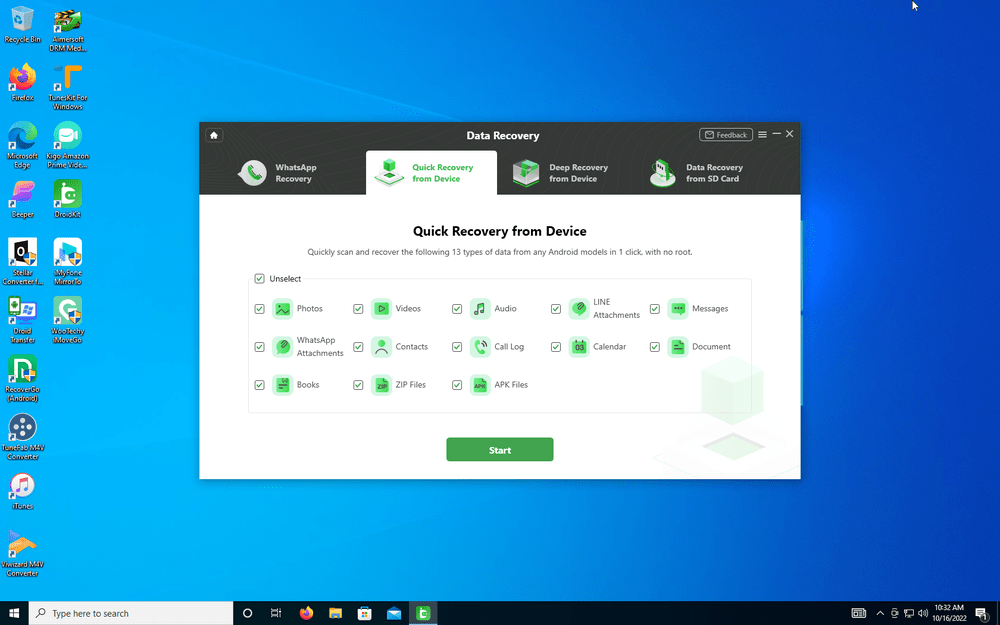
Data recovery is another issue in the modern tech world. There are times we just mistakenly delete or remove things from our phones that we later want to keep. DroidKit has an excellent solution for this as well.

Whether it’s old archived messages from popular options, photos, or even deleted calendar events, DroidKit may be able to recover them. Using several options for quick, deep, or external recovery, the toolkit searches your config files for possible solutions to reinstate your files back to the original state.

System Fix

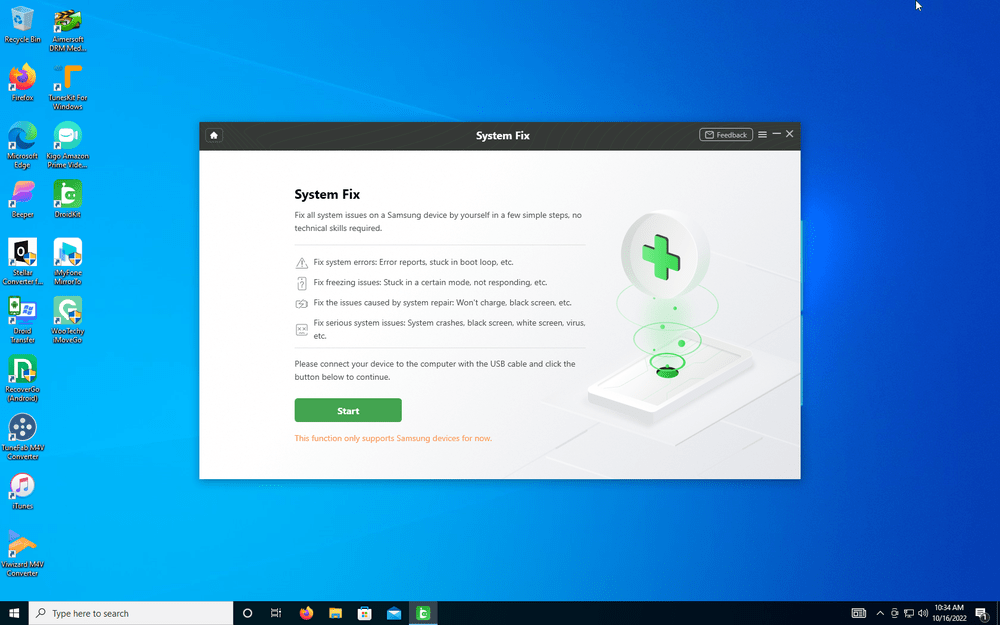
Lastly, computers don’t always cooperate. Similar to the “blue screen of death” on PCs, our smartphones can lock up or present weird screens from time to time. Using DroidKit System Fix is just as dead simple as the other solutions.

Following a few on-screen prompts should have you back to a functional device in no time. If DroidKit can’t fix your issue, you’ve at least removed some doubts that it’s software related. It may be time to move on to the conclusion that the issue is a hardware-related failure.

Conclusion

DroidKit offers a nice suite of features that can come in handy for a variety of Android software problems. The program toolkit covers most of the common issues users can run across and offers a well-laid-out solution for both Windows and Mac computers.

Pricing also gives you flexibility. You can unlock each individual DroidKit fix ranging from $20 to $40 depending on which tool you need. If you’d rather have the full chest, then you can currently get the entire suite for a year for just $70.

Switchbot Lock review

I have spent countless nights getting ready to sleep after a long day, spending no more than a few minutes with my eyes closed after being comfy under the covers, when this intrusive thought inevitably enters my brain: “Did I remember to lock the front door?”

Inevitably, not trusting my own memory, I get out of bed and walk all the way to the front door to check the lock. Probably nine times out of ten, the deadbolt was in fact locked, and I returned to my bedroom annoyed, but with peace of mind.

Not a week before I came across the SwitchBot Lock, I was brainstorming how I could attach a motor to the deadbolt on my front door so that the lock could be controlled from my bedside to solve my nightly conundrum. I nearly leapt with excitement when I realized I had the opportunity to review a product that did exactly that, and more.

Overview

The SwitchBot Lock is an adapter that fits on the deadbolt of any standard door lock. With the SwitchBot Lock installed, the user can control the state of their locks from the SwitchBot app on their phone.

The lock adapter is about the size of a deck of cards. It has a battery compartment with a Bluetooth receiver that controls a motor that spins the user’s deadbolt in the desired direction to either lock or unlock the door.

The manual included with the SwitchBot Lock made installation a breeze, and I was able to get my smart lock up and running within fifteen minutes. The SwitchBot lock comes with three different-sized adapters to be able to mount to many deadbolt shapes.

The lock itself attaches to the door around the deadbolt. There is also a very small sensor that attaches to the doorframe so that the smart lock can tell when the door is opened or closed. Both components adhere to the door and frame with a sticky foam pad that reminded me of Command Strips.

Once the components are in place, the SwitchBot lock connects to a smart device via the SwitchBot app. Then after a simple calibration, the lock is ready to use. While the overall setup process was relatively easy to follow along in the manual, I would not recommend trying to setup the smart lock without consulting the manual, as the positions of the components are very important.

Another cool feature about the Switchbot Lock that I would like to mention is that it also comes with programmable SwitchBot Tags. These tags can be set to either lock or unlock the SwitchBot Lock.

I made sure to put a tag on my nightstand so I could lock my door simply by tapping my phone against the tag.

Aesthetics

Once the SwitchBot Lock is attached to the door, it is a little bulky, and sticks out a couple extra inches from the door. The texture and look of the smart lock are clean, but in some cases, it could look a little clunky.

Also, the extra few inches that it adds beyond the thickness of the door means that the user needs to be wary that opening the door all the way could now slam the lock into the wall, which is something to keep in mind.

Accessories

One of the best things that I like about SwitchBot, is how all their products work together so cohesively. With my SwitchBot Lock, I also got a SwitchBot Keypad, and a SwitchBot Mini Hub. The keypad sits on the outside of the door and adds many new abilities for locking and unlocking the door. The mini hub attaches to the wall near an outlet and connects the device to WiFi rather than Bluetooth so that the lock can be controlled from anywhere.

The SwitchBot Keypad connects easily to the smart lock through the SwitchBot App and adds the ability to operate the lock with a code or a fingerprint. I found this functionality to be very useful. Now I can not only leave my apartment without my keys, but I’m even safe if I forget my phone as well.

The SwitchBot Mini Hub also adds another layer of convenience to using the SwitchBot Lock. Having the hub allows a push notification to be sent to your phone if your door has been unlocked for too long so that you never leave it open. It was also nice to have the SwitchBot Mini Hub because if I left for work in the morning and forgot to lock the door, I could lock it from my phone from wherever I was.

Smart App

The SwitchBot App is very clean and easy to use. Of the smart device apps that I have seen, this app was one of the most user-friendly. It made connecting all the SwitchBot devices to each other very easy.

Inside the app, locking and unlocking my apartment door happens with the click of a button. The app also made it especially easy to add new valid codes and fingerprints to the SwitchBot Keypad, as well as temporary codes and fingerprints for visitors.

Conclusion

The SwitchBot lock, though simple in design, saves me many trips to the front door to check the lock. All my worrying now goes away by just opening the SwitchBot App or tapping my phone against a SwitchBot Tag.

With the help of the included manual, installing this product for use went without a hitch. The sleek, inconspicuous colors of the smart lock’s design make of for its bulkiness.

Adding more SwitchBot devices to my home setup was a seamless process that added even more useful features to the smart lock itself. And as for me, I can stop lying awake at night, running through my evening, trying to remember if I locked the door.

You can purchase the SwitchBot Lock for about $100 at the manufacturer’s website.

Doogee’s first tablet T10 will refresh you with ultimate entertainment

0

The world-leading rugged phone brand, Doogee, has decided to take a step in a new direction. On November 1st, it globally launched the Doogee T10 – the company’s first tablet, laying the necessary foundation for its entrance to the tablet industry. 

With a 7.5mm ultra-thin and sleek look, Doogee T10 makes its perfect debut. The confidence partly comes from the aviation-grade aluminum alloy material used which gives it a lightweight body, and partly comes from the big 10.1-inch FHD+ Fullview display.

The large and clear display offers more than visual enjoyment. Certified by TÜV Rheinland, it offers a strong cover to protect your eyes, freeing you from eye fatigue even if you look at the screen from dawn to dusk. Equipped with eye comfort mode, dark mode, and sleep mode, Doogee T10 accompanies you at any time without any disturbance to your eyes.

To users’ bigger surprise, Doogee T10’s Google Widevine L1 backs up 1080P high-definition streaming or playing on mainstream websites like Netflix, Hulu,etc., offering immersive cinematic visual experience. Combined with technology and aesthetics, Doogee T10 is engineered in three gorgeous colors: Space gray, Neptune blue and Moonlight silver.


The investment in Doogee T10’s smart outlook does not slash its performance and efficiency. Unisoc T606 Octa-core processor gives the slap an expanded 7GB RAM based on the original fast 8GB. The 128GB storage with up to 1TB expandable meets your demands for large volumes of files, music, videos, and photos. The 8300mAh mega battery coming with 18W fast charging promises solid longevity and easier recharge. In addition, Doogee T10 supporting 2-In-1 mode and split-screen mode is indeed friendly to office workers who pursue both efficiency at work and relaxation in their spare time. Being a pad as it is, T10 is your perfect entertainment electronic product; connected to a keyboard and stylus, T10 becomes your productive office PC. If you are tired of switching from one app to another, T10 is your lifesaver, allowing a dual-task on one screen with its split-screen function.

Other features of this tablet include a 13MP wide rear camera, a dual stereo speaker, a versatile USB-C interface, 2.4G & 5G dual-band Wi-Fi, and Android 12 OS…

Doogee T10 has been officially released on November 1st at Doogee AliExpress Store and DoogeeMall (official shopping platform), with an amazing world premiere price of only $119. If you’re thinking of getting one, this would be great timing. Grab it before the price goes up.

How to redact PDF- online and offline solutions

0

Pdf is a handy tool used by varied professionals in different fields to send files across platforms. However, you would require a good online tool to redact your pdf. Choosing the right tool from a swarm of free and paid tool options can be a tricky task.

Moreover, the choosing process becomes more complex when you look for the tool accessibility as per your device. Tired of hunting for a good tool that can redact your pdfs? Well, here is a wonderful tool that can serve your purpose the best.

Why Do You Need to Redact PDF Files?

PDFelement is a free pdf editor that can be used on Windows, Mac, iOS, and Android devices at the same time. It can easily redact your pdf as per your preference anywhere anytime. It provides an easy encryption cipher to keep sensitive information such as credit card numbers, or any other personal or professional details secure while accessing pdf documents. Thereby, providing a safe and secure space for professionals like lawyers, teachers, bank clerks, etc. in keeping their data confidential. One can easily redact text and images with the help of this tool.

How To Redact PDFs With PDFelement?

PDFelement is a great tool that not only helps you edit your pdfs but also provides reliable encryption solutions. It has three levels of encryption for providing maximum safety to users. Moreover, it has a user-friendly interface which makes the redacting process even easier.

To redact on pdf using PDFelement, follow the given steps:

Step 1: Open PDF Protector

The initial step of encrypting your important document is by setting a password. For this, switch to the Pdfelement app. Once the page is loaded, look for the ‘Protect’ tab. Tap on it to get started. As you click it, a dialogue box will appear. From the varied list of options, click on the ‘Set Password’ option. Fill in the desired password.

Step 2: Encrypt PDF Files

Encryption usually offers two safety options. First to protect the pdf from viewing and second to protect it from editing and printing. If you want to protect your documents from viewing, set an open password. If you want to protect your files/documents from editing and printing, set a permission password. Choose as per your preference.

Step 3: Redact Text/Images In PDF

Select the files/images which you wish to encrypt and click on ‘Mark for Redaction’. And, you are good to go. The desired texts/images get redacted immediately.

How To Redact PDFs With HiPDF?

HiPDF is the next best tool when thinking of redacting your pdf. One can easily redact a pdf with just a few clicks. To redact PDF online with HiPDF follow the following steps:

Step 1: Open Redact PDF

Firstly, log on to the HiPDF website. As the page gets loaded, visit the top bar and click on ‘All Tools’. As you click it, you will be shifted to a new page. Start scrolling and searching for a PDF Tools section. That’s when you will see the redacting pdf tool. Click on the Redact pdf option.

Step 2: Drop Or Choose Files

The next step that comes after you get redirected to the pdf redaction tool page is to choose the desired files. This can be done two ways. One by choosing the file, and two by dropping/uploading the desired file. Suit yourself.

Step 3: Redact Text/Images In PDF

Now comes the actual and crucial step of redaction. The uploaded or selected file will be displayed. To get started with redaction processes, you just have to press the right-click button on the mouse and move your cursor over the text. Be careful and try not to hurry. Take your time, read and select. After selecting, click on the apply button to save these changes.

Features Of Wondershare PDFelement

Wondershare Pdfelement provides an affordable, fastest, and easiest way to edit, sign, and convert pdf. It can be accessed easily through windows, Mac, iOS, and android devices. Translation has been made easier than ever with more than 80+ languages.

Additionally, it keeps on updating its features to improve user accessibility. Some of the most prominent features offered by Wondershare Pdfelement are:

  • Wondershare Pdfelement is a great editing tool that can help you add text, images, and shapes to pdf. One can also insert links and watermarks into the pdf.
  • It aids you in the conversion of files from or to pdf, word, excel, JPG, PNG, and other formats without any loss in quality.
  • It also supports batch conversion, thereby, making your work faster.
  • Pdfelement allows you to rotate, merge, split, organize, extract or compress pdf.
  • With the help of this tool, one can add notes, comments, highlight, draw and underline texts in the easiest way ever.
  • Moreover, you can also create and fill out pdf forms with this tool.
  • This tool offers an intuitive user interface to enhance the reader experience. One can adjust page size and layout to suit your needs.
  • One can also combine different pdfs with the help of this tool.
  • It offers its users to create pdf from any file such as images, word documents, and others.
  • It is also used by professionals for scanning pdf, updating pdf forms, pdf filler, and recognizing pdf from images.
  • Wondershare Pdfelement understands the importance of privacy and security, therefore, it also has exclusive encryption solutions to protect documents from accessing and editing. One can create an e-sign or password to keep sensitive information safe and inaccessible.

Verdict

PDFelement is an excellent and affordable option when looking for a tool to redact pdf. It can be accessed by any device be it Windows, Mac, iOS, or Android. It provides three levels of encryption, thereby, ensuring maximum safety for users.

One can set encryption as per their requirement. It also allows the users to upload files through cloud storage which makes the work easier and quicker. Moreover, it is a great editing tool and offers incredible editing options. All the provided specifications and incredible features make it a great choice for a good tool to redact pdf.

Samsung Galaxy Tab A7 Kids Edition: AT&T’s first tablet for kids is here

0

Multi-national telecoms holding firm, AT&T is launching the new Samsung Galaxy Tab A7 Kids Edition later this week.

In shaping a safe, secure, and reliable world, AT&T offers tips and ideas regarding promoting digital literacy, digital safety, digital parenting, and helping families to learn how to protect themselves online.

The Galaxy Tab A7 is AT&T’s first device that gives kids the means to enjoy media and technology that has become part of our everyday lives. It is designed for parents who need a device offering an easy setup and restricted access to apps. That applies to the internet, and more when children use apps.

What makes Galaxy Tab A7 really kid-friendly?

The device flaunts an 8.7-inch touchscreen display. It is equipped with a built-in durable metal frame and resilient case that protects the device from getting easily damaged due to rough handling.

Tab A7 Kids Edition’s kickstand rotates 360 degrees so it could be used from any angle. The battery life is long-lasting, just what’s needed for users who are always on the move.

See Also: AT&T Prepaid offering plan with 16GB data for just $25, but there’s a catch

Your kids will enjoy the built-in educational apps which will make them spend worthwhile screen time learning or playing. The privacy and security features found on Tab A7 help parents to set limits on playtime, and give access to contacts and apps.

Samsung Galaxy Tab A7 – The perfect gift for kids

You’re probably concerned about what your children do on their devices when you’re not with them. Worry no more, as the Galaxy Tab A7 helps you to keep up with the usage report telling you about their activities when you’re away. Manage restrictions on each device with ease. On the other hand, give the kids the opportunity for endless entertainment.

AT&T customers get free access to the Samsung kids’ platform. It gives parents the ability to easily change the “kids mode” to the normal everyday mode of other tablets when parents need to use it.

The Samsung Kids App will allow your children to learn, improve, and flourish. They can safely enjoy the digital realm while they navigate through family-friendly activities.

All these features at what cost? It will cost less than $7 per month. Watch out for Samsung Galaxy Tab A7 Kids Edition on November 4.

How to reduce video size – online and offline solution

0

It is common for people to work with videos nowadays. Whether it be for professional purposes or personal requirements, people are processing videos on almost a daily basis. In such a situation, a need for efficient video tools arises. Thanks to technology that there are video editing tools available nowadays to help users in editing and process their videos in the desired manner and save their precious time as well. 

For instance, a YouTube vlogger might find it difficult to launch a new video because the size is not acceptable on the application. Here, the YouTuber cannot choose to cut down on the quality or content of the video and need an option that allows them to upload the entire video with high quality. It could be a time and effort-taking process to process video, and it does not sound to be a preferable option. 

Here, the user can choose an application that allows them to Compress video without compromising the quality or content. Today, we shall discuss the best online and offline solutions available to reduce video size while maintaining its quality as well. 

Introduction Wondershare UniConverter

The best offline solution that you can find to compress videos in the finest manner possible is Wondershare UniConverter. This is a comprehensive video processing tool that allows users to convert, compress, download, edit, burn, and more. The management tools available in this application can help users to increase their video quality in a variety of possible methods. 

This free video converter can be used in converting video files into more than a thousand formats. A variety of parameters like video resolution, bit rate, format, encoder, and more can be changed by using Wondershare Uniconverter. 

Your video compression process gets more effective and enhanced with this wonderful video editing tool. As a user, you are likely to find this video compressor quite beneficial and easy to use as well. The technology used in this tool can support compressing videos with resolutions up to 8K. And the best part about this tool is that maintains the video’s standard of excellence without compromising it. 

Multiple compression modes are now present in UniConverter, giving users alternatives based on their needs. The compression settings can be more specific now with the option available for the low, medium, and high quality. 

How to Reduce Video Size With UniConverter

With lots of capabilities for video compression, Wondershare UniConverter comes as the best video tool. There are compression settings available to best match your unique needs and the batch process option allows you to work with several videos at the same time. With the preview tool, users can also assess if their experience has been nice enough while working. The following are some simple steps that users can follow to reduce video size with UniConverter:

Step 1: Add Videos to Wondershare Video Compressor

As the very first step, users need to download and set up the most recent version of the application to their device. Then, visit the home page and navigate to the compressor tool available. Users will be taken to the next screen where they can choose the target videos and desirable settings to compress them. Import your videos for compressing by clicking on the ‘Add files’ option. 

Step 2: Reduce Your Video in Different Ways

Once imported, users can individually adjust the compression settings for each video. It is simple to use the slider and set the quality for compression. You may choose ‘Format’ for previewing results. Choose ‘Ok’ to finally apply the setting and finish processing. 

Step 3: Export The Videos

When you’ve finished configuring the compression for each video, specify the “File Place” field and export them to the desired location. There is also an option available to upload these videos to the cloud with the ‘Upload to cloud’ option. 

Introduction Media.io

As we talk about the best solutions for Online Video Compressor, UniConverter turns out to be a great choice for effective processing. Formerly known as Media.io, users can convert, compress and edit video files easily with this video tool. There are a variety of editing tasks that can be easily performed with this tool and several formats are also supported by it. 

While Media.io accepts a variety of file formats, it outperforms the majority of other online platforms that users can find. This comprehensive toolkit supports both audio and video files while allowing editing and processing of both as well. With a solution like Media.io, users can effortlessly handle all significant video upgrades for no cost.

How to Reduce Video Size With Media.io

There are a variety of features available in Medio.io which can enhance your experience of working with videos. The following are the steps to reduce video size with Media.io:

Step 1: Add Video Files

Users can start the process with the “Choose files” option that allows them to import video files directly. 

Step 2: Reduce Video Size Online

To reduce the video size online, users can now go to the compress option and select the compression method. The slider can be used to define video format and resolution. Then click ‘OK’.

Step 3: Save Your Compressed Video(s)

The ‘Download’ option can be chosen to save the compressed video on your device at the last step. 

Verdict

Hopefully, you are now aware of both online and offline options to reduce the size of your videos or compress them. Use these advanced tools for the best video processing results in the most protected manner possible. Enhance your experience and productivity with the right video processing tool.

BOOX releases Tab Ultra with 16MP camera, Nova Air2, Leaf2 E Ink tabs

0

Onyx BOOX this week launches three new products at its global launch event. A new Tab Ultra model, Nova Air2, and Leaf2 tablets were introduced to enable innovative users to become more productive in work and study.

Tab Ultra ePaper Tablet PC

The Tab Ultra, a phantom black color ePaper tablet PC is equipped with a 16MP rear camera and a 2-in-1 Keyboard Cover offering extra protection. It comes with a price tag of $599.99 if purchased from an official BOOX Shop. There’s the BOOX Super Refresh Technology that provides a smooth refresh experience on its 10.3 E Ink display.

This device is powered by Qualcomm Octa-core CPU and a special GPU. However, the user interface appeals more to buyers because it is more suitable for mobile working with its new multi-finger gestures.

Nova Air2

The Nova Air2 is an upgraded 7.8-inch eReader and note-taker. This device is an upgrade to the Nova Air. Key features of Air2 include the Android 11 operating system and Qualcomm Octa-core processor that offers better performance. Its design makes it a favorite to carry around in-house or outdoors.

It is available in two colors; Ivory White and black. The white Pen Plus is a good tool for note-taking and sketching used in two ways – either in the ebooks or in the Notes app. Air2 is priced at $339.99 if purchased from the BOOX shop.

See Also: Boox Nova Air C e-reader review

Leaf2

The Leaf2 is a 7-inch eReader equipped with built-in page-turn buttons. This feature isn’t new as it’s been a mainstay of a previous Leaf version. The good thing about the Leaf2 is that it arrives in black and white colors. The black has a flush screen but the white version has a sunken screen.

Mimicking its predecessor, it comes with a G-sensor which enables auto rotation enabling the use of the device no matter what position it is carried. It arrives with a price tag of $199.99.

These three new devices have a lot of benefits. One huge advantage is that users can enjoy using them for longer periods without straining their eyes. In addition, they all boast BOOX’s latest Firmware V3.3 with support for almost all ebook formats. What’s more, users can install third-party Android apps from the built-in Google Play Store.

Get more rebates from BOOX’s End Of The Year Promo for Black Friday with discounts of up to 10 percent from some of its bestselling products.

Jabra launches Evolve2 Buds True wireless earbuds for hybrid workers

0

Today, more than ever, hybrid working is the in-thing for most professionals. Recognizing this, Jabra, a leader in sound and office solutions, launched the Evolve2 Buds.

Jabra understands just how important it is for professionals to be able to work on the go. With the new Evolve2 Buds, it is now easy for a working professional to work from anywhere.

Why Evolve2 Buds?

If you’re a professional who constantly takes part in virtual meetings, these buds are designed to boost concentration and improve collaboration. Using Microsoft Teams and Zoom, the wireless earbuds help to reduce unsettling background sound so you make clearer calls.

Jabra on its website claims that professionals who use the Evolve2 Buds can engage in “pitching from the kitchen, calling from the co-working space, or fit the status meetings around the daily dog walk.”

Apart from offering a reduction of noise, and boosting the quality of conversations, Evolve2 Buds also offer stable connectivity and increased mobility. Users enjoy the long wireless range of up to 20 meters/65 feet. This means that a user has the freedom to move about in the home or in remote working environments without conceding call quality.

Features of Evolve2 Buds

  • Certified for Microsoft Teams and other closely related platforms
  • MultiSensor Voice technology making use of multiple microphones together with Jabra processes helps block unwanted sound
  • HearThrough and single earbud use enables users to hear surrounding sounds through the earbuds
  • Better battery life offering at least 33 hours of usage is a massive boost that comes along with wireless charging technology
  • Advanced Multipoint connection enables connection to two devices at once
  • Plug & Play USB adapter offers enhanced connectivity
  • Adjustable ANC to filter out background noise and help the user to focus better
  • Ultra-discreet design presents ultimate comfort and a professional appearance

Working-class professionals will always root for more freedom and flexibility that makes working from anywhere a lot easier. These earbuds play a significant role in increasing employee inclusion in hybrid work.

Evolve2 Buds are scheduled to be available at the end of November at $269. Check out more information from the Jabra website.