In an effort to combat the increasing risk of unauthorized SIM swaps and port-out attacks, Cloaked Wireless has introduced a range of mobile plans designed to provide users with enhanced security.
Now available across the United States, these plans aim to safeguard mobile users’ privacy and data integrity. Starting from $25 to $75, customers have the option to choose from various plans on what is being touted as the most secure network available.
An intriguing aspect of Cloaked Wireless‘s offering is the acceptance of Bitcoin as a payment method, marking it as the first wireless provider in the US to do so. This move not only highlights the company’s innovative approach but also its dedication to cybersecurity and customer convenience.
Cloaked Wireless has taken a unique approach to ensure user security, focusing on reducing the risk of SIM swap attacks, which have become a significant concern in today’s digital age. By limiting access to user data and employing advanced authentication technologies, the company ensures that customers have complete control over their account and personal information.
Cloaked Wireless Rate Plans
Signing up for Cloaked Wireless is straightforward. New customers can choose their plan, create an account, and opt to pay using either a credit card or Bitcoin. Each plan includes custom security features and comes with the option of an eSIM or a traditional SIM card. Furthermore, the company promotes a BYOE (Bring Your Own Everything) policy, allowing customers to use their unlocked phones and retain their existing numbers.
A key feature of Cloaked Wireless’s service is the elimination of human error in SIM swap attacks. The company has removed the ability for staff to modify or authorize account changes, instead relying on secure procedures for account creation and authentication. Additionally, Cloaked Wireless commits to not selling user data to third parties, further enhancing privacy protections.
As a mobile virtual network operator (MVNO), Cloaked Wireless provides an affordable yet secure option for consumers looking to avoid traditional service pitfalls. The company was founded by experts in crypto, privacy, and security, including Jonathan Wilkins and Jeremy Hill, who bring a wealth of experience to this venture. Their goal is to address the prevalent issue of SIM swap attacks that have affected hundreds of thousands of users and resulted in significant financial and data losses.
To celebrate the launch, Cloaked Wireless is offering a lifetime free wireless service to BTC core developers with more than 10 commits, demonstrating its support for the Bitcoin community. This promotion is a testament to the company’s commitment to not only providing secure mobile services but also supporting innovation in the cryptocurrency space.
Renowned Minnesota-based brand, Bob and Brad, known for their expertly designed therapeutic products, today announced the launch of two innovative massage devices: the EZ Back massage cushion and the C2 Pro Massage Gun. Founded by experienced physical therapists, Bob and Brad’s latest offerings aim to provide users with effective relief from back and neck pain through cutting-edge technology.
About Bob and Brad
Bob and Brad stand at the forefront of therapeutic product design, backed by over 60 years of combined experience in physical therapy. With a strong following on YouTube and accolades from reputable media outlets, their products are not just tools for relaxation but are endorsed by professionals for their therapeutic benefits.
Introducing the EZ Back
Priced at an introductory offer of $47.99 (originally $69.99) in the US and £59.49 (originally £69.99) in the UK, the EZ Back is available on Amazon. This device features an ergonomic design and four deep-kneading 3D massage nodes to simulate the experience of a professional Shiatsu massage. It’s tailored for anyone in need of relaxation, from athletes to office workers.
The EZ Back’s one-button control makes it easy to switch between heat and massage modes, enhancing blood circulation and offering customized relief. A safety feature ensures the device automatically turns off after 15 minutes of use. Its unique design also allows for targeted massage on various body parts, including shoulders, calves, and more.
The C2 Pro Massage Gun
The C2 Pro is now available for $89.99 with a special discount coupon, down from its original price of $109.99, exclusively on Amazon US. This versatile massage gun integrates dual heat and cold therapy with powerful percussion, making it ideal for use at home or on the move. The ability to switch between heat to promote blood flow and cold to reduce swelling offers users flexible pain relief options.
Bob and Brad have utilized their deep knowledge of physical therapy to equip the C2 Pro with features like variable speed levels up to 3200 RPM and five unique massage heads. These innovations aim to stimulate blood flow, alleviate soreness, and support muscle health.
ZTE has again proven to the world that it’s a leading provider technology solutions by showcasing nubia Pad 3D II. Along with other gadgets, nubia presented this neo tech device at the MWC Barcelona 2024.
The new 5G+AI eyewear-free 3D nubia Pad II presents to consumers a truly immersive 5G+AI eyewear-free 3D experience. Through this means, ZTE continues to usher in pioneering 3D solutions for various industries. Here has come to stay, the power groundbreaking technological advancements, and deep integration of 5G+AI.
Examine the nubia Pad 3D II visual experience
nubia Pad 3D II is enhanced by an AI processing engine. However, it distinguishes itself at the display as features were greatly improved. For example, the unique liquid crystal lenses is powered by integrated image processing algorithms.
Also, it renders 3D images with enhanced realism and natural vibrancy. When compared to its predecessor, the new nubia Pad 3D II achieves an 80 percent increase in 3D resolution and a 100 percent boost in 3D brightness.
Furthermore, it boasts comprehensive optimization in 3D crosstalk, 3D color, and 3D power efficiency. In these ways, the device enhances users’ 3D visual experience. It is equipped with an AI eye-tracking engine that makes use of high-speed visual sensors and eye-detection algorithms.
It can’t go wrong with an 86-degree ultra-wide viewing angle, so users can enjoy flawless 3D experience from almost all directions. Other features are found below.
Main Features
12.1-inch 2.5k large screen, supporting q 2560×1600 resolution, and 144Hz refresh rate
3D content enriching the full-scenario multi-screen experience
Free conversion from 2D to 3D possible with Neovision 3D Anytime Technology
Top-level flagship configuration, 5G for 3D experience – covers most countries globally
Equipped with Qualcomm Snapdragon 8 Gen 2 chipset
512GB of storage offering immense computing power and robust performance
10000mAh large battery with 66W fast charging
Symmetrical quad speakers producing immersive 3D sound effects
According to nubia Senior Vice President at ZTE, Ni Fei, ZTE has been actively investing in research and development for eyewear-free 3D technology and ecosystem.
Ottocast has quickly become one of our top picks for seamlessly integrating wireless CarPlay or Android Auto into your vehicle. This company offers a wide range of devices designed to help you ditch the cables next time you hop into your car. Among its latest innovations is the Picasou 2, which brings a full Android UI into the mix, elevating the in-car experience.
Design
Right out of the box, the Ottocast Picasou 2 presents a sleek, disc-style appearance. It features a circular design topped with an LED ring that can be customized to display different colors, adding a touch of personalization. On one side, there’s a convenient slot for an ejectable SIM and TF card combo. This feature proves to be quite beneficial for accessing certain software functionalities we’ll delve into shortly.
Connectivity is robust with the Picasou 2. At the base of the device, there’s a USB-C input that connects to your car’s existing infotainment system. This setup facilitates a Bluetooth connection, allowing for the adapter’s interface to be wirelessly projected. Additionally, there’s a mini HDMI port capable of delivering full 1080p output, ensuring high-quality visuals for your media content.
Internally, the Picasou 2 is equipped with 4GB of RAM and 64GB of internal storage, ensuring smooth operation and ample room for apps and media. The storage can be expanded via the TF card slot, supporting up to 2TB of additional space. This capacity offers more than enough storage and performance for virtually any use case.
Software
The device offers three main options for wirelessly projecting content onto your car’s screen. The first two options are fairly standard: depending on your smartphone, you can use either Android Auto or iOS CarPlay. If you’ve previously relied on a wired connection, simply establishing a Bluetooth link to the Picasou 2 will provide you with the same functionality, but without the hassle of cables.
The third option is where the Ottocast Picasou 2 stands out—and also where it might cause some confusion. Dubbed the OttoDrive UI, it essentially runs a custom version of Android 10 directly within your vehicle. This innovative approach offers a robust and user-friendly interface, granting access to all your favorite mobile apps, even those not natively supported by Android Auto or CarPlay. This feature significantly broadens the scope of accessible applications and services while on the move.
Despite the innovative approach Ottocast takes with the car infotainment system, I’ve encountered what I perceive to be a significant drawback for most users. To access the internet, the device requires either an additional SIM card equipped with a data plan or necessitates sharing your phone’s internet connection via a hotspot. This workaround for connectivity feels cumbersome, especially when compared to the more stable and straightforward options provided by Android Auto or CarPlay.
The scenarios where this expanded functionality might surpass the default offerings from Apple and Google seem limited, perhaps most applicable in an RV entertainment setup or for screens mounted on the back of headrests for passenger entertainment. However, these use cases still demand a secondary internet connection, complicating the setup further. Yet, for passengers, the allure of accessing additional apps such as YouTube or other video streaming services might justify the extra effort.
One redeeming feature is the ease of switching between interfaces. Users can seamlessly transition between operating systems or from CarPlay/Android Auto to the OttoDrive UI with just a button press. This flexibility allows for a quick swap to the preferred interface as needed, whether for CarPlay/Android Auto users or those wanting to dive into the OttoDrive experience.
Performance
Despite the aforementioned drawbacks, the Picasou 2 delivers impressive performance. Each interface operates smoothly, aligning with its promises, and I encountered minimal issues. Notably, the Ottocast’s connection and launch times are among the quickest I’ve experienced, facilitating swift access to your preferred interface. The device also excels in latency, with negligible delay between commands and their execution, ensuring a responsive user experience.
Conclusion
Awarded to products with an average rating of 3.75 stars or higher, the AndroidGuys Smart Pick recognizes a balance of quality, performance, and value.
Products with this distinction deserve to be on your short list of purchase candidates.
The Ottocast Picasou 2 AI box ambitiously aims to enhance in-car entertainment options for travelers. Though the concept is compelling, in practice, it might complicate the straightforward appeal of Android Auto or CarPlay.
However, for those with specific needs that align with the Picasou 2’s capabilities—such as requiring all three projection options—this device proves to be an excellent choice. The ability to effortlessly integrate Auto or CarPlay with a full Android system could be the perfect addition for your next journey, offering a tailored entertainment experience.
Available through the company’s official store ($245), the Ottocast Picasou 2 positions itself in a distinct market niche. While it may seem costly, its unique offering justifies the investment for users seeking a versatile infotainment solution. Use my code ANDREW20 for 20% off your purchase.
Waze, the popular navigation app known for its real-time road insights, has launched a series of updates aimed at making your driving experience safer and more convenient. Leveraging feedback from local drivers, community members, and municipal partners, these enhancements are designed to offer improved road navigation, parking solutions, and more.
Here’s what’s new:
1. Simplified Roundabout Navigation: Navigating roundabouts just got easier. With contributions from local Waze community members, you’ll now receive clear instructions on when to enter, which lane to choose, and where to exit roundabouts.
This feature is rolling out globally, first to Android users this month and to iOS users later in the year.
2. Alerts for First Responder Safety: A new update brings advance alerts when emergency vehicles are stopped along your route. This feature allows you to adjust your driving to ensure safety for both you and first responders.
Initially available in the US, Canada, Mexico, and France for both Android and iOS users, with plans to expand to other countries.
3. Speed Limit Alerts: To help avoid speeding tickets, Waze is now providing alerts for upcoming decreases in speed limits along your route. This global update is available to all Android and iOS users, ensuring you have ample time to adjust your speed accordingly.
4. Advanced Hazard Warnings: Building on its hazard alert features, Waze now offers early warnings for sharp curves, speed bumps, and toll booths, courtesy of updates from the driver community. This enhancement aims to provide a smoother and safer driving experience, available globally to all users this month.
5. Enhanced Parking Information: In partnership with Flash, Waze now offers detailed information about parking garages, including costs, coverage, accessibility, valet options, and the availability of EV charging stations.
Additionally, you can reserve parking spaces directly through the Waze app. This feature will start rolling out in the coming weeks in over 30,000 parking garages across the U.S. and Canada, including major cities like New York, Chicago, and Montreal.
6. Route Preference Insights: Recognizing that drivers often prefer familiar routes, Waze is introducing a feature that allows you to see detailed information about your favorite routes, including live traffic updates and delays.
This will enable you to compare and choose the best route for your journey. This global update is available on Android and iOS starting this month.
Elevate Your Driving Journey with Waze
By incorporating real-time data and community insights, Waze continues to improve the driving experience for millions around the world. Update your app today and take advantage of these new features on your next drive.
Skullcandy, the renowned audio brand, has unveiled its latest innovation – the EcoBuds True Wireless Earbuds. Launching as the company’s most sustainable offering yet, these earbuds set a new standard in the audio industry with their environmentally conscious design and production. Available globally for $39.99 MSRP at select retailers and Skullcandy.com, EcoBuds represent a significant stride towards reducing environmental impact without sacrificing quality or affordability.
The EcoBuds are crafted using 65 percent certified recycled plastics and contain 57 percent less heavy metals compared to similar products, achieving a 50 percent reduction in carbon footprint. This milestone was identified through an environmental impact analysis conducted with Ecochain, pinpointing lithium batteries as a major contributor to carbon emissions in wireless audio products. In response, Skullcandy developed a battery-free charging case for the EcoBuds, significantly lowering their total carbon footprint to 1.35kg CO2eq.
Skullcandy’s VP of Marketing, Justin Regan, highlighted the industry’s trend towards increasing battery sizes, often exceeding actual consumer needs, and its environmental repercussions. EcoBuds challenge this norm by offering an optimal battery life that caters to daily use without contributing to unnecessary lithium waste.
EcoBuds do not compromise on functionality or sound quality. They boast an eight-hour battery life with a Rapid Charge feature – just 10 minutes of charging delivers two hours of playtime. Furthermore, the earbuds come equipped with an integrated USB-C cable for reverse charging from your phone, ensuring you stay connected throughout the day.
Designed with the eco-conscious consumer in mind, EcoBuds feature a minimalistic design in a “Glacier” colorway, inspired by the natural beauty Skullcandy aims to preserve. The earbuds come with premium audio quality, a noise-isolating fit, multiple EQ modes, Bluetooth® (v5.2) connectivity, IPX4 sweat and water resistance, and intuitive touch controls for a seamless listening experience.
EcoBuds stand out not only for their sustainability credentials but also for making high-quality sound more accessible. They embody Skullcandy’s commitment to challenging industry standards and prioritizing the planet without compromising on performance.
For additional details on EcoBuds and to explore Skullcandy’s full range of audio products, visit Skullcandy.com or connect with them on social media.
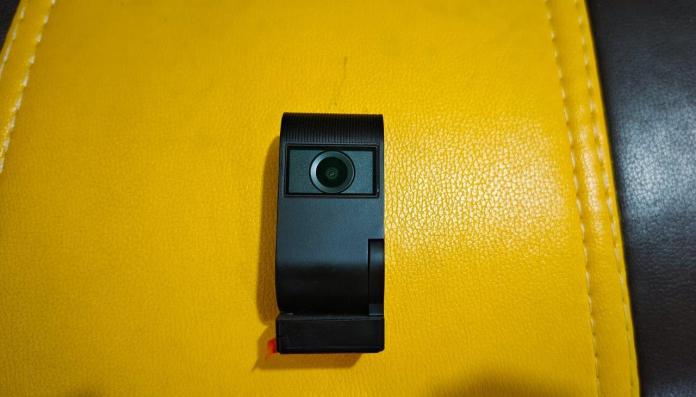
Viofo’s latest entry into their dashcam lineup, the VS1 Tiny Dash Cam, addresses a common issue with traditional models: their bulky design often occupies too much space on the windshield, potentially obstructing the driver’s view, especially in cars with smaller windshields. This compact dash cam is a boon for vehicles with limited windshield real estate.
While there are other compact options on the market, many fail to meet the height requirements of most vehicles. Viofo’s innovative VS1 model offers an excellent solution, alleviating visibility and space concerns with its pocket-sized design. To achieve such a compact form factor, Viofo opted to eliminate the rear screen, making the device as convenient as possible.
I tested the Viofo VS1 dashcam to evaluate its performance. Below are my comprehensive insights on the Viofo VS1 Tiny Dash Cam. Let’s dive into the review.
Viofo VS1 Tiny Dash Cam: Price and Availability
The Viofo VS1 Tiny Dash Cam is priced at $149.99 / £134.95 but is currently available for $109.99 / £114.35, thanks to a $40 discount from Viofo. It can be purchased through Viofo’s US and UK websites. The package includes several accessories, such as an SD card, a USB Type C cable, and a hardwiring kit for permanent installation, among others.
Viofo VS1 Tiny Dask Cam: Unboxing
Viofo VS1 Dash Cam Pros
Compact design suitable for any car.
Decent video and audio quality.
Intelligent voice control enhances user experience.
5MP Sony Starvis 2 image sensor for superior image quality.
Easy connectivity with both plug-in and hardware options.
Cons:
Limited to a maximum video resolution of 2K 1440p.
No preview screen on the rear side.
Viofo VS1 Dash Cam: Design and Build
My unboxing experience with the VS1 dash cam was highly positive. The design truly stands out for its compactness; it’s so small that it fits easily in the palm of my hand. The build quality, featuring hard plastic, feels premium and durable. Diverging from other Viofo models, the VS1 showcases a 180° rotation capability,
The overall design of the dash cam is impressively compact and lightweight, making it comfortable to hold without feeling cumbersome. On the front, it features a camera lens coupled with a movable joint, allowing for up to 180° rotation. This flexibility ensures you can capture the road at the ideal angle. The rotating design also enables the dash cam to double as a vlogging camera, recording crisp and clear videos.
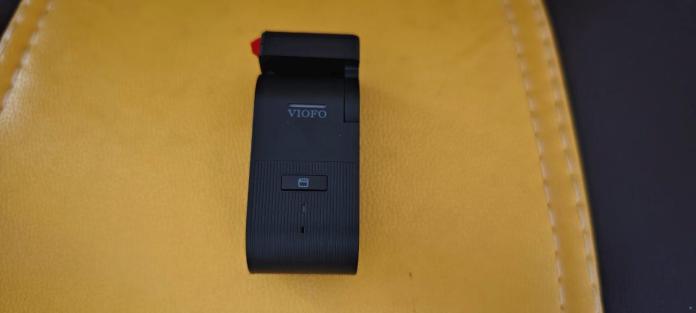
For mounting, it comes with a standard 3M sticky pad on the bottom, ensuring secure attachment to your vehicle. On the left side, there’s a convenient mic on/off button alongside an SD card port, while the right side houses a USB Type C port for powering the camera.
The Viofo VS1 model stands out for its compactness, measuring just 1.31 inches in width and 3.03 inches in length, positioning it as one of the smallest and lightest dash cams available. It lacks a rear screen, necessitating the use of Viofo’s app for live previews. Additionally, all recordings can be reviewed via a micro-SD card, offering a convenient way to manage your footage.
Viofo includes an array of accessories with the dash cam right out of the box: a charger, a USB-C data cable, a mount sticky pad, a trim removal tool, windshield static stickers, and a 32GB Viofo memory card. For those seeking a more permanent setup, Viofo also offers a hardwire kit and a Bluetooth controller, which are available for purchase separately.
Viofo VS1 Dash Cam: Key Features
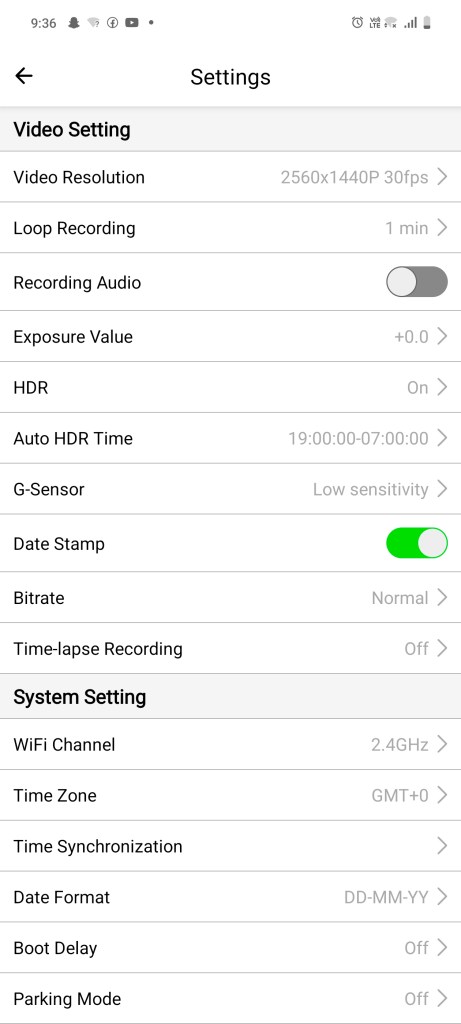
The Viofo VS1 boasts a 5.12MP IMX675 sensor, enhanced by Sony Starvis 2 technology, capable of recording video up to 2K 1440p at 30fps. It supports high dynamic range (HDR) to improve image quality, balancing bright and dark areas for clearer visuals. The lens automatically adjusts to lighting conditions, ensuring detailed captures in various environments, from night drives to tunnel transits.
With a 140° viewing angle and an F/1.8 aperture, the lens offers a wide and clear view of the road. Intelligent voice command support enables hands-free operation, allowing for photo capture, recording control, and WiFi toggling, among other functions, without distracting from driving.
The dash cam supports dual-band 2.4GHz and 5GHz WiFi for swift and secure data transfer, facilitating easy video previews and sharing via the Viofo app.
A notable feature is the 24/7 parking monitoring, activated with the HK5 hardwire kit. This feature protects your vehicle in your absence, initiating recording upon motion detection and capturing video from 15 seconds before to 30 seconds after the event. It also includes a G-sensor for recording during sudden impacts or collisions and supports time-lapse recording at up to 10fps without audio to conserve SD card space.
Viofo VS1 Dash Cam: VIOFO Companion App
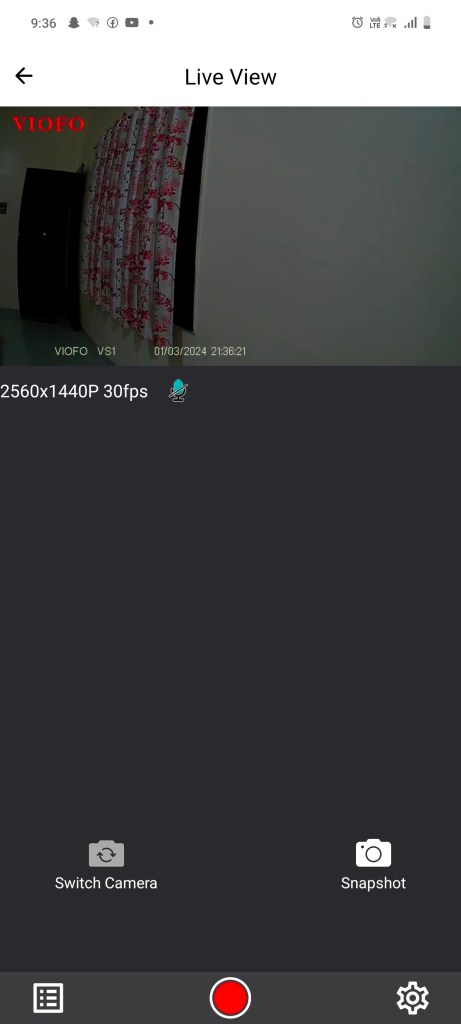
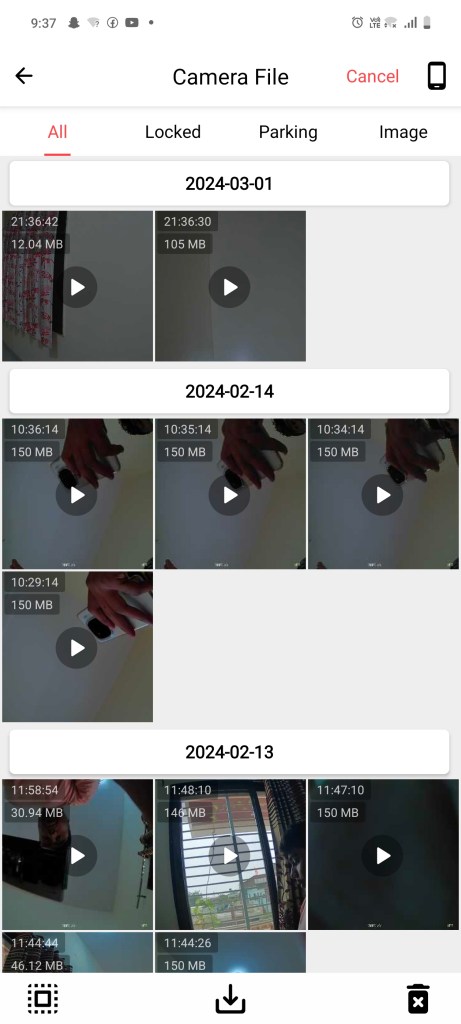
In lieu of a physical preview screen, Viofo offers the Viofo app as a solution. Available for both Android and iOS, the app allows users to preview, share, and download recorded videos and images. The footage also displays essential details like date and time on the screen’s bottom right corner, enhancing user experience and video management.
Viofo VS1 Dash Cam: Performance
Viofo provides two options for powering the dash cam: a plug-in option for easy access and a hardwire option for a more permanent setup. I chose the plug-in method for its simplicity. It’s advisable to use the static sheets included in the package for mounting the dash cam, rather than applying the sticky pad directly to the windshield.
Setting up the Viofo VS1 dash cam was straightforward. After inserting the SD card and powering on the device, a quick press of the SD card button activated the recording and enabled WiFi. This allows for easy connection to a smartphone for live previews, given the absence of a built-in screen on the dash cam. Alternatively, the SD card can be inserted into a laptop to access the recordings and images.
After using the Viofo VS1 dash cam for about a week, I was notably impressed by the quality of the footage. It captured every detail of the surroundings with clarity, from trees and road signs to vehicle numbers. The Sony Starvis 2 image sensor ensures a clear view of both the road and, when the lens is rotated, the cabin, providing both safety and peace of mind.
Awarded to products with an average rating of 3.75 stars or higher, the AndroidGuys Smart Pick recognizes a balance of quality, performance, and value.
Products with this distinction deserve to be on your short list of purchase candidates.
Final Thoughts
The Viofo VS1 dash cam, with its sleek, compact design and advanced Sony Starvis 2 image sensor, distinguishes itself as a standout option in the dash cam market. It’s well-suited for any vehicle, regardless of windshield size, and it doesn’t obstruct the driver’s view.
The absence of a rear screen is a minor drawback, but the VIOFO companion app effectively compensates for this by allowing users to preview, share, and download footage easily, thanks to the support for WiFi 5GHz.
Overall, the Viofo VS1 ticks almost all the boxes for features within its price range. Offering a compact design, high-quality imaging, WiFi support, a user-friendly app, and more, all for just $109.99, it represents a comprehensive package for anyone in the market for a dash cam.
Google’s latest Feature Drop for Pixel devices is rolling out, packed with enhancements aimed at making your Pixel experience even smoother and more integrated into daily life. Here’s what’s new across Pixel Phones, Watches, and Tablets.
For Pixel Phones:
Call Screen Enhancements: The Call Screen feature now includes a “hello” chip for silent callers, prompting them to speak up. Google Assistant can now also inform callers to wait if you can’t pick up immediately.
Direct Instagram Sharing: Capture and share 10-bit HDR videos on Instagram Reels and upload Ultra HDR photos directly to your feed, leveraging your Pixel’s camera capabilities.
Circle to Search on Pixel 7: Previously exclusive to Pixel 8, Circle to Search is expanding to Pixel 7 and 7 Pro. Access Google Search directly from any app by circling or highlighting content without app switching.
For First-Gen Pixel Watch:
Advanced Workout Features: First-gen Pixel Watch users now get Pace Training and Heart Zone Training, complete with haptic and voice cues for pace and heart rate zone management. A redesigned workout UI and new auto-start/stop features for various exercises enhance the experience.
Fitbit Relax App: The Fitbit Relax app for guided breathing exercises is now available, helping you find moments of calm throughout your day.
Public Transit Directions: Google Maps on Wear OS now provides public transit directions directly on your Pixel Watch, including real-time departure times and transit options.
For the Pixel Portfolio:
Selective Screen Sharing: App screen sharing allows you to share specific apps instead of your entire screen during video calls, available on Pixel Tablet, Pixel Fold, and Pixel 5a with 5G and newer.
Easy Device Pairing: A new pairing feature streamlines connecting previously used Bluetooth accessories and Fast Pair devices via the Connected Devices settings.
Google Docs Markups: Handwrite annotations in Google Docs using your finger or stylus on your Pixel device, offering a range of tools for more flexible document review.
Improved Toolbar on Pixel Tablet: The Gboard voice toolbar minimizes the digital keyboard into a toolbar when voice input is activated, freeing up screen space for multitasking.
These updates begin rolling out today and will continue over the next few weeks, enhancing productivity, health tracking, and overall device integration into your daily routine.
With every update, Android introduces a new set of features. Some are clearly picked up as the most important improvements, and they get talked about the most. However, there are also smaller updates that go unnoticed but that improve the day-to-day user experience for an average user.
This article will go over some of those smaller features that users may not even be aware of. These solve real problems, and once they start using them, it’s hard to remember how you managed without them in the first place.
Photo Picker
The photo picker is such a small addition to the user interface that many users didn’t even notice it. It appears as a menu when installing a new app with access to your media. In this menu, a user can choose if the app will have access to all of their media or just to the photo gallery.
Before the introduction of Photo Picker, the default setting was that the app had access to all of your media if it needed media to operate. This was a great privacy concern, and Android finally got around to fixing it.
Flashing Notifications
Your phone’s camera and screen can now flash when you get a notification. This is a useful feature for those who need to check their notifications in a noisy environment and want to be alerted about them. For instance, Bitcoin jackpot sites and other gambling sites often have notifications for every turn, spin, win, and loss. Using flashing notifications instead of noise allows users to stay alert without having their phones go off too often.
To turn the feature on/off, go to Settings -> Display -> Flash notifications -> Toggle on Camera Flash and/or Screen Flash. It’s also possible to choose the color for the screen flash.
Customizing Lockscreen
One of the biggest changes from the previous Android version is only about aesthetics. For users who want to create a certain aesthetic with their phone, this is an important feature that was too often overlooked. Lockscreens are now more customizable than before, allowing users to create a set of screens that fit different purposes.
The lock screens that have come out with the latest operating system version aren’t that special. It’s up to the talented users to develop better ones and take advantage of the new features.
Charging Pill
Another new feature that came out with the latest Android update is a purely aesthetic change, but one that’s very much loved by the users who have noticed it. When you plug in the charger, the shape of the battery indicator changes to a round pill. The color of the pill is dynamic and changes based on your wallpaper.
This may not seem like much, but the small touches create an aesthetic of a phone and its operating system. When designing this small UI feature, someone took the time to make it look nice and smooth, even if many users won’t even notice it.
Manufacture Date
Many missed this change altogether, but it’s a useful addition to the user interface. The users can now check the date or at least the year when their phone was manufactured. This will tell you about the series from which it comes, and it can have repair ramifications.
To look at the date of manufacture, go to Settings > About Phone> Model. You’ll also find the serial number, hardware version, and exact phone model. These options were there before, and the date is a new addition.
Battery Charge Cycles Count
The lifespan of a phone battery is measured in the charge cycle. An average battery has a lifespan of 500 charge cycles. This means that the phone can drain the battery and fully recharge it 500 times before it’s time to get a new one. However, most users don’t use their phones that way, and the battery is seldom drained and rarely charged fully.
The users couldn’t keep track of how many charge cycles they were on after a while. However, a new Android feature deals with this issue by adding this info to the interface. Apps that check your battery health will now display the number of cycles as well.
Separate Volume for Rings and Notification
This hasn’t been an option for a long time, and every time you change the volume on your ringtone, it also changes it for notifications. Many users found this inconvenient because they wanted their phone to stay silent except for the calls or the other way around.
The latest version of Android created separate options. It also changed the look of the mute icon. It’s now a crossed-out speaker and used to be a bell.
Partial Screen Recorder
Partial screen recorder is a system app that does what it sounds like. It allows users to take a screenshot or record the screen but capture only a portion of it. This wasn’t available at first, but it was a widely sought-after feature because it protects users’ privacy and has countless applications.
Despite its simple name and premise, the app does more than that. Mainly, it can capture parts of the screen taken by a particular app, regardless of the portion of the screen it actually uses. It’s perfect for work calls and meetings that require one to stream their work live while keeping the rest of the phone private.
Repair Mode
Repair mode was added during one of the latest updates to the Android 14. It’s available at the top menu, alongside the airplane mode. It does exactly what it seems – puts the phone into a special mode of operation made for repairs.
It gives the user peace of mind while their phone is repaired. While using the phone in this mode, none of your phone’s private and sensitive portions will be available, and the IT team will still be able to access everything they need to make repairs. Some Samsung phones already had this option, and now it’s available to all Android users.
Better Way to Find Your Device
The Find My Device app, which is used to locate missing devices, has undergone many changes recently, and they are suited to the overall system changes. Find My Phone will support an even wider range of devices and allow you to find your phones and accessories using other Android devices in the network.
Some of the bigger devices, such as bikes and tiles, are now equipped with tags that can be used with the app. Apple used to be a leader in this field, and Android has finally started to catch up.
A Changed Quick Access Landscape
The quick-access menu has been redesigned, and Android already pushed it, but it is not available for all users at once. The major changes will come when the devices are in the landscape mode. The new design is a product of much thought and effort, making overall usage more intuitive and easy.
What Google showcased is quite similar to Nothing OS, where when in landscape orientation, the tiles appear to the left and notifications on the right. It gives the menu a slicker look and is easier to follow at a glance.
PDF files are everywhere. They’re used for everything from school assignments to business reports. Why are they so popular? Because they keep the same format no matter where you open them. But sometimes, you need to make changes to these PDFs.
That’s where PDF editors come in. They let you tweak and change your PDFs easily. This article will look atPDF editor free download for Windows & Mac. It’s a tool that makes editing PDFs simple and fun. So, if you’ve ever struggled with a PDF file, keep reading. We’re going to show you how to make it a breeze.
Part 1. What Is a PDF Editor Free for Download
A free PDF editor is a tool you can use without paying. It lets you change and fix things in PDF files. Imagine having a magic wand that can edit words, add pictures, and even move things around in a PDF. That’s what these editors do. They’re important because they make working with PDFs easy. You don’t need to print and scan documents to make small changes. Instead, you can do it all on your computer.
These editors boost how much you can get done. They save you time. Say you have a PDF form to fill out. Instead of printing it, filling it in by hand, and scanning it back, you can type directly into the PDF. It’s quicker and looks neater. Plus, it’s super helpful for businesses and students who use PDFs.
Some people think that free PDF editors aren’t good. They worry they won’t have all the features they need. But that’s not true. Many free editors are really good. They have lots of features, like adding text, signing documents, and even combining different PDFs into one. So, you can do a lot without spending any money.
Key Features in a Free for Download PDF Editor
There are some must-have features of a free for download PDF editor:
Text Editing: You should be able to add and change text easily. This lets you fix typos or update information.
Image Insertion: Adding pictures to your PDFs. This is great for reports or projects where visuals are key.
Annotation Tools: These are tools for marking up the PDF. Think of highlighting text or adding notes. They’re super useful for studying or reviewing documents.
Document Security: Keeping your PDFs safe is important. Look for features like password protection. This keeps your information secure.
Lastly, changing PDFs to other file types is useful. Sometimes, you need your PDF as a Word document or a JPEG image. A good editor can switch between these without any trouble. This flexibility means you can use your PDFs how and when you want. However, PDF conversion may be an advanced feature that requires a subscription to the premium paid version of the free-for-download PDF editor. Consider your specific needs when making a selection.
Part 2. Factors to Consider When Choosing a Free PDF Editor
Picking the right free PDF editor isn’t just about features. Here are some key things to keep in mind:
Software Reliability: You want a PDF editor that won’t crash or lose your work. A reliable one works smoothly and keeps your documents safe.
Ease of Use: It should be easy to figure out. You don’t want to spend hours just trying to edit a line of text. A good editor is straightforward and user-friendly.
Feature Set: Make sure it has the features you need. Basic things like text editing, adding images, and making annotations should be there. But also look for extras like merging PDFs or adding signatures.
Customer Support: Sometimes, you might need help. Good customer support means you can get answers fast. This is helpful, especially if you’re new to PDF editing.
Community Feedback: See what other users are saying. Good reviews and positive feedback mean the editor is trusted and works well.
Software Updates: Regular updates mean the editor stays current and improves over time. It also means any bugs or issues get fixed quickly.
Compatibility with Different File Formats: The editor should work with different types of files, not just PDFs. Sometimes, you might need to convert a PDF to a Word document or an image file. A versatile editor can handle this.
Remember, the best PDF editor for you depends on what you need. Some people might need lots of advanced features. Others might just want something simple and easy to use. Think about what you’ll use it for and pick the best fits your needs.
Part 3. How To Edit PDFs for Free
Now that you’ve explored various tips for selecting a free PDF editor, you probably have your preferred choice. Let’s proceed to the next topic, where we’ll guide you on how to edit PDF documents using a PDF editor free for download. For illustrative purposes, we will use Wondershare PDFelement, a straightforward and user-friendly PDF editor.
Step 1. Open PDFelement
First, open the PDFelement software.
Image File Name: pdf-editor-free-download-1.jpg
Alt Text: open pdfelement
Step 2. Open a PDF File
Click “Open File” to pick the PDF you want to work on. You can choose a file from your computer.
Image File Name: pdf-editor-free-download-2.jpg
Alt Text: open pdf
Step 3. Edit Text
To edit text, click on the “Edit” button. Then, just click on the text in the PDF. You can type new text, delete, or change what’s there. It’s really like editing a Word document.
Image File Name: pdf-editor-free-download-3.jpg
Alt Text: pdfelement edit text feature
Step 4. Insert Images
Want to add a picture? Click“Add Image” and select the photo you want. You can move and resize it easily.
Image File Name: pdf-editor-free-download-4.jpg
Alt Text: pdfelement add image
Step 5. Use Annotation Tools
For highlighting or adding notes, click on the “Comment” tab. You can highlight text, add sticky notes, or draw on the PDF here.
Image File Name: pdf-editor-free-download-5.jpg
Alt Text: add comment or annotation
Step 6. Save Your Document
After editing, don’t forget to save your work. Click on “File” and then “Save.” It’s a good idea to save often while you work.
Image File Name: pdf-editor-free-download-6jpg
Alt Text: pdfelement save document
Note: When saving your PDF, keep in mind that PDFelement may add a watermark to the document.
Tips for New Users
Here are some techniques that new users should consider:
Spend a bit of time clicking around to see what each button does. Don’t be afraid to try things.
Learn a few keyboard shortcuts. They save time. For example, ‘Ctrl + S’ to save.
You can add your most-used tools to the toolbar. This makes them easier to access.
Experiment with features like OCR or PDF conversion. They can be really handy.
Conclusion
In this article, we explored free PDF editors, focusing on PDFelement. It is easy to use, has useful features, and is great for beginners and experienced users. From editing text to securing documents, PDFelement does it all smoothly. Give PDFelement a try, and you’ll see how it makes working with PDFs easier and more fun. It’s a great tool that can handle all your PDF needs.
EDITOR NOTE: This is a promoted post and should not be considered an editorial endorsement