Home Blog Page 229

reMarkable 2 Review

Digital notebooks are often geared towards productivity, and the reMarkable 2 is no exception. It’s a digital notebook designed for those seeking a digital alternative to pen and paper. Unlike other tablets, the reMarkable 2 caters to a unique niche with several distinctive features. This black-and-white tablet allows me to write and take notes without distractions. It also offers a handwriting-to-text conversion feature, which greatly enhances its capabilities.

Unlike Android tablets and iPads, the reMarkable 2 is specifically designed for writing, taking notes, and reading e-books, excelling remarkably in these areas. This paper tablet lacks both a Play Store and a web browser. Its minimalist monochrome display and clean interface prioritize writing, allowing you to focus on what truly matters.

After using the reMarkable 2 tablet for a month, I am convinced that it is one of the best e-readers for those looking to take notes or write a comprehensive novel without distractions.

reMarkable 2 Pros

  • Slim, lightweight design
  • Responsive stylus input 
  • Impressive writing feel 
  • Longer battery life 
  • Integrates with OneDrive, Google Dive, and Dropbox 
  • Can convert handwritten notes to text 

Cons 

  • No apps
  • No ingress protection 
  • No backlight
  • Costly

reMarkable 2: Price and availability 

The reMarkable 2 starts at $279 and is now available globally through reMarkable’s official website and other authorized retailers. However, accessories such as a stylus, folio case, and type folio will incur additional costs.

The matte black stylus, which includes a built-in eraser, is priced at $129. Alternatively, you can choose the gray pen without an eraser for $79. The premium folio magnetic case and the type folio keyboard case, which facilitates note-taking, range from $79 to $200 in price.

A complete set with the reMarkable 2, including the Marker Plus and Type Folio Keyboard, totals over $627. Although it is more expensive than an iPad, it lacks the apps and browsing capabilities typically available on other tablets.

reMarkable 2: Unboxing

reMarkable 2: Design 

When I unboxed the reMarkable 2, I was immediately struck by its eye-catching slim, lightweight, and sleek design. The dark gray, matte-finished border looks quite premium, and the fully anodized aluminum chassis is comfortable to hold and use. Its curved, rounded edges enhance grip and prevent slipperiness.

Regarding its dimensions, the e-note is just 4.7mm thin, which is thinner than its predecessor, the reMarkable 1, at 6.7mm. Although the reMarkable 2 weighs slightly more at 403.5 grams compared to the reMarkable 1’s 350 grams, it doesn’t feel heavy or bulky. The weight is perfectly balanced.

The off-white back, prominently featuring the reMarkable branding, adds a stylish finishing touch. The reMarkable 2’s asymmetrical design enhances its usability. A notable improvement is the addition of a USB-C port for charging and a new, clicky power button on the top. While it lacks physical page turn buttons, it supports touch, allowing users to turn pages with a simple swipe while reading.

Although having ingress protection would make the tablet more versatile and adaptable to various conditions, the reMarkable 2 unfortunately lacks water and dust protection, which is slightly disappointing. However, the folio case, which magnetically attaches to the e-note, provides an extra layer of protection when not in use.

reMarkable 2: Display 

Taking notes on the reMarkable 2’s large 10.3-inch monochrome, glare-free display is an absolute joy. The E-INK Carta powered screen, with its 1872 x 1404 resolution and 226 ppi pixel density, renders every text sharp and clear. From the moment I started using the e-note, I was impressed by its lightweight design and ease of handling. I can comfortably hold the reMarkable 2 with one hand and take notes with the other without any strain.

The device’s chunky bezels might look a bit unusual, but they provide ample space to rest my thumb while holding it, which enhances the comfort. The absence of branding on the front side gives the reMarkable 2 a clean, refreshing appearance.

The e-note supports only the two most commonly used file formats: EPUB and PDF. I tested the display by importing some high-graphic PDFs to assess the image quality. The texts appeared exceptionally crisp, and high-resolution images looked quite clear. After a month of use, I have not encountered any issues with the screen.

The only drawback is the lack of a backlight on the reMarkable 2. As a result, it cannot be used in dark conditions.

reMarkable 2: Features and Performance 

The reMarkable 2 is equipped with a 1.2GHz dual-core ARM processor that allows you to swiftly switch between notes. It also features 1GB of RAM, 8GB of internal storage, and WiFi 5GHz connectivity. Out of the box, it runs on the Codex operating system, a Linux-based platform specifically designed for low-latency digital paper displays.

The tablet UI of the reMarkable 2 is very user-friendly, enabling easy navigation for anyone. The taskbar on the main home page allows you to create a new notebook, folder, or quick sheet. Below the taskbar, you’ll find the files list, and a menu tab on the top left side that lets you organize the homepage and access the tablet’s settings. The reMarkable offers dozens of notebook templates—including lined, grid, blank, margin, piano, and many more—that you can select based on your needs.

The reMarkable 2 features a 21-millisecond latency, enhancing the tap-to-screen inking time, which is impressive. I didn’t notice any significant delay while writing on the screen; it feels as natural as writing on a traditional notepad.

One of my favorite features is the handwriting-to-text conversion, which allows you to transform your handwritten notes into digital text, making it easy to share them quickly. While this feature didn’t work flawlessly with my messy handwriting, I am confident that with neater writing, the results would be excellent. Another notable feature is the ‘Read on reMarkable’ browser extension, which scans the blog post you are viewing and sends a text-only version directly to your reMarkable 2.

Besides taking notes, the reMarkable 2 can also be used for reading e-books. I thoroughly enjoyed my reading sessions on it, and I can assure you, it offers a reading experience comparable to that of a Kindle. However, you will need to import your own library since it does not come with a vast built-in store like Kindle’s.

The reMarkable 2 keeps all your files and PDFs in sync, allowing you to access them through the reMarkable apps for Android, iOS, and Windows. This creates a seamless ecosystem, ensuring you stay connected to your e-note, even when you leave it at home.

reMarkable 2: Stylus

The reMarkable 2 is compatible with two types of styluses: the gray pen, which does not have an eraser, and the black pen, which includes a built-in eraser. If budget is a concern, the gray pen is more affordable, but I highly recommend the Marker Plus with its built-in digital eraser for an enhanced experience.

The Marker Plus pen boasts 4,096 levels of pressure sensitivity. Using the pen is a delight—it’s extremely responsive for note-taking and quite capable in sketching. While I’m not a professional artist, I enjoyed drawing with the reMarkable’s stylus; my experiences were outstanding. I observed no lag while sketching. While it’s a fantastic tool for casual sketchers, I wouldn’t recommend it for professional artists.

Taking notes with the Marker Plus pen is incredibly enjoyable. While jotting down thoughts, I can easily switch between various writing tools like a ballpoint pen, pencil, fineliner, mechanical pencil, highlighter, marker, calligraphy pen, and paintbrush. I also appreciate being able to adjust the thickness and select from a range of color options—Black, Gray, Yellow, Pink, Red, Blue, Green, and White—to enhance clarity and organization in my notes. However, it’s important to note that due to the reMarkable 2’s monochrome screen, any colors other than gray and black will not display on the device itself but can be viewed in the reMarkable app.

The writing experience on the reMarkable 2 is truly exceptional. The paper-like screen mimics the feel of using a pen on paper, which feels incredibly natural.

reMarkable 2: Type Folio Keyboard 

reMarkable also offers a premium keyboard case accessory, the Type Folio, which replaces the on-screen keyboard of the reMarkable 2 with a physical one. Although not essential like the Marker Plus, the Type Folio is a valuable addition that transforms the tablet into a minimalist yet effective writing station.

The Type Folio keyboard features a unique three-layer design: the keyboard at the bottom, the tablet in the middle, and a protective cover on top. Available in black or brown, the leather-finished exterior gives the keyboard case a premium appearance and a smooth texture that feels great in hand.

The compact keyboard layout and remarkably slim design of the Type Folio impressed me greatly. It transforms into a full-fledged writing machine on the go, without the burden of excessive weight or other cumbersome factors. Surprisingly, the keyboard offers 1.3mm of key travel—more than many popular keyboard cases—making the typing experience extremely comfortable.

While writing some buying guide articles on the reMarkable 2 tablet with the Type Folio keyboard case, I observed two things. First, typing on this keyboard feels great; the keys are spacious and provide a decent amount of key travel. While it doesn’t match my ergonomic mechanical keyboard, it is better than many keyboard cases.

However, I noticed that the software isn’t fully optimized for use with the Type Folio on the reMarkable 2. For instance, typing on a blank page works well, but when switching to a lined page, the alignment of the typed text becomes disorganized and doesn’t stay within the lines, making the document look messy. I hope reMarkable addresses this in a future software update.

On the positive side, there is no noticeable lag between pressing a key and the corresponding letter appearing on the screen. reMarkable has done an excellent job here, providing a keyboard case with zero lag, giving it a competitive edge.

Another major advantage of the keyboard case is its connectivity. It doesn’t require WiFi, Bluetooth, or any wired connections; it simply connects to the reMarkable 2 using magnets that automatically activate the keyboard.

Overall, the reMarkable’s Type Folio acts as a modern typewriter, ideal for writing longer pieces without distractions. With a $200 price tag, which is roughly two-thirds the cost of the $279 reMarkable 2, this well-crafted folio case is a worthy investment.

reMarkable 2: Subscription 

reMarkable offers a monthly Connect subscription for $2.99/£2.99 that provides unlimited cloud storage and syncs your documents across apps. This subscription also includes additional features such as the ability to access and edit your notes, files, and PDFs across reMarkable’s desktop and mobile apps. Given its affordability, the reMarkable Connect Subscription is well worth considering for a seamless experience.

The reMarkable 2 also integrates smoothly with Google Drive, OneDrive, and Dropbox, enhancing its system compatibility.

reMarkable 2: Battery 

The reMarkable 2 is equipped with a 3000mAh battery and now includes a USB-C port for charging, a welcome upgrade from the traditional micro USB. E-Ink devices are known for their extended battery life, and the reMarkable 2 is no exception.

During my tests, the e-note lasted for an impressive 21 days on a single charge—seven days beyond the company’s claim of two weeks, which is remarkable. This marks a significant improvement over the reMarkable 1, which only lasted 3 to 4 days on a single charge.

Regarding my usage, I took notes daily, read a book, and wrote some articles, and still had about 10% battery remaining. This means you can easily achieve up to three weeks of battery life with normal usage.

Although reMarkable hasn’t specified the charging speed, it took me approximately 2 hours and 52 minutes to fully charge the battery from 0% to 100%—a bit lengthy, indeed. Overall, the reMarkable 2 offers outstanding battery life that keeps you going for weeks without the need to recharge.

reMarkable 2: Should you buy it? 

You should buy this if:

  • You want a large digital notebook that’s great for taking notes and sketching 
  • You want an e-note that allows you to work without any distraction 
  • You want an e-note that supports the keyboard case 
  • You want an e-note that lasts two weeks or more on a single charge

You shouldn’t buy this if:

  • You want a budget e-note 
  • You want Android apps support 
  • You need ingress protection

reMarkable 2: Verdict 

ReMarkable has done a remarkable job (no pun intended) with the reMarkable 2. After using it for over a month, I can confidently say that this is the ultimate tablet for writers and avid note-takers seeking replacements for traditional notepads.

There is simply no comparison to the reMarkable 2 when it comes to note-taking and sketching. The digital e-note provides a writing experience that mimics paper, which is nothing short of exemplary, and I applaud reMarkable’s efforts in this area.

The large 10.3-inch screen of the reMarkable 2 is ideal for writing and taking notes and doubles as an excellent e-reader, offering a reading experience similar to that of a Kindle. However, the absence of a backlight significantly limits its versatility. Without adequate ambient light, using the reMarkable 2 can be challenging—a point not so much a flaw as it is an area for improvement. The only real drawback I noted is the lack of ingress protection.

Initially, I was skeptical about how a digital notebook would fit into my workflow since it is primarily designed for note-taking. However, once I started using it, I couldn’t imagine a day without it. It has become essential for setting to-do lists, taking notes in meetings, reading books, and doodling—a pastime I greatly enjoy. The reMarkable 2 has enhanced my productivity in every aspect.

Overall, the reMarkable 2 is an excellent digital notebook, featuring a large, paper-like monochrome responsive display and a sturdy anodized aluminum chassis. Unique features such as ‘Read on reMarkable’ and handwritten notes-to-text conversion truly set this device apart. Its battery life is remarkable, lasting two weeks without the need for a recharge.

Although the reMarkable 2, with bundled accessories, costs more than an iPad and is certainly pricier, the value it delivers makes it well worth the investment.

Narwal Brings Freo X Plus to US and Canada

0

Narwal, a pioneer in home robotics technology, has launched the Narwal Freo X Plus. Priced competitively at $399.99 (USD) and $549.99 (CAD), this robot vacuum mop is noted for its powerful performance and advanced features.

Unmatched Suction and Mopping Capabilities

The Narwal Freo X Plus sets a new standard with its 7800 PA suction power, achieved through a cutting-edge U-shaped air duct design. The 60,000 RPM fan speed enhances its ability to lift dirt and debris effectively, establishing it as a top performer in its class.

Innovative Hair Management

Addressing common frustrations with vacuuming, Narwal introduces a Zero-Tangling Floating Brush, ensuring 99.56% hair capture without getting tangled. This feature is validated by top international firms, offering relief to those who struggle with pet hair and long human hair on their floors.

Enhanced Quiet Operation

With sound levels at just 71dB, the Freo X Plus operates significantly quieter than many of its competitors. This is a crucial feature for homes with pets, babies, or individuals working from home, ensuring a disturbance-free environment.

Advanced Navigation System

The integration of Tri-laser and LiDAR SLAM 4.0 technologies ensures meticulous object avoidance and precise cleaning. This system prevents the device from bumping into furniture and ensures it cleans close to edges and around objects without missing a spot.

Efficient Dust Management

Narwal’s first-of-its-kind self-contained dust processing system can hold up to 1 liter of dust, allowing users to forego frequent emptying for up to seven weeks. This system not only stores more but also compresses dust and debris to minimize the space it occupies.

Dual-Functionality for Thorough Cleaning

The Freo X Plus combines vacuuming and mopping in one movement. It’s equipped with a 280 ml water tank and controls the mop’s dampness effectively, covering up to 4,800 square feet on a single tank—ideal for large homes.

Purchase Information and Offers

The Narwal Freo X Plus became available for purchase on April 20, 2024. An early bird discount of $60 USD / $100 CAD can be applied using the code NARWALNEW001 at checkout. Available through Amazon and Narwal’s official websites for the US and Canada.

Narwal continues to innovate and expand its product lineup, affirming its commitment to providing efficient and smart cleaning solutions for homes around the globe. With the introduction of the Freo X Plus, Narwal assures its customers of cleaner spaces with less effort and more convenience.

GUNNAR Optiks Announces New Clear Pro Lens Technology

0

GUNNAR Optiks, a leading manufacturer of premium computer eyewear, has introduced its latest innovation – Clear Pro lens technology. This new offering aims to meet the specific needs of creative professionals by allowing for perfect color rendition while still minimizing digital eye strain.

Understanding Clear Pro Technology

Clear Pro technology functions similarly to a neutral-density filter used in cameras. This means it reduces light intensity without altering the colors that pass through. This development comes after more than a decade of research focused on color accuracy, minimizing digital eye strain, and enhancing visual comfort for those involved in visually intensive tasks.

Designed for Creatives

This advancement addresses feedback from visual artists who appreciate the benefits of traditional GUNNAR eyewear but need to maintain accurate color perception for their work. Whether editing photos, designing graphics, or any task requiring precise color management, Clear Pro allows professionals to view true colors and reduce exposure to harmful blue light by 20%. This combination is pivotal for those spending prolonged periods in front of digital screens.

The Arbor Collection Debut

Clear Pro is set to debut within the new Arbor Collection, which features stylish frames made from wood with a carbon fiber inner weave for added durability and lighter weight. The collection includes the Muir and Humboldt styles, now available on GUNNAR’s website and soon to be at select retailers, including Amazon.

Expanding Beyond Gaming Eyewear

With over two decades of experience in the optical industry, GUNNAR is shifting its research and development focus. The introduction of Clear Pro is part of this broader move to cater not only to gamers but to a wider range of users including professional creatives who also require protection from digital eye strain.

Health Considerations

According to the Vision Council of America, approximately 70% of U.S. adults suffer from digital eye strain due to increasing digital device use. GUNNAR eyewear is designed to combat all major side effects associated with digital eye strain such as headaches, dry eyes, blurry vision, and disruption to sleep cycles through blue light exposure.

As a pioneer in the field, GUNNAR continues to innovate with the aim of enhancing visual performance and protecting eyesight. Their products come doctor-recommended and are the only patented eyewear designed to alleviate symptoms of digital eye strain while improving overall eye health.

GUNNAR’s Clear Pro lens technology marks a significant step forward for professionals seeking the dual benefits of accurate color perception and eye protection.

Samsung unveils Galaxy A35 5G smartphone in the US

0

Samsung recently introduced two new entries in its latest Galaxy A series- the Galaxy A55 and Galaxy A35 in the UK and European markets. Now, Samsung has officially announced the Galaxy A35 for US markets.

Starting at $400, the Galaxy A35 is now officially available for purchase in the US via Samsung.com, Samsung’s retail stores, and other retailers. The smartphone is available in two color options- Awesome Lilac and Awesome Navy. There is no word on the Samsung Galaxy A55 US availability at this time. Samsung packs decent features in its $400 mid-range smartphone. Let’s delve into the details.

Starting with the processor, the Galaxy A35 is powered by Samsung’s in-house Exynos 1380 chipset coupled with 6GB of RAM and 128GB of storage which is further expandable up to 1TB. It is the same processor Samsung packed in the Galaxy A54 smartphone. However, the processor is powerful enough to tackle all your everyday tasks and casual gaming sessions. It runs on the latest Android 14 based on Samsung’s One UI 5.1 out of the box. As for the updates, the brand promises four major Android updates and five years of security patch updates. That’s quite impressive. Other brands hardly manage to offer a year or two software updates for mid-range smartphones but Samsung is offering straight four years of support which is great.

Like other mid-range smartphones, the Galaxy A35 also boasts a 5,000mAh battery with only 25W fast charging support. There’s also an IP67 water and dust-resistant rating support that protects the smartphone in wet weather conditions.

For the lenses, you get a triple rear camera setup at the back – similar to Samsung’s Galaxy S24 premium smartphone – featuring a 50MP primary camera paired with an 8MP ultrawide lens and a 5MP macro camera. The 13MP camera on the front lets you capture bright and crisp selfies.

The Galaxy A35 has a 6.6-inch Super AMOLED FHD+ panel with 120Hz refresh rate support. For the first time, Samsung armed the Galaxy A series devices with the Samsung Knox Vault security system that keeps the smartphone safe from malicious attacks.

At $400, Samsung is offering a pretty solid package. There are also some launch offers available that make the phone even more affordable. For more details head to Samsung’s official website.

Weekend Recommender: Essential Picks for Tech Lovers and Home Comfort Seekers

In our latest roundup, we’ve curated a selection of innovative products that span a wide range of interests and needs, ensuring there’s something for everyone.

From the tech-savvy individual seeking the ultimate in portable power solutions, to the homebody looking to create a serene and aromatic environment, and the adventure enthusiast in need of a reliable travel companion, our picks are designed to enhance your lifestyle with both functionality and a touch of luxury.

Join us as we delve into each product, exploring how they can enrich your daily routine, simplify your travels, and even enhance your relationships. Whether you’re in search of practical solutions or simply aiming to add a dash of enjoyment to your day, our Weekend Recommender has you covered.

UGREEN Magnetic Battery 10,000mAh Battery Pack with Foldable Kickstand

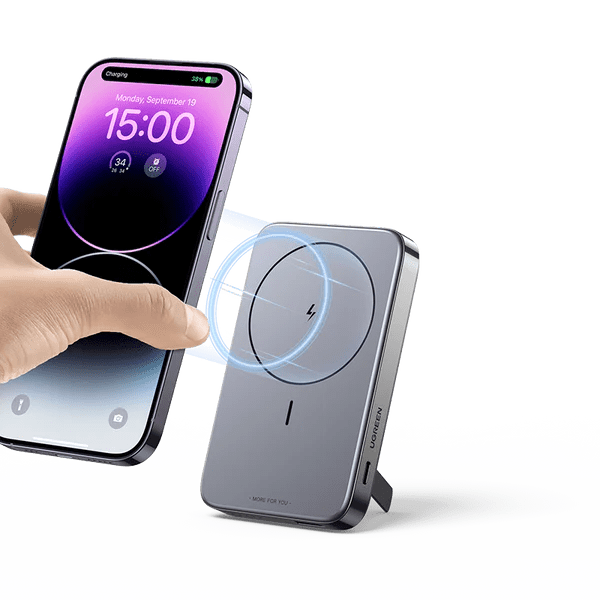
If you’re in the market for a versatile and convenient power bank, the UGREEN Magnetic Battery 10,000mAh Battery Pack with Foldable Kickstand ($70) is a must-have. This portable power bank features a magnetic design that easily sticks to the back of your phone for automatic charging. It also boasts a large 10,000mAh capacity, allowing for up to three full charges for your standard smartphone.

In addition to its wireless charging capabilities, this power bank can also charge up to three devices simultaneously, with support for fast charging. The built-in foldable kickstand is an added bonus, offering stable support for hands-free video calls and media streaming. The UGREEN power bank is compatible with most smartphones and tablets, ensuring universal usability.

With its compact and lightweight design, this portable charger is a perfect travel companion for anyone looking to stay powered up on the go. Plus, its LED power indicator makes it easy to monitor the remaining charge. Whether you’re a frequent traveler, a busy professional, or someone who simply values convenience, this power bank has got you covered.

Just Bee Candles

Just Bee Candles are a great addition to any home, offering a range of delightful scents to create a calming and aromatic atmosphere. The Lavender Fig candle, in particular, is a standout with its soothing blend of lavender, fresh fig, and earthy cedar and fern notes.

Perfect for anyone looking to create a relaxing ambiance in their home, these candles are made with natural soy wax, organic coconut oil, and 100% natural cotton wicks. The 13oz option ($28) provides up to 70 hours of clean burning, allowing you to enjoy the calming scent for an extended period.

With a variety of scents and sizes to choose from, Just Bee Candles are a great way to elevate your space and unwind after a long day.

BODEGAcooler

The BODEGAcooler Portable Car Fridge ($300) is an absolute essential for anyone who loves taking road trips, camping, or indulging in outdoor activities. With a 36-liter dual-zone capacity, this portable refrigerator and freezer combo keeps your food and drinks cold and organized, making it easy to enjoy your favorite refreshments while on the go.

The fridge comes equipped with convenient app control for easy temperature adjustments but it also features manual control. One of the standout features is the 15-minute fast cooling function, which quickly brings the temperature from 68°F to 32°F, ensuring that your items are always kept at the perfect temperature. Plus, this cooler has energy-saving modes, so you can rest assured that your car’s power won’t be drained.

The BODEGAcooler also includes a removable basket, drain plug, LED lighting, USB port, and a foldable handle with off-road wheels for extreme portability. Whether you’re driving a semi-truck, car, or RV, this portable fridge is a game-changer for anyone looking to add convenience and comfort to their travel experiences.

AUKEY MagFusion 3-in-1

The AUKEY MagFusion 3-in-1 ($119) is a versatile charging station designed to cater to the needs of iPhone, AirPods, and Apple Watch users. With 15W fast wireless charging for the latest iPhone models, MFW certification for Apple Watch charging, and a strong magnetic force to keep your devices securely in place, this charging station offers convenience and efficiency.

Additionally, the 30-degree adjustable viewing angle caters to different preferences, while the sleek design and premium materials add an elegant touch to your workspace or bedside table. The USB-C input port and plug-and-play setup make it easy to integrate into your daily routine, whether at home or on the go.

If you’re looking to streamline your charging setup and add a touch of style to your space, the AUKEY MagFusion 3-in-1 is definitely worth considering.

Talking Hearts for Couples

Whether you’ve been together for years or just starting out, Talking Hearts for Couples ($16) is the perfect way to spark meaningful conversations with your partner.

This set of 200 thoughtfully crafted questions and wild cards is designed for laughter, insight, and quality time. With 100 playful and 100 thoughtful questions, you’ll explore new facets of your relationship with every card you draw.

Perfect for road trips, vacations, or even cozy nights at home, these cards are a must-have for any couple looking to deepen their connection. And if you’re looking for a thoughtful gift for anniversaries, weddings, or just because, Talking Hearts for Couples is sure to be a hit. Get ready to strengthen your bond, one conversation at a time.

Puffer Hug – 418 Scarf

Looking for a versatile and cozy piece that can easily transition from a scarf to a vest? The Puffer Hug 418 Scarf ($68) is your go-to solution. Perfect for all seasons, this scarf/vest combo comes with fleece-lined deep pockets, a hidden zipper pocket, and snaps to transform it into a vest.

It’s unisex, measuring 66″ x 10″ and also comes with a heart keychain. Made from 100% Nylon on the exterior and 100% Polyester Fleece on the pocket lining, the 418 Scarf is easy to care for with hand or gentle machine washing.

Whether you’re headed to an outdoor event, chilly office, or on a dog walk, this versatile piece will keep you warm and stylish. Plus, the mission-driven Chicago-based brand behind the 418 Scarf, Puffer Hug, is dedicated to connecting the world one “Hug” at a time – so you can feel good about your purchase!

Hands-On: GameSir Nova and Nova Lite

0

The GameSir Nova and Nova Lite controllers are recent additions to the gaming accessory market, designed to serve various gaming platforms effectively. These controllers aim to improve the gaming experience with features tailored for specific platform needs, delivering versatility and strong performance at a reasonable price point.

Both controllers are constructed robustly with a focus on functional gaming features. The Nova series strives to provide quality and reliability for gamers who are seeking an affordable alternative to pricier models. Whether for use on a PC or a Nintendo Switch, the GameSir Nova and Nova Lite are equipped with features that meet different gaming needs, providing a smooth and responsive experience across various devices.

Let’s take a closer look at the two of them.

Design and Construction

The GameSir Nova and Nova Lite controllers emphasize functionality over aesthetics. Both models feature a durable plastic construction reminiscent of classic Nintendo controllers. The Nova is equipped with a 6-axis gyro for motion control and HD vibration motors, whereas the Nova Lite offers standard vibration feedback without the gyro.

A notable feature of the Nova is the anti-friction rings around the thumbsticks, which facilitate smoother movement, an element missing from the Lite version.

Features

Both controllers support Bluetooth, USB-C connectivity, and a 2.4GHz USB dongle connection (available separately for the Nova). They are compatible with Nintendo Switch, PC, iOS, and Android. The Nova is enhanced with RGB lighting on the thumbsticks and includes two programmable macro buttons, expanding its customization options.

The Lite model permits on-board customization of vibration intensity but lacks the additional features found on the Nova.

Setup and Performance

Setting up the controllers is simple, supported by on-board calibration and firmware upgrades via a smartphone app connected through Bluetooth. Performance tests across various platforms show that both controllers perform well, with the Nova excelling in polling rate and motion control precision, making it ideal for Nintendo Switch games.

The Nova Lite, while more basic, still provides dependable performance and responsiveness, particularly on PC.

GameSir Nova

  • Platforms Supported: Switch, Android, iOS, PC, and Steam.
  • Connectivity Options: Choose between Bluetooth, 2.4GHz wireless, or a wired connection for flexibility.
  • Controls: Features membrane ABXY buttons and innovative Hall effect sticks for precise movements. It does not have analog triggers but instead uses hair triggers for quicker responses.
  • Feedback: Equipped with a rumble motor in each grip for immersive gameplay and a 6-axis gyro for motion control.
  • Extra Features: Includes two customizable back buttons to personalize your gaming strategies.
  • Battery Life: Powered by a 1200mAh battery for extended play sessions.
  • Design: Retro White or Neon Teal.

GameSir Nova Lite

  • Platforms Supported: PC, Steam, Android, iOS, and Switch
  • Connectivity Options: Offers Bluetooth, wireless dongle, and wired connectivity.
  • Battery Life: Comes with a 600mAh battery.
  • Controls: Includes membrane ABXY buttons and Hall effect sticks for durability and precision, with the addition of analog triggers.
  • Feedback: Features a vibration motor in each grip for dynamic in-game feedback.
  • Design: Stellar White or Space Purple

Battery and Charging

The Nova Lite features a 600mAh battery with around six hours of playtime, while the Nova includes a 1200mAh battery and theoretically yields twice that. Both models are equipped with a multi-color battery charge indicator and an LED alert for low battery status.

Value and Pricing

With the Nova Lite priced at $25.99and the Nova at $35.99, these controllers offer a more budget-friendly alternative without compromising on essential features. This pricing strategy enhances their appeal, particularly when compared to higher-priced competitors.

The right model for you depends on your gaming needs and budget

Conclusion

The GameSir Nova and Nova Lite controllers provide robust performance, versatile connectivity options, and sturdy build quality at an accessible price point. Choosing between the two will depend on your specific platform preferences and gaming needs.

Both controllers are suitable for gamers looking for a dependable multi-platform option, with differences in feature sets that cater to various preferences, appealing to both casual gamers and those with more specific requirements.

5 Types of Behavior That Will Keep Your Phone Safe

0

Your phone is one of your most prized possessions. It’s not because of its cost; your computer, and probably even your console and TV, are more expensive than that. 

However, the content of your phone has some of the most important personal info. It also has you logged into apps that contain your bank accounts, private chats, and even medical records.

With that in mind, you need to learn how to reduce (or at least limit) risky behavior. These habits expose your most important device to risks and unnecessary harm. Here are five such risky behaviors to avoid. 

1 – Using VPN and Antivirus

The right selection of software can drastically improve the overall security of your phone. There are two major types of software that you should use to keep your phone safe: VPN and antivirus.

Using a VPN offers encryption, which means that it adds an extra layer of protection during all forms of communication that you engage in. Most IM services that you’re using already have their own encryption, but some extra won’t hurt.

The use of a VPN also helps you bypass geo-restrictions. This means that you can watch content unavailable in your areas and even avoid some local censorship (and algorithmic feed manipulation). Choosing a VPN may seem like a challenge, but the truth is that there are not too many VPNs specific for Android devices. Regardless of which you choose, Jacob O’Shea recommends you look for 256-bit encryption, fast and secure VPN protocol options, a kill switch, and a strong no-log policy.

You must also get an antivirus for your phone (not just your PC). The problem with this is that while a lot of people have heard of antivirus (and use it on their other devices), they don’t have it on their phones.

Keep all these platforms updated at all times since this is the only way they provide adequate protection.

2 – Paying attention to a network before you access it

While every guide will tell you to avoid using public networks, everyone knows that this is really not an option. Imagine sitting in a park or in a coffee place waiting for a friend who is late. Meanwhile, you get the idea to visit your favorite crypto casino and play a few spins while waiting for them to arrive. 

Now, you don’t want to use your SIM data, which means that you’ll look for free Wi-Fi to use. So, instead of imposing a restriction that you definitely won’t honor, here are a few tips that will help you pick the safest networks available.

First, you should read the name of the network and use intuition. Public parks and most coffee places have their own Wi-Fi, but it’s always named intuitively. Signal strength and some other factors will show you if it’s genuine or if something suspicious is taking place. 

You can also ask the waiting staff for a password. This is the best-case scenario where the network is locked, and the password is written on the menu or in the possession of a waiting staff. This is how you know that the network is legit. 

3 – Not letting anyone touch your phone

This is supposed to be common sense but there are a lot of scenarios in which these things get a bit blurry. 

Just remember that your phone has all your information on it, from your mBanking app and money-saving apps all the way to your private gallery and social media platforms (that you’re already logged into).

In other words, allowing someone to use your phone makes as much sense as allowing someone to use your toothbrush (you know, just this one time since they forgot their own).

The problem is that they’ll usually approach you with a sad story that you’re likely to fall for. They’ll tell you that they’ve just suffered an accident and need to contact their emergency (or call the first responders). They’ll play a sympathy card and ask you to give them the phone.

When they take your phone, they can either make a run for it or install a keylogger/spy app. This takes a few seconds, doesn’t appear in your menu, and could harvest enough information to ruin your life effectively. 

In these scenarios, there are only a handful of things you can do. First, you can always say “No!” If this doesn’t feel right, you can offer to be the one to call or send a message. If they refuse… even if they seem to be in distress, something’s fishy. 

4 – Understanding all types of phishing

Everyone knows about phishing, but there are various types, some of which you might not be familiar with. 

First of all, you have regular phishing, where someone sends you an email or a message to your DM with a link that you have to follow. Since most people read emails on their phone (and almost all of them chat via phone), this is a piece of advice that is more tightly tied to phone security than you may assume.

Second, you have the so-called smishing. This is a scenario where you receive this same email via SMS. The thing is that while this is supposed to be more suspicious (after all, who sends links via SMS) for a lot of people, this is (paradoxically) too weird to be suspicious. They assume that this is some sort of a bug since they usually don’t associate SMS with hackers (even if they do recognize that there are a lot of scammers present on this medium). 

Then, you have vishing. This is phishing via phone calls. Just think about it: if they convince you to follow a link or give your personal information (which is the main objective of most forms of phishing), they’ve completed their goal. 

Don’t make assumptions about what phishing is “supposed to look like.” There’s no such thing. 

5 – Keeping your phone in your front pocket

So far, we’ve mostly addressed hacking attacks. Even though we briefly mentioned that someone might ask to use your phone and then run away with it, the majority of that section focused on issues like installing a spy app on your phone. Now, let’s talk about the physical dangers of having your phone stolen or pickpocketed.

First, a lot of people keep their phones in their back pocket. This is a hazardous behavior, and just switching the phone to your front pocket will reduce the chance of it being pickpocketed. Sure, this is a hazardous form of behavior that you’ll somehow have to learn to avoid. 

Others carry their phones in their hand. This sounds like the most secure of ideas, but you overestimate the tightness of your grip, especially in scenarios where you don’t expect someone passing by (or riding on a Vespa) just to snatch it from your hand. If you did, you might clutch to it harder, but you don’t, and you won’t. 

Lastly, there’s a massive trend of people leaving their phones on their coffee shop tables or at a bar. It doesn’t take much to explain why this is a good idea and how easy it is for someone to snatch it from the table. 

You can’t afford to have your device fall into the wrong hands

Regardless of its physical or digital harm, the security of your device is one of the most important things for any modern person. Therefore, even if you don’t take extra steps to ensure the safety of your devices, just knowing what to avoid can already make a huge difference. 

EDITOR NOTE: This is a promoted post and should not be considered an editorial endorsement. AndroidGuys received compensation for the aforementioned content.

Please exercise caution when using a gambling or betting service which employs real money.

If you reside in a location where gambling, sports betting or betting over the internet or through an is illegal, please do not click on anything related to these activities within this post. You must be of proper legal age to click on any betting or gambling related items even if it is legal to do so in your country.

MediaTek Introduces New Dimensity 6300 Chipset for Mid-Range Smartphones

0

MediaTek has unveiled its latest chipset, the Dimensity 6300, designed to boost the performance of premium mid-range smartphones. Crafted using a 6nm process, this chipset features an octa-core configuration with two Cortex-A76 cores running at 2.4GHz and six Cortex-A55 cores at 2.0GHz.

The new Dimensity 6300 offers a 10% improvement in CPU performance over its predecessor, the Dimensity 6100+. It incorporates a Mali-G57 MC2 GPU and MediaTek’s UltraSave 3.0+ technology, which provides 13 to 30% more power efficiency in typical 5G sub-6Ghz conditions compared to other chipsets.

This chipset supports displays with resolutions up to 2520 x 1080 pixels and refresh rates up to 120Hz. It enhances camera functionality by supporting a 108MP main camera sensor and dual 16MP sensors, supplemented by advanced noise reduction technology for clearer images in low-light settings.

Gaming is optimized with MediaTek’s HyperEngine improvements, delivering up to 50% better GPU performance and smarter network connection management, ensuring seamless transitions between Wi-Fi and 5G for uninterrupted gaming experiences.

Additionally, the Dimensity 6300 features a 3GPP Release-16 standard 5G modem, enhancing international market compatibility, reducing design costs, and speeding up global market delivery. It offers enhanced features like up to 3.3Gb/s 5G downlink speeds and carrier aggregation, improving data throughput in varied network environments.

Why Does This Matter?

This chip is designed to make mid-range, or reasonably priced, smartphones work better and faster. It improves the phone’s processing speed by 10% compared to its previous version, which means apps and games will run smoother and quicker.

The Dimensity 6300 also uses less battery power while connecting to 5G networks, making your phone last longer on a single charge. It supports very high-quality displays and can handle extremely high-resolution cameras up to 108MP, allowing for clearer and more detailed photos, especially in low light.

For gamers, this chip ensures better graphics and smoother online gaming without interruptions. Plus, it’s equipped with the latest technology for fast 5G internet speeds, making browsing, downloading, and streaming much faster.

This new technology from MediaTek means that upcoming mid-range smartphones will be faster, more efficient, and more capable, all without breaking the bank.

Wacom One 13 Touch review

The Wacom One 13 Touch is a digital pen display tablet designed for artists, designers, and professionals who seek a direct, pen-on-screen experience for drawing, sketching, and navigating applications. It positions itself in the market as an entry-level to mid-range option within the digital art and design space, offering a blend of features that cater to both novice users and seasoned professionals looking for a secondary device.

Wacom, as a brand, has a solid reputation in the digital art and design space and is known for its high-quality drawing tablets and pen displays. The Wacom One 13 Touch, for its part, is designed to expand the accessibility of pen display technology to a broader audience. It’s a more affordable entry point, especially when compared to the high-end models like those in the Wacom Cintiq line. Its pricing and features position it an attractive option for beginners who are serious about delving into digital art. Likewise, established professionals seeking a compact and portable addition to their toolkit might also be interested in it.

The device supports connections to macOS, Windows, Chrome OS, and Android, making it versatile for various workflows and software preferences. However, it differentiates itself from purely standalone devices like the iPad by requiring a connection to a computer, positioning it as a dedicated tool for digital art creation rather than a general-purpose tablet.

Design and Features

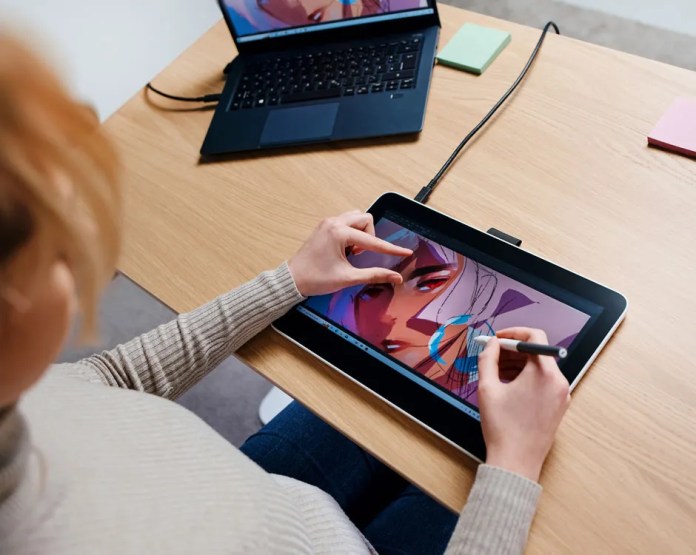
The Wacom One 13 Touch sports a lightweight design, tipping the scales at just under two pounds, making it rather portable despite its wired connection. It boasts a 13.3-inch display with a 1920 x 1080 pixel resolution, providing ample screen real estate for detailed work.

The screen’s matte, textured finish not only minimizes glare and fingerprints but also offers a tactile drawing experience reminiscent of pen on paper. A notable upgrade in this model is the single USB-C cable, simplifying the connection process and reducing clutter.

The pen, a critical component of tablets like this, operates without a battery, eliminating the need for charging and also contributes to its light weight presence. The nib is removable and replaceable, allowing customization of the drawing experience. The Wacom One’s pen offers immediate responsiveness with over 4,000 levels of pressure sensitivity, ensuring precision and ease of use.

Setup and Performance

Setting up the Wacom One 13 Touch is straightforward, thanks to its USB-C connectivity. However, some may encounter initial hiccups, such as display signal errors, which are often resolved. Between troubleshooting steps like driver reinstallation or switching USB ports, online support, Reddit, and the like, you ought to have no problems getting going.

Once up and running, the tablet delivers an exceptional drawing experience, with its high-resolution display and pressure-sensitive pen offering up smooth and accurate strokes. Touchscreen capabilities add convenience, though they can be disabled to suit user preferences.

Value

At a price point of around $500, the Wacom One 13 Touch is designed to be an affordable choice for digital artists and professionals. Although it doesn’t have all the fancy features of more expensive models like wireless connectivity and extra input options, it strikes a good balance between usefulness and affordability. The touchscreen and customizable pen make it more appealing, but it’s a bummer that it doesn’t have built-in angle adjustment. That, and the stand costs extra.

When you register your device, you unlock a treasure trove of creative and educational software designed to enhance your digital art and learning experience. This exclusive offer includes complimentary access to a suite of professional creative applications, ensuring you have all the tools you need to bring your artistic vision to life.

For the artist and designer:

  • Bamboo Paper Pro, Magma Pro Plan, Affinity Photo, Affinity Publisher, and Affinity Designer are all at your disposal, offering a wide range of functionalities from sketching to professional publishing.
  • Enjoy a 3-month subscription to Skillshare, where you can expand your creative skills through thousands of online classes.
  • Clip Studio Paint Pro further enhances your drawing and painting capabilities, with a 6-month license available for Mac and PC users, and a 3-month license specifically for Chromebook users.

For the student and educator:

  • Access the Kami App and Foxit PDF Editor for Education for a full year, enhancing your ability to edit, annotate, and manage documents in a digital environment.
  • A 3-month access to Explain Everything, Pear Deck, and Limnu offers interactive teaching and collaboration tools, perfect for enhancing educational engagement and creativity in and out of the classroom.

By registering your device, you not only enhance its functionality but also open up a world of possibilities for both creative expression and educational advancement. This comprehensive software package is designed to support and inspire users at every level, from novice artists to experienced educators, making it easier than ever to explore, create, and learn in a digital age.

General Observations

The tablet integrates well with major art programs and supports multiple operating systems, including macOS, Windows, Chrome, and Android, broadening its usability.

Color reproduction is solid to my untrained and novice eye, but I suspect professionals may still rely on calibrated displays for precise color work.

The lack of an eraser function on the pen and the extra cost for the stand are minor inconveniences compared to the overall benefits offered by the tablet. I’ve become accustomed to having an eraser button on other devices, I feel like it’s almost silly to not have one on a tablet designed for markup and graphics.

Pros

The Wacom One 13 Touch boasts several pros that make it an attractive option for digital artists and professionals, including:

  • Ease of Setup: The setup process, and its single USB-C cable, lead to a quick and straightforward connection to computers.
  • Responsive Pen: The stylus is highly responsive, offering over 4,000 levels of pressure sensitivity. Plus, the pen’s battery-free design means I never have to worry about charging.
  • Comfortable Drawing Experience: The tablet’s 1920 x 1080 pixel resolution display features a matte, textured surface that mimics the feel of drawing on paper, reducing glare and minimizing fingerprints. It feels natural to use this one, and you get used to it pretty quickly
  • Portability: Weighing just under two pounds it’s relatively easy to move around, despite its tethered nature.
  • Compatibility: The device works seamlessly with a broad range of operating systems, including macOS, Windows, Chrome, and Android, and integrates well with major art applications.
  • Affordability: Priced at around $500, the Wacom One 13 Touch presents a cost-effective solution for users seeking a high-quality drawing tablet. Beginners and professionals alike will find compelling reasons to purchase one of these.
  • Nib Customization: The ability to replace and customize the pen’s nibs allows users to tailor the drawing feel to their preference, providing a more personalized and comfortable user experience.

Considerations

  • Wired Connection: The tablet requires a wired connection to operate, limiting mobility and flexibility. If you’re accustomed to wireless devices, you may find this restrictive. If anything, I would love some offline app support for markups, sketching, or notetaking.
  • No Built-in Stand or Angle Adjustment: The Wacom One 13 Touch does not come with a built-in stand or offer angle adjustments.
  • Additional Cost for Stand: The stand, designed to support the tablet, is sold separately and adds extra cost to the overall investment. At $45, it’s considered pricey, especially given its limited functionality and lack of adjustability.
  • No Eraser on Pen: The stylus does not have an eraser end, a feature found in some digital pens. This omission might slow down the workflow for users who frequently switch between drawing and erasing modes.
  • Plastic Construction: The tablet’s build, primarily plastic, might not feel as premium as some of its higher-priced counterparts or compared to devices like the Amazon Fire Max, iPad, or higher-end Android tablets.
  • Bezels Around the Screen: The presence of significant bezels around the display might turn some away, especially if they’re used to edge-to-edge screens.
  • Initial Setup Challenges: Some users may experience difficulties during the initial setup, such as display signal errors. While these issues are easily resolved with troubleshooting, they might be frustrating and could deter less tech-savvy individuals.
  • Touchscreen Can Register Unwanted Touches: Although the touchscreen capability enhances the experience, it can also register unintended touches. While that’s not a big deal in some instances, it could frustrate users working on a detailed project.
  • Affordability: While the Wacom One 13 Touch is positioned as an entry-level device, its price point of around $500, plus additional costs for accessories like the stand, may still be considered steep for hobbyists or those on a tight budget. It could either be a great bargain or a lot to ask for, depending on the individual’s needs.
via Wacom

Conclusion

The Wacom One 13 Touch represents a sizable step forward for artists and designers seeking an immersive and intuitive digital drawing experience without breaking the bank. It balances affordability and functionality, and maintain Wacom’s industry-leading quality. It’s all of the things I needed it to be, particularly as a newbie in the field.

I found it has precision, responsiveness, and comfort, and the tactile drawing surface captured each stroke and detail with accuracy. While it might come with its set of limitations, such as the wired connection and the absence of an eraser feature on the pen, these are minor compared to the overall value and performance it delivers.

Once I got beyond the notion of what I thought the tablet would be and how it would work, I came to enjoy it quite a bit. I’ve long been in search of a great note-taking tablet for markup and sharing docs, and hoped this would be that. It’s not, but that’s Wacom’s fault as it was never positioned to be those things.

For beginners, the Wacom One 13 Touch offers a welcoming gateway into the world of digital art, providing a well-rounded platform to explore and develop their skills. For professionals, it serves as a reliable and portable companion, perfectly suited for bringing creative ideas to fruition or as a supplementary tool to a more extensive setup. Whether you are taking your first steps into digital creation or looking to expand your artistic arsenal, the Wacom One 13 Touch is a worthy investment.
Google’s Structural Changes to Closer Align Android with Hardware Teams in Name of AI

0

Google is introducing significant organizational changes aimed at streamlining decision-making processes and enhancing the development and deployment of its AI technologies and platform services. Sundar Pichai, CEO of Google, detailed these changes following the recent Cloud Next event, where Google’s advancements in AI tools and infrastructure were prominently featured.

Consolidation of AI Research and Development

Google is consolidating its AI model development teams under the Google DeepMind umbrella. This strategic move will combine the strengths of the Google Brain team and DeepMind’s researchers to accelerate the development of Google’s Gemini AI models. The focus will be on creating more advanced and versatile AI systems. This consolidation is intended to centralize compute-intensive tasks, simplifying the development process and enhancing the capacity to deliver more capable AI solutions.

Focused Mandate for Google Research

In addition to the changes in AI development, Google Research will now focus more on foundational and applied computer science research. This includes computing systems, foundational machine learning (ML) and algorithms, and the application of science to societal issues. This sharper focus aims to leverage Google’s historical strengths in computer science to pave the way for future technological advancements.

Enhancements in Responsible AI Practices

Google is also restructuring its Responsible AI teams, moving them closer to the core AI model development teams at Google DeepMind. This shift aims to improve the integration of responsibility and safety measures throughout the development cycle of AI technologies. Google is reinforcing its commitment to developing AI that is not only powerful but also trustworthy and transparent.

New Structure for Computing Platforms and Devices

Google is reimagining its approach to computing platforms for the next decade by integrating its hardware, software, and AI efforts into a new Platforms & Devices product area (PA). This PA will merge the capabilities of the Device Software Platform & Ecosystems (DSPA) and the Product & Experience teams. The restructured group aims to elevate the Android and Chrome ecosystems and accelerate innovation across Google’s product lines, including computational photography and on-device intelligence.

What Could This Mean for Consumers?

The recent organizational changes announced by Google are designed to streamline their operations and focus on integrating and advancing AI technologies. Here’s what this could mean for consumers:

  1. Faster and More Innovative AI Features: By consolidating AI research and development under Google DeepMind, consumers can expect quicker advancements in AI capabilities. This might lead to more sophisticated features in Google products such as enhanced natural language processing, better image recognition in Google Photos, or more intuitive AI-driven functionalities in other Google services.
  2. Improved Product Integration: The formation of the new Platforms & Devices product area suggests a more unified approach to how Google’s hardware and software integrate. For consumers, this could mean more cohesive user experiences across devices and platforms. Android and Chrome could see benefits like enhanced synchronization, shared features, and smoother operation between devices.
  3. Enhanced Trust and Safety: Moving the Responsible AI teams to be closer to the model development process indicates a stronger commitment to ethical AI development. For users, this could translate into AI products that are not only powerful but also safer and more transparent in terms of data handling and privacy.
  4. Better Consumer Products: With a focus on computational photography and on-device intelligence moving under the same organizational umbrella, consumers might see improvements in smartphone photography, smarter home devices, and more responsive AI applications that run directly on their devices without needing to communicate with the cloud.
  5. Continued Focus on Accessibility and Usefulness: Google’s reiterated mission to organize the world’s information and make it universally accessible and useful ensures that these changes aim to benefit a broad user base. This aligns with Google’s long-term goals to make information more accessible through intuitive, user-friendly technology.

Leadership and Organizational Updates

Rick Osterloh will lead the new Platforms & Devices PA, with Sameer Samat stepping up to oversee the Android ecosystem. Hiroshi Lockheimer will transition to advising on the integration while taking on new roles across Alphabet, including as the executive sponsor of Japan.

Commitment to Google’s Mission and Workplace Culture

Finally, Google is emphasizing the importance of focus and clarity towards its mission to organize the world’s information and make it universally accessible and useful. Sundar Pichai expressed the need for a workplace environment that supports vibrant discussions and innovation while maintaining professionalism and respect.

These changes are designed to help Google maintain its leadership in AI and technology while fostering an environment that accelerates both technological and collaborative innovation.