Home Blog Page 1075

Google wants to kill passwords forever…kind of

0

Google is partnering with DashLane on an open-source API project called OpenYOLO. It’s for Android developers and lets third party apps access passwords stored in password managers.

OpenYOLO

Standing for You Only Login Once, the project technically doesn’t “kill the password.” What it does do is make sure you don’t have to keep logging in to your apps and services. Password managers like 1Password and Dashlane help users create secure passwords and stores them for ease of use.

In a statement, Dashlane community manager said,

“In the future, we see this open API going beyond just Android devices, and becoming universally-implemented by apps and password managers across every platform and operating system.”

OpenYOLO streamlines this process by automatically linking logins for participating apps with your password manager of choice. Right now we don’t know which apps will use this API in the future, but Google hopes that developers will eventually make use of it on multiple platforms and operating systems, not just Android.

Sprint adds unlimited high-def video streaming with Unlimited Freedom Premium plan

1

Sprint on Friday debuted a variation on its recently introduced Unlimited Freedom rate plan. Priced at $80 per month, the new Unlimited Freedom Premium option gives customers unlimited calls, messages, and data, including high-definition video streaming.

The move likely comes as a direct result of customers who liked the idea of the Unlimited Freedom’s all-inclusive rate plan but not its data streaming. The $60 option does give consumers all you can eat talk, text, and data, but the video was dialed back to 480p.

Music streaming and gaming gets better with the Premium version, too. HD music streaming can be had at rates of up to 1.5 Mbps while streaming games clocks speeds up to 8 Mbps. This is considerably better than the normal Unlimited Freedom plan which offers 500kbps and 2Mbps, respectively.

Sprint’s Unlimited Freedom Premium cost $80 for one line of service and $140 for two lines. For a limited time, customers who sign up for the Unlimited Freedom plan will be upgraded to the Premium class at no additional cost. The promotion runs until October 31, 2016.

What I learned after a week using the 2013 Moto X

Most of the writers here at AndroidGuys change phones pretty regularly with the majority switching at least once a year. With my trusted Nexus 6, I probably have the oldest daily driver on the site as my device nears its second birthday. However, many smartphone users are not able to upgrade their phones as often as tech reviewers for reasons ranging from lack of funds to lack of interest.

After my friend broke his phone and rendered it basically useless, I found my original Moto X and lent it to him until he could get a new phone. Now, he has a new one, and the Moto X is back in my possession. This entire scenario made me wonder what it would be like to use a three-year-old phone as a daily driver. So I switched back to the Moto X for a week, and I am ready to share my experience. 

The Phone

The original Moto X was small when it came out 3 years ago, and today, it seems even smaller. Although the 4.7″ screen is identical in size to the current iPhone 6s’, the size of the phone is only slightly larger than an iPhone 4s. I am still impressed every time I look at just how much screen Motorola packed into a chassis this small.

Moto X feat image (FILEminimizer)At 720p, the resolution of the Moto X is laughable compared to the 2K or even 4K displays found on most smartphones today, but at a relatively small screen size, the lower resolution is not as noticeable.

Okay, so the screen has held up alright. What about everything else? 

I have always loved the way the Moto X sits in your hand while you hold it. The smaller form factor coupled with the rounded back and small dimple below the camera make it extremely comfortable to hold even when you have big hands like me. That is something lost with later versions of the X line. Of course, not everything about the Moto X build is great.

The Moto X is unapologetically plastic, and that might not always be a good thing. Yes, it has kept the weight of the phone low (although a phone this size wouldn’t be that heavy anyway), but long term durability and appearance are a different story.

Moto X side (FILEminimizer)My Moto X has been heavily used, and it has the battle scars to prove it. There are cracks in the plastic along the sides of the phone along with a small piece missing, and the back of the phone is dirty and discolored (thanks in part to the white color). Most of this could be fixed with a phone skin, but the fact is that the plastic build of the Moto X hasn’t held up great over the years.

The Performance

Anyone familiar with the Android scene in 2013 remembers that the Moto X was a severe departure from the normal flagships of the time. While most companies were focused on competing with spec sheets, Motorola went an entirely different route and built the Moto X with a drive towards experience.

The Moto X comes with a dual-core Snapdragon S4 Pro SOC and 2GB of RAM. Yes, I said dual-core, but don’t let that fool you. The Moto X comes with a custom build natural language processor and a contextual awareness processor that brought along some distinct features. Any phone specifications from 2013 will be wildly outdated now, but even in 2013, the Moto X packed lower-end hardware than pretty much any other flagship.

Moto X Moto Display 2 (FILEminimizer)I knew that the Moto X 2013 would feel sluggish compared to today’s phones, but I was actually surprised by how well it held up to my daily tasks. Yes, there were, of course, some stutters and a little bit of lag when switching between several apps at once, but nothing that I thought made using the Moto X annoying or difficult. Opening apps was quick, swiping to type with Google Keyboard was fluid, and scrolling through social media and webpages was surprisingly smooth.

I attribute much of this performance to Motorola’s nearly stock Android skin. The streamlined operating system looks as good today as it did when it came out. Moto did add some extra features to its Moto X, but they are well thought out and useful. The always listening assistant is still my favorite addition with the Moto X after all these years, and I think it is even done better than Google Now on its own.

A close second to the assistant is Moto Display, which we have seen used by other companies in more recent phones. This feature lights up the display when a notification comes in and allows you to interact with the notification without fully waking up your phone.

Moto X Lollipop (FILEminimizer)Unfortunately regardless of how stock the software may be, my AT&T branded Moto X is forever stuck at Android 5.1 Lollipop, which means that newer Android features and fixes will not be seen on this phone. I would love to see how well it would perform running the newest version of Android. The curse of buying any phone that isn’t a Nexus…

You didn’t find any problems with the Moto X at all? How much did Motorola pay for this write-up!?

Oh, don’t worry. The Moto X definitely has some problems. One of the annoying bugs that I ran across was that sometimes YouTube videos would just not play. Everything would load and the first frame would be there, but the video itself was just frozen. I thought this might be due to running an updated version of YouTube, but the experience was the same with the default version, too.

I also found that using the camera with the battery anywhere below 30% was grounds for the phone to power off. This happened regardless of whether you were using the camera app or another app like Snapchat. Ironically, you could power the phone back on and still have the same amount of battery left, but open the camera again and back off it goes! After a week with the Moto X, these are the only software bugs I would describe as annoying or frustrating.

Moto X battery (FILEminimizer)

Battery life is another stumbling block that has hindered the Moto X ever since it was announced. The 2200mAh battery was never enough to get the Moto X through a full day of heavy usage. Three years of battery decay later and the Moto X suffers just as much. I could usually get about 2 to 2.5 hours of screen time with the Moto X before it starts begging to be plugged in.

Just like when it came out, the Moto X will not be winning any benchmarking awards. But I was surprised with the performance it showed. Basic tasks were done fairly smoothly with only an occasional stutter or lag. As expected, there are some weird bugs popping up and battery life still suffers, but none were bad enough to fully ruin the experience.

 The Camera

If any of you have ever owned a Moto X, then you should know exactly what I am about to say. The camera is not good…at all. Even when it was first released, camera quality was probably the biggest complaint talked about by reviewers. Detail is poor, low light is non-existent, and overall image quality is just bad. I’d love to say that software updates fixed those problems, but that is not the case.

Moto X camera (FILEminimizer)The Moto X comes with a feature that allows the camera to be launched “quickly” with a double twist of your wrist, and while it did launch fairly fast in 2013, the speed would be considered slow today. I wish I had something good to say about the Moto X’s camera, but it wasn’t good when it came out and hasn’t aged well, either.

Conclusion

So I’ve used the three-year-old Moto X for a week, I must be dying to get back to a newer phone, right? Actually, that’s not fully true. Yes, I miss the bigger screens and better cameras of newer smartphones, but returning to the Moto X helped me remember why I call it my favorite phone of all time.

Even after three years, it is a pretty quick phone. The software is still some of the best available (I’d really be missing this if I wasn’t going back to a Nexus), and Moto’s added features like the always-listening assistant are still as convenient as ever. Its size is wonderful for those looking for a smaller phone but still want a decent screen size, and the comfortableness of it in the hand is unmatched.

Problems are abound on both the hardware and software fronts, but I can say with confidence that the original Moto X is still capable enough to serve as a daily driver in 2016. And that’s pretty high praise for a phone over three years old.

Are you currently using an older phone? And if so, how is it holding up? Let us know in the comments below!

How the blue light from your smartphones and tablets is affecting your sleep cycles

1

It goes without question that smartphones and tablets have infiltrated our lives. They have improved our lives in many ways, but the reality is they haven’t been in existence, with this kind of mass adoption, for more than a decade. More and more studies are showing that our smartphones, tablets, laptops and any other device with a display are having a negative effect on our quality of sleep at night.

It turns out that blue light is one of the major culprits behind this problem. That’s why the iPhone, iPad and Note 7 have integrated blue light reduction filters for night time use. It’s also something we will see in more phones in the near future.

Why regular sleep is needed for optimal health

“Sleep is a naturally recurring state of mind characterized by altered consciousness, relatively inhibited sensory activity, inhibition of nearly all voluntary muscles, and reduced interactions with surroundings.” – Wikipedia

Sleep is when our bodies recuperate from being awake. It’s when our body repairs itself from stress, eating bad food, exercise, so we can take on the next day with full energy. It’s been documented that lack of proper sleep can lead to a wide range of health deficits as adults. For adolescents, sleep is even more important. Sleep has a direct correlation on a child’s ability to perform cognitive functions, meaning the less sleep a child gets, the harder daily activities and learning will be.

What is blue light and why it is a problem at night

Blue light isn’t always bad. We get plenty of blue light during the day which is produced by the Sun. It’s what tells our brains and bodies that it is daytime. Logically if you think about it, during the day the sky is full of blue. As the day passes and the sun sets, the blue is replaced by the orange and red sunset, and once the sun goes down we are left with no light.

screenshot

When our smartphones put out blue light, our brains think it is still daytime and the chemical that helps us sleep, melatonin, is suppressed. A deficiency in melatonin reduces our ability to sleep effectively which is why melatonin is barely detectable in the body during daylight hours.

From the age of five years through the end of life, most people require a minimum of seven solid hours of sleep, with some requiring up to 11 hours.

Lack of sleep can lead to health issues such as:

  • obesity
  • diabetes
  • heart disease
  • hypertension (high blood pressure)
  • mood disorders
  • reduced immune function
  • decreased sex drive
  • shorter life expectancy

How to fix the problem

The easiest solution is to simply turn off your gadgets after sunset. The reality almost none of us want to do that, nor do we have the willpower to resist a phone call or text. We rely heavily on our devices and turning them off every single night for the rest of our lives is most likely not an option.

If you’re fortunate enough to own the latest Note 7 or iPhone, there is a feature built into both devices that automatically reduces the blue light emitted from your smartphone. Simply go to the settings within your smartphone and turn on your blue light filter.

DSC03363

You can see the orangeish tint in the image above on my Note 7. In the first few days of usage, I found the display to be rather dull. However I did notice far less strain on my eyes. I can’t speak to the quality of my sleep, as I have a wide variety of other factors that contribute to my own sleep issues. When I wake up at 5am, one of the first things I do is check my smartphone and the filter definitely makes it easier on my eyes. I no longer have to squint to look at my Note 7.

You can download blue light filter apps from the Google Play Store like the highly rated Twilight app. It can adjust your display by adding a red filter over it, and it works across all devices, including those with AMOLED displays. There are also physical filters that you can use on your smartphones from places like Amazon, but these filters will filter out all of your blue light out no matter what time of day it is. I’d recommend one of these physical screen filters for children as proper sleep is a must-have for them.

Also be aware, if you have a TV in your bedroom that also emits blue light as well.

Now that you’re aware of the blue light being an issue, it’s truly up to you how you want to handle it. If you’re getting deep and restful sleep as it is, then there is no need to change. But if you’re constantly sleepy, and you’re health is degrading, try one of the solutions above. It might help you improve your health.


Google gives Nexus phones a kick-ass WiFi feature from Project Fi

8

Google is giving smartphone owners yet another reason to consider a Nexus as their next device. This week finds Google rolling out Wi-Fi Assistant technology to Nexus phones running Android 5.1 or later.

Once deployed, these smartphone users will be able to better leverage hotspots for data instead of relying on a cellular connection. Moreover, it could ultimately lead to lower monthly bills for some.

Previously exclusive to Google’s Project Fi service, Wi-Fi Assistant automatically and securely connects phones to free public Wi-Fi hotspots. This is different from your traditional connecting to Wi-Fi in that it is also encrypted upon connection.

Users don’t have to worry about finding and signing on; Google does the legwork in the background. According to Google, this brings about access to more than one million hotspots.

Wi-Fi Assistant is coming to all Nexus users in the United States, Canada, Mexico, UK and Nordic countries over the next few weeks. Among the devices eligible for the feature are the Nexus 4, 5, 6, 5x, and 6P smartphones. The Nexus 7, 9, and 10 tablets can also leverage the tools, too

The best music apps for your Android

5

Whether you want to store your own music collection or explore new sounds, your Android phone has an app to meet your needs. Free apps abound, but if you’re serious about your music, you should consider one of these high-end options.

Spotify Premium

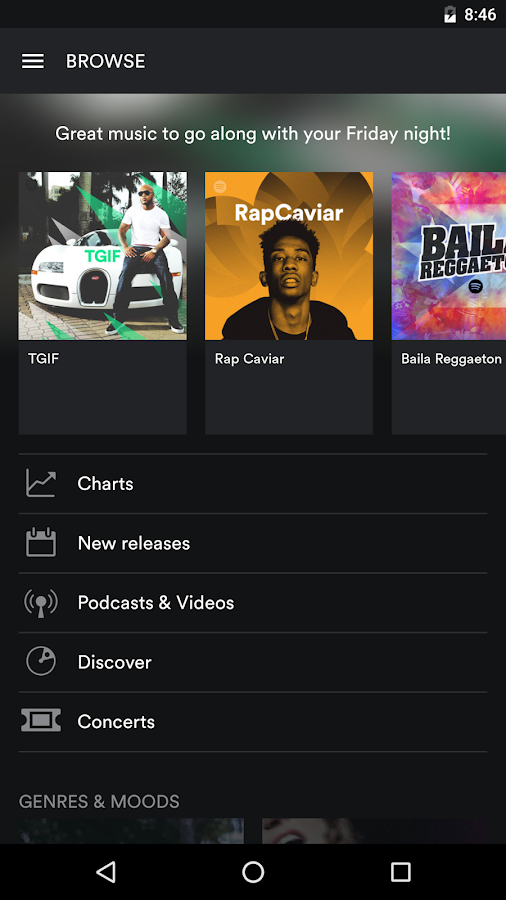
Image via Play.Google.com

Even with a zillion free apps on the market, serious music fans are happy to hand over $10 a month to use Spotify Premium. In addition to the playlist and on-demand features available in the free version of the app, Spotify Premium lets you download your music for offline listening. This is a huge plus when you’re away from a Wi-Fi connection. Spotify Premium also offers high-definition (320 kbps) playback. The difference is noticeable, especially if you listen using noise canceling earbuds or a high-quality speaker.

Amazon Music

The Amazon Music app is free, and if you are already a Prime subscriber, you have access to piles of free music in a mind-boggling spectrum of genres. Music you buy from Amazon is automatically stored in the app, and it’s available to you via the cloud no matter where you roam. Many physical CDs that you buy from Amazon come with an automatic free download, which is a great way to gift music to others and receive some tracks for yourself at the same time.

Tidal

A free music service for serious audiophiles, Tidal boasts lossless compression in offline mode and access to music videos and interviews. The app will tailor suggestions to help you discover new music from among its 25 million tracks. With a nice armband and some earbuds, you can set yourself up to discover some new tunes on your next run or jog.

Quello Concerts

Are you a live music aficionado? If you like to watch musicians in action, Quello Concerts was designed with you in mind. The free app brings you over 1,500 full-length performances and music documentaries, featuring artists like Lady Gaga, Pink Floyd, and Nirvana. If you like watching your music instead of listening, consider a simple phone stand so you can free up your hands while you watch.

NPR Music

If your tastes are a little less mainstream, you might fall in love with NPR Music’s dedicated app. It offers access to popular public radio programs like First Listen, All Songs Considered, and Tiny Desk Concerts, but that’s only the beginning. The NPR app also connects you with live music streams from more than 100 public radio stations. That’s a lot of streaming music, and public radio has a knack for bringing obscure artists and genres to your attention. This app should keep you from getting bored with your music.

Musixmatch

musicxmatchAre you a lyrics lover? Whether you like to sing along or simply enjoy the pure poetry of song lyrics, Musixmatch is for you. The service boasts the largest catalog of lyrics in the world, and its app will sync any song in your library with lyrics from the database. Do you have a few words of a song stuck in your head but can’t remember the rest? Musixmatch will come to your rescue by letting search the database using whatever you remember.

Shazam

No matter which music player you choose, you’ll want this handy little app on your phone. Shazam lets your phone listen to any music playing around you and instantly identify the song by title and artist. Shazam gives you access to videos and song lyrics, and it will also take you to streaming services where you can buy the track you’re hearing and discover related ones.

YouTube Music

If you’re a music video lover, you’ll enjoy Google’s YouTube Music app, which serves up more than 30 million videos for your viewing and listening pleasure. The app lets you generate Pandora-like personalized stations based on an artist or genre. YouTube Music also delivers remixes, albums, covers, and more.

Old-school music apps like Pandora and iTunes are still in the mix, but music aficionados have a lot more to choose from these days. Give these apps a try to put a lot more music in your pocket.

[UPDATE] U.S. Cellular announces new Shared Connect pricing plans

0

U.S. Cellular updated its Shared Connect pricing plans. The new update gives more value to customers by adding more gigabyte allotments: 2GB, 4GB, 8GB, 16GB and 24GB.

Data For Everyone!

Customers who choose a 16GB plan or higher get unlimited calling and texting to Canada and Mexico. Every Shared Connect plan comes with unlimited talk and text, although below 16GB you have to pay an extra $10 for this. Similarly, plans over 16GB have data usage controls to limit the amount of data each line uses, while plans under 16GB have to pay $5 for this feature.**

The new prices:

  • 2GB for $30/month (previous: 1GB for $25)
  • 4GB for $45/month (previous: 3GB for $40)
  • 8GB for $60/month (previous: 6GB for $55)
  • 16GB for $80/month (previous: 12GB for $80)
  • 24GB for $100/month (previous: 15GB for $90)

All phones on a Shared Connect plan has a $20 monthly connection charge per line, while tablets are $10. Landlines, routers and hotspots are also $20. Customers can buy a smartphone under a U.S. Cellular monthly payment plan over 20, 24 or 30 months.

Finally, if you want to switch to U.S. Cellular from another network, you can port your number and trade in your device, even if it has a cracked screen. Once you submit your final bill to your carrier, you’ll get an unlimited buy-out from your contract.

**UPDATE: We’ve received new information from U.S. Cellular to clarify a mistake: Please note customers who choose 16GB plans or higher receive unlimited calling and texting to/in Canada and Mexico, and data usage controls which allow customers to limit the amount of data each line on an account can use. However this unlimited offering is NOT available for $10 per month offering on plans 8GB and under. For the data usage option, please note this option is NOT available for $4.99 on plans 8GB and under.

Your Android icon pack sucks; you should try Magme instead

0

Look, we get it. You recently installed a custom launcher for your phone and you hate the default icons. There’s just something about the stock stuff that’s on your handset that you just don’t like. Or, maybe you’re the type of person who has been using the same old icons for some months on end. It’s time to freshen that phone up!

magme_1

If you’re in the market for a new icon pack, you might want to give Magme a spin. With more than 1,000 icons and growing, there’s something for just about every app or game you’ve got.

We like the aesthetics of Magme in that it uses the Material Design principles from Google, but with a slight twist. The color palette is muted somewhat but that doesn’t mean the attention to detail is, too. Rather, you’ll find plenty of fine lines and definition; many of these look better than the official icon approach.

magme_system

In addition to your icons, Magme also provides folders and wallpapers as well. There’s more than enough here to put together a custom look and feel on your Android.

Features:

  • 1000+ high quality icons, alot more are coming!
  • Many alternative icons to choose from!
  • Good amount of drawers and folder icons!
  • Regular weekly updates!
  • 30+ Wallpapers in 3k resolution, more to come!
  • Beautiful material dashboard
  • Smart and easy to use icon request feature!
  • Search icon feature to find desired icon!

When you’re done checking out Magme, be sure to look at some of other works from its developer, DaviidH.

Parallel Space allows you to run 2 Android app accounts at once (review)

For a lot of us, our smartphones live a double-sided life. For some, it’s one life as a business tool (and often provided to us by our employer), and the other life as a personal digital sidekick.

  • Screenshot_2016-08-22-21-56-01The business tool side of our device is all business and allows us to perform our work: responding to emails, reviewing documents, reaching out to important customers and colleagues. It’s our professional assistant, and to reveal any silly, suggestive, or just plain private information would be embarrassing if not outright scandalous.
  • The personal side of our device is our social and fun machine allowing us to connect with other like-minded people and show our individuality, quirkiness, and anything else that we choose to use to reveal about our identity.
  • Multiple logins on a traditional device install can be cumbersome and time-consuming, and often one or more accounts are relegated to desktop-only duty. This negates the utility that your mobile device is meant to bring into your day-to-day in the first place!

For other people, there are simply multiple accounts of certain apps to maintain, and the traditional Android installation only allows for a single login at a time requiring you to re-login with a different username/password every time you want to switch. This can be time-consuming and frustrating.

Now in some cases, these two sides can generally co-exist on the same device. But there are many instances where it would probably be best to let one side dominate and
save the other side for only very private viewing. Or it would just be a heck of a lot easier if you didn’t have to re-login to switch accounts.

Parallel Space 1There is an app that allows you “partition” your device, allowing you to put up a virtual fence between your business and personal sides, or between multiple accounts. This app is called Parallel Space from developer LBE Tech.

Setup

The app is available free from the Google Play Store. To keep things straight from here forward, I’m going to take some artistic license and refer to Parallel Space as a “utility”, to separate it from all the apps you can load into and use within it. As far as the utility itself, that’s all there really is to it, unless you want to password-protect your second login (more on that in a moment).

Experience

Once into the utility (it has an app-like icon on your homescreen), you are shown a blank tiled screen. Each tile represents an app that you have multiple logins to load into Parallel Space. Once you select the app, it appears in that tile. The first time you select that app, you are greeted with that app’s signup/login screen the same as if you were opening the app for the first time on its own.

Screenshot_2016-08-22-21-59-48Here you log in with your second account login info and from there, you are launched into that app with the same look, feel, and screen space as the original app that you previously loaded directly onto your device! When done, you just close the app like normal, and you then can go back to Parallel Space to open another app using a secondary account or go back your device’s native homescreen to use the app with your primary account.

Overall, it’s a pretty slick experience especially if you run corporate social media accounts but also have personal accounts in the same app. Short of having a second phone or laptop at the ready, Parallel Space is a pretty neat solution.

It’s a pretty light one memory-wise, too. All you really load onto your device is the Parallel Space utility itself (total claimed space of 84 MB on my device); the secondary app ‘installations’ happen on the utility’s virtualization engine. All this means you don’t get bogged down with double Facebook apps and background activities clogging up your memory.

Screenshot_2016-08-22-22-00-29This talk of providing login info and 3rd-party virtualization engines does bring up the question of security. On the utility’s server-side, all I can offer is that the utility boasts almost a million downloads in the Play Store, and I can’t find an incident of a security breech anywhere on the web.

As far as security on your device, you are provided an option if you choose to use it. You can secure your overall utility access with it’s own password, which is a handy way of “locking the gate” to all your secondary app accounts. You can also manage notifications for each of your secondary accounts to ensure nothing “pops up” that you’d rather not be seen.

Caveats

There are a few caveats here that I see, though I personally don’t find them major.

First is some reported problems with battery drain. It is enough of a problem that the utility’s developer addresses it on their website’s FAQ page where it’s related to a first-time login to your Google account with the utility essentially confusing the Google Play service framework.

Second is an occasional speed issue when opening your secondary app account through the utility. The little opening animation can seem to get stuck for a few seconds. Nothing terrible, but long enough that you may start giving your screen the evil eye….though this may likely be a testament to our fickleness than the utility’s performance (how DARE you make me wait 3 seconds to see who’s DM’d me!).

Third is that you can’t add a second app account into Parallel Space if you have or need quick access to three or more accounts. The utility simply can’t run multiple accounts within itself (which sounds kind of ironic).

Conclusion

Simply put, I really enjoyed using Parallel Space as a true Android “utility” that makes my device so much more usable when it comes to using and managing multiple app accounts, especially social media. If you have succumbed to the idea of doing the logout/login dance with any given app on your device, I heartily recommend Parallel Space to alleviate your pain and make your day just a little smoother.

Download Parallel Space from the Google Play Store here.

Satechi’s Fast Wireless charger and multi-port station have all of your charging needs covered (including USB Type-C)

There’s a good chance that you own a new smartphone made in 2016. One of the biggest changes across Android smartphones is the change to USB Type C, the new charging standard. USB Type C brings a fully reversible plug that can be used on both ends of the cable, whereas the older microUSB standard had a full size USB A plug on one end that fit into the wall or car charger with a non-reversible microUSB plug on the other end.

The switch to USB Type C brought about faulty chargers, cables and other accessories due to the lack of quality control from third party manufacturers. It also made Google’s Benson Leung ultra popular amongst tech enthusiasts as he became the trusted voice as to what USB Type C accessories were trustworthy. He fried a couple of his own devices on faulty USB Type C cables and chargers in the process. By doing that he also brought the attention of bad and rushed Type-C products to general consumer. He saved us all thousands of dollars in damages, and reemphasized the need to stick with reputable companies.

A company I trust with accessories is Satechi. Satechi was founded in 2005 with a goal to produce high quality accessories to improve our lives. It’s based in my hometown of San Diego, and Satechi recently released a new wireless charging pad as well as a multi-port charging station with USB Type C included.

Satechi Fast Wireless Charging Pad

DSC03369

Satechi’s Wireless Charger is made from aluminum giving it an ultra premium feel and look. The top is made of an ultra glossy plastic that is so shiny that is looks like glass. While I dig the look, glossy surfaces always attract fingerprints. However, given this is a wireless charger there should be no need to touch the surface. The metal edges are chamfered giving this thin charging pad a sophisticated and luxurious look. It is only 7.8mm thick and being made of metal, it has a decent amount of weight to it with rubber feet on the bottom, to prevent it from sliding off your desk or nightstand.

DSC03368

Satechi’s Wireless Charging pad comes in four colors, Gold, Silver, Space Gray, and Rose Gold. To be honest all of the colors look like Apple devices, but there is nothing wrong with that as Apple has some of the best color schemes around.

This is a fast wireless charger with backwards compatibility for all Qi enabled smartphones. In order to take advantage of the fast wireless charging, you will need a Qualcomm Quick Charge 2.0 or later charging plug and a device with fast wireless charging capability like the latest Samsung Galaxy Note 7 and S7.

DSC03363

Fast wireless charging works as advertised with no side effects like extreme heat build up. It happens with some of the lesser quality wireless chargers. There is a small LED indicator on the front of the charging pad, blue indicates the device is charging while green lets you know your device is fully charged. I like that Satechi kept the LED indicator small so that it doesn’t light up my entire bedroom when I sleep. What I can also appreciate is Satechi’s attention to detail. Even though the surface of the charging pad is glossy, a + symbol made of soft rubber provides enough surface tension on my Note 7 to prevent it from sliding around or off the charger altogether.

DSC03365

At $24.99 the Satechi Wireless Charging pad is a bargain when compared to the official Samsung Fast Wireless Charging Pad which retails for over twice the price at $59.99. It works as advertised and the attention to detail is something that I rarely see with third party wireless charging pads.

If you own a device with Qi enabled wireless charging I highly recommend this charging pad from Satechi. You will not be disappointed, especially at the $24.99 price point.

Get the Satechi Fast Wireless Charging Pad from Amazon here.

Satechi 60W multi-port charging station

DSC03377

If you’re still using single port chargers, like the ones provided with your smartphones, you’re doing it all wrong. With a plethora of accessories and wireless devices, just about all of us need a charging station like this multi-port one from Satechi.

The 6-port charging station has four full sized Type-A 2.4A USB out ports, with two Type-C out ports for charging your compatible devices. If you own an Apple iPad, wireless headphones, wireless speaker, portable power bank and a Note 7 this charging station is perfect for you. It’s compact at just 4.5 x 2.75 x 1.13 inches, making this perfect for setting on your desk, nightstand or bringing it as your sole travel charger. It’s made of high quality plastic with no awkward seams, and it looks pretty cool for a charger too. Generally most charging stations are flat bricks, but the Satechi version has lines and groves that make it look unique and stylish.

DSC03376

The standard 2.4A USB Type-A ports don’t have enough juice to charge the LG G5 or Note 7 at full speed, but nonetheless they can still charge them. Instead of taking an hour to fully charge my Note 7 at the fastest speed from 0-100, it takes just over 1.5 hours. Like the wireless charging pad, this charger does not get hot, even with five devices charging at the same time.

The high powered USB Type C ports do charge my Nexus 6P at Fast Charging speeds but you will need a fully reversible USB Type-C cable on both ends like this one from Amazon.

What I love about this charger is that it can charge my most current devices while also having backward compatibility with my older devices. At $29.99 the Satechi Multi-port charging station is competitively priced with its rivals, but its quality is unmatched by third party accessory makers.

You can get the Satechi Multi-port charging station from Amazon for $29.99.

Props to Satechi for making two very high-quality chargers that are reasonably priced. Learn more about Satechi and its other products at Satechi.net.