Home Blog Page 1267

UE MEGABOOM Bluetooth speaker review


image 2Design

Speakers have recently taken on a more cylindrical shape compared to those of times past. Whatever the reason for the change may be, it appears to be working where aesthetics are concerned. The UE MEGABOOM is large for a Bluetooth speaker, and follows that latest trend where shape is concerned. Most of the speaker is covered with speaker grills, which provide 360 degree sound, except for the front, where there is a straight line that gores from top to bottom where the volume buttons are located and the UE logo.

The power button is located on the top of the device, right below where the Bluetooth paring button is also located. Moving south, you have the aux port and USB charging port, which are both covered with a waterproof flap. Which brings us to one of the greatest features about the UE MEGABOOM.

The UE MEGABOOM has a waterproof rating of IPX7, which makes it almost completely waterproof. Now the party never  has to end, come torrential downpour, you accidentally drop it in the pool, or you drop it while you are fishing out in the middle of nowhere. All of buttons are made in such a way that water cannot enter, the aux and USB ports come with a tight flap that prevents water entering, and the grills themselves are made of a cloth material that keeps everything inside dry. Definitely one of the greatest features about the UE MEGABOOM.


Sound Quality

The UE MEGABOOM can have a hundred features and then some, but if it fails in its primary role as a speaker, then it still comes up last. Thankfully, the UE MEGABOOM does not have that shortfalling, as it sounds as good as it looks. Sounds was powerful and rich, and I never had to strain to be able to hear my favorite artists. The bass was deep and full and it always guaranteed a powerful bass drop for those that enjoy dubstep. One thing that I did notice though, was that the bass could become very prevalent and at times too much. While it was rare and in between, it was still noticeable that I was able to detect it. Also, while it is more than capable of being a great speaker for those that enjoy softer music tones, such as classical music, it was not really created for that. It was made more for those that wanted a loud speaker for which to have jamming parties with. With all that being said, the UE MEGABOOM is a fantastic Bluetooth speaker with great sound.


Special Features

One of the really neat features about the UE MEGABOOM is the ability to sync two of them together for even more spectacular sound. Using the app that can be downloaded from the Play Store, you are able to sync them up and use them as dual speakers. We unfortunately were not able to test it, due to us only having one review unit, but from what others are saying, it works flawlessly and really delivers a unique experience.


Final Thoughts

The UE MEGABOOM speaker is one of the best speakers that we have reviewed in a while, and it is simple to see why. With great sound, awesome features, and  rugged protection, what is not to like about the UE MEGABOOM? If you feel the need to purchase one for yourself, or just want more information about the device, make sure to use the links on the bottom to do so.
UE MEGABOOM Wireless Bluetooth Speaker

Motorola Moto E (2nd Gen) (2015) review

IMG_20150225_125402

Announced and made available on February 25, the new Moto E is one of the cheapest off-contract smartphones you’ll find. But, does cheap mean low quality or shoddy craftsmanship? Hardly. Not only is this one of the least expensive models you can buy without a service plan, it happens to be one of the better choices for various user needs.

The second generation Moto E is definitely an evolutionary take on its predecessor and doesn’t stray far in overall design and approach. Looking very much like a late edition Motorola it would be easy for an average person to confuse this one with last year’s edition – or the different Moto G and Moto X models.

Design

Pick the Moto E up and you’ll notice it has a nice, soft finish that doesn’t grab oils, dirt, or fingerprints. Available in black or white, the phone feels like it can take a bit of moderate abuse. Throw your phone in a pocket or purse without much thought? No worries, the Moto E is forgiving.

[blockquote author=””]It’s going to be hard to recommend any other brand over Motorola at this price range.[/blockquote]

Along the outer edge of the phone you’ll find a textured grip in either of the default colors. Not only does this give you some extra bite when in hand, it can also be used to accent your design. You can purchase additional color options that add a hint of color or pizzazz to the phone. No, it’s not on the same level of the Moto Maker stuff for the Moto X, or even the replacement battery covers on the Moto G, but it’s nice to know you’re not stuck with what you bought.

Popping the edge ring on and off proves no challenge; interestingly, the volume and power buttons are included as part of the grip. It’s quite something how a little strip of blue or pink might change the overall aesthetics.

Android

As is the case with other Motorola smartphones of late, the Moto E features a nearly stock Android software experience. As of this review the Moto E ships with Android 5.0.2 which is just about the absolute latest in releases. For what it’s worth, Android 5.1 was announced and began deployment right around the same time as the phone’s debut.

Motorola has opted to include a handful of its own apps and services; present here are Migrate, Assist, and Moto Display. You’ll also find minor tweaks to the user experience such as flicking your wrist to open the camera. In short, none of these really duplicates anything found in the Android OS and each can be user-defined or left alone.

Does all of this mean that the device moves along without snags or stutters? No, we did find the occasional burp or minor pauses in response. Nothing crazy, though, and there were no force closing problems. Unless you have spent a lot of time with more powerful phones or are doing head-to-head comparisons, you may not even see the difference.

Display

Slightly larger than its predecessor, the second-gen Moto E features a 4.5-inch display. It doesn’t sound like much and doesn’t feel all that different in hand, but it’s nice to see more screen for the money. On the other hand, it provides the same overall resolution (960×540) which means less pixels per inch. Does this matter to you? We venture to say it shouldn’t – especially because of its price.

Motorola has opted for Corning Gorilla Glass 3 protection atop of the display. Additionally, there’s a water resistant coating to help guard against life’s little spills. It’s not a true waterproof finish but it’s all you’ll need in the event you’re caught out in the rain.

We did find that the screen is not quite as bright as we might have hoped. We do like to dial down brightness to preserve battery; however, the higher settings are still a little darker than we’d hoped. Dealbreaker? Hardly.

Storage

Motorola has doubled down on internal capacity for the Moto E 2015. Customers now get 8GB to work with and there’s also microSD expansion. It’s worth noting, however, that you are limited to 32GB cards for an all-in total of maximum of 40GB. But, thanks to the ever-growing list of cloud storage options and online backup services, this capacity isn’t quite the dealbreaker it would have been two years ago.

Camera

One area where less expensive smartphones tend to pull up short is in the camera. Indeed, the first-generation Moto E suffered from a less-than-desirable experience that had somewhat justified its lower price point.

Thankfully, Motorola has moved the needle for this year’s model by integrating auto-focus and an Auto-HDR mode. Between the two of these we found the camera was able to capture images quickly and fairly accurately. There’s nothing worse (ok, there are plenty of things worse) than whipping out the camera to snap a few pictures and the phone not locking on to the subject. The Moto E 2015 was much quicker and more precise than we expected.

Video recording gets a boost this time around, jumping from 480p to 720p. It’s the low end of HD, sure, but we’ll take it. Sadly, there’s still no flash to be found so you’ll want to ensure you have good lighting.

Also new in this generation, there’s a front-facing VGA camera. Absent altogether in the previous model, it’s just enough to say it exists. If you’re looking for something HD for video chat you’ll not find it here.

Battery

Coming in with 2390mAh capacity, the battery is a 20% increase over last year’s power supply. What does that mean to you, the user? How about more than one day of juice and a downright incredible standby time?

We were blown away by the way the Moto E sipped at its battery over the span of a few days. In our mixed usage we found that the battery was able to give us all-day life plus more. Light users, we imagine, could get 2-3 days or more from this one. Things could get even better if you’re using the 3G model or don’t spend much time utilizing high speed data.

Conclusion

We are extremely impressed with the Moto E. Considering the $150 price point we would have been happy with a slightly larger screen over last year’s model. Or, perhaps just adding in 4G LTE support. Fortunately for us, we get both of these as well as the latest release of Android. Throw in the better camera details and battery it’s all bonus.

At $120, the 3G variant is still plenty of smartphone for someone making the leap from feature phone. Both are attractive enough in price to consider one of these as a backup or replacement for a lost or damaged model.

It’s going to be hard to recommend any other brand over Motorola at this price range. Sure, Blu, Huawei, and a few others are treading into that space and offer compelling devices, but we’ve got to give the nod to Motorola. There’s more than enough here to merit the money and the brand is one we’ve been all too pleased to learn to trust again.

The Motorola Bands and Grip Shells are a nice touch that help users get a more personalized design. You’ll spend a few bucks to do so, yes, but you’re still walking away with a semi-personalized, low-cost smartphone with leading edge Android. Oh, and it’s also unlocked and waiting for your micro-SIM card.

If this is indicative of what a post-Google and Lenovo-owned Motorola is going to do then we’re on board.

Urban Armor Gear smartphone case review; military grade protection for the rugged adventurer.

Militaristic Design

IMAG0480

One of the first things we noticed about the Urban Armor Gear were the rugged design elements. From faux screws, honeycomb patterns, to the indentations on the back, everything about the Urban Armor Case screamed resilience. The case also does so while maintaining a relative low profile, at least where weight and bulk is concerned. Many people shy away from using cases for the sole reason that they make devices look and feel so much bigger. The Urban Armor Gear maintains a great balance with protection and size, so you hardly notice that you have a case on.

Shock Absorbing Bumpers

On the four corners of the device, you are greeted with shock absorbing bumpers that are integrated into the case.  Chances are that when you drop your device, it’s going to hit on the sides, so this is a great added feature that guarantees extra protection for when that occurs. The bumpers are built seamlessly into the design as well, so they don’t detract from the overall look of the Urban Armor Gear.

IMAG0489

Another cool feature about the bumpers are the pad built onto the backs. So whenever you place your device down, you don’t have to worry about the case getting scratched. While this does not really add to the protection of the device itself, it does help guarantee that your case will remain pristine and damage free for a longer period of time. I mean, you are going to be looking at the case for long time, or for however long you use  keep your device protected with a case, so it bodes well that Urban Armor Gear took some measures to keep the case looking brand new as long as possible.

Great Button Craftsmanship

The buttons are made to be slightly bigger than average, which is a feature that we personally loved. Having reviewed various in the past, nothing makes a grade A case into a B than having horrible buttons. The buttons on the Urban Armor Case registered every click immediately and I didn’t feel like I had to go workout just to be able to power on the device. They are also made of a

High-Grade Protection

IMAG0488

Urban Armor Cases meet or exceed MIL-STD-810 standards. So you know that the case can take a beating. The case itself is made of composite materials, with a hard outer shell and a soft inner core. This makes the Urban Armor Gear extremely resilient to drops and scratches. The materials are also resistant to UV rays, and chemicals found in common skin lotions. So you don’t have to worry about handling the device, or taking it out in the sun.

Final Thoughts

If you need a case that not only looks great but offers fantastic protection, then the Urban Armor Gear should definitely be on your radar. With great, militaristic aesthetics, high-grade protection, and low profile, you would be hard pressed to find a better case. For more information regarding the Urban Armor Gear, you can head over to their website using the link provided.


Urban Armor Gear

Meet NVIDIA’s $200 SHIELD console, a true Android game changer

0

shield_wide

NVIDIA is changing the way we game on Android yet again. After starting off with the Shield portable gaming and entertainment console in 2013, NVIDIA followed up with a downright monster Shield Tablet. Then, as 2015 was getting underway, they went and introduced a new processor that runs circles around everything.

So, the next logical step? Why not marry everything in an Android-powered game console that features the Tegra X1 chipset.

Powered by Android TV, the NVIDIA SHIELD changes things all over again. The unit can not only game like a mother, it will also deliver video, music, apps, and so much more. That video? That will be 4K, if you don’t mind.

SHIELD_and_SHIELD_controller

It just gets better, too, as the device connects with NVIDIA GRID, the game-streaming service that houses killer titles in the cloud. Think Netflix for top-tier gaming, delivered at 1080p with 60 frames per second.

The NVIDIA SHIELD launches in May with a kick-ass $200 price tag; there will be more than 50 titles optimized for the SHIELD when it debuts. Games include Crysis 3, Doom 3: BFG Edition and Borderlands: TPS.  Toss in support for streamed console games Batman: Arkham Origins, GRID 2 and Metro: Last Light Redux and you can see why we’re so amped.

As if you need more reasons to get geeked over the NVIDIA SHIELD, there are a number of leading game devs already working to deliver content.

The SHIELD will be available starting at $199 with a controller; however, optional accessories include additional controllers, a remote control and a stand enabling the device to stand vertically.

Just the specs ma’am

  • Processor NVIDIA® Tegra® X1 processor
  • 256-core Maxwell™ GPU with 3GB RAM
  • Video Features 4K Ultra-HD ready with 4K playback and capture up to 60 fps (VP9, H265, H264)
  • Audio 7.1 and 5.1 surround sound pass through over HDMI
  • High-resolution audio playback up to 24-bit/192 kHz over HDMI and USB
  • High-resolution audio up-sample to 24-bit/192 kHz over USB
  • Storage* 16 GB
  • Wireless 802.11ac 2×2 MIMO 2.4 GHz and 5 GHz Wi-Fi
  • Bluetooth 4.1/BLE
  • Interfaces Gigabit Ethernet
  • HDMI 2.0
  • Two USB 3.0 (Type A)
  • Micro-USB 2.0
  • MicroSD slot
  • IR Receiver (compatible with Logitech Harmony)
  • Software Updates SHIELD software upgrades directly from NVIDIA


  • Gaming Features NVIDIA GRID™ game streaming service
  • NVIDIA Share
  • NVIDIA GameStream™
  • Power 40 W power adapter
  • Weight and Size Weight: 23 oz / 654 g
  • Height: 5.1 in / 130 mm
  • Width: 8.3 in / 210 mm
  • Depth: 1.0 in / 25 mm
  • Operating System Android TV™, Google Cast™ Ready
  • Included Apps PLEX

Bitcoin Wallet by Coinbase: Making Bitcoin easy for everyone

Bitcoin isn’t new. In fact, Wikipedia points to the date of introduction as being January 3, 2009. But still many people have never heard of Bitcoin. And then on the flip side, there are lots of people who know about Bitcoin but have never considered using it. I happen to fit into the latter category, and while I’ve long know what Bitcoin is — I have largely ignored the topic. But a recent episode of “Morgan Spurlock Inside Man” peaked my curiosity enough to look further into the currency and even setup my own Bitcoin wallet.

After browsing the Bitcoin.org website and learning a bit more, I opted to use the wallet from Coinbase Inc., which is simply called Bitcoin Wallet. The setup process was quick and easy, and Coinbase does a really good job of walking even the most novice user through the process. Whether that novice user actually needs a Bitcoin wallet is another story, however if we introduce you to Bitcoin, maybe you’ll introduce a few more. And from there maybe Bitcoin will become a bit more commonplace.

bitcoin-wallet-02

My reason for avoiding Bitcoin was because it always seemed like a separate system — a system that is completely detached from your regular banking. But the Bitcoin Wallet app from Coinbase taught me otherwise. It taught me that it doesn’t have to be entirely separate. Key features for the app include the obvious — being able to buy and sell Bitcoin. The app also allows you to easily send Bitcoin to, or request Bitcoin from another user. The sending and requesting is done using your Bitcoin address and/or a QR code. And novice users shouldn’t worry as the app provides both of those items.

The Coinbase Bitcoin Wallet app opens up to your current wallet which shows you how much Bitcoin you have and how much it is worth in terms of your default currency. In my case that means US dollars. And novice users should remember that Bitcoin value does fluctuate. Overall the Bitcoin Wallet app has a simple design, and it makes use of a navigation menu that slides in from the left hand side of your Android device. That menu is where you’ll go to buy or sell Bitcoin, adjust the settings of the app, and view your Wallet and Vault. A small circular icon in the lower right is where you can send or request Bitcoin from other users.

bitcoin-wallet-03

But going back to the part about how the Bitcoin Wallet app connects to your regular banking. Part of the initial setup process has you connecting your regular bank account. That means you can now accept Bitcoin as payment from someone. Then once that person sends you the Bitcoin as payment, you can “sell” the Bitcoin, which just means regular money will be transferred to that connected bank account.

What We Liked

  • Clean and easy to navigate user interface.
  • The ability to access your account from a mobile device, and from the desktop.
  • Easy connection to your more traditional banking.

Room for Improvement

  • Android app security limited to 4-digit PIN.
  • Transfers from Bitcoin to dollar, or dollar to Bitcoin have a 1% fee attached.
  • Wait times. Bitcoin purchases take 4 business days to finalize.

The wait times and fees certainly aren’t ideal, but the overall setup and the ability to easily turn your Bitcoin into regular dollars should make this an attractive entry point. And lastly, as an added bonus, you get $1 USD worth of Bitcoin just for signing up.

Bottom line here, if you were curious about Bitcoin but didn’t know where to start we suggest giving the Coinbase Bitcoin Wallet app a try.

[pb-app-box pname=’com.coinbase.android’ name=’Bitcoin Wallet – Coinbase’ theme=’light’ lang=’en’]

HTC announces virtual reality headset, ‘Vive’

0

HTC presents one more contender in the growing VR market, the HTC Vive. The Vive will feature a 90hz refresh rate for very smooth video, a very light build so it is not uncomfortable on your head, a fully immersive experience with the partnership with Valve and Steam’s VR tracking software, and even wireless controllers to come with to make playing games the bets experience possible.

Cher Wang, Chairwoman of HTC commented, “It’s rare that a company has an opportunity to forever transform the ways in which people interact with the world and communicate with each other, but that is exactly what we plan to do with Valve.”

“We achieved this once before with our development of smartphone technology,” Peter Chou, CEO of HTC added, “And, through our partnership with Valve, we’ll now be doing this for a second time with VR technology of which consumers could only previously dream.”

HTC already has multiple other key partners on board to further develop Vive, such as HBO, Lionsgate Entertainment, and Google.

HTC’s full press release is below:


Mesmerizing quality, fully immersive experience

Vive offers the most immersive experience of any VR package, plunging people into other worlds at a moment’s notice. HTC and Valve have introduced a Full Room Scale 360 Degree Solution with Tracked Controllers, letting you get up, walk around and explore your virtual space, inspect objects from every angle and truly interact with your surroundings. Setting a new benchmark for performance, the headset features high-quality graphics, 90-frames-per-second video and incredible audio fidelity.HTC is also introducing new wireless VR controllers that will make you feel one with your virtual environment. The new HTC VR Controllers come in a pair and are designed to be so versatile that they will work with a wide range of VR experiences. Unlike typical game controllers, the HTC VR Controllers are simple and intuitive to use, helping everyone make the most of their experience.

Gaming and Beyond

Beta versions of the Vive Developer Edition have already generated rich entertainment content from some of the world’s top game developers including Vertigo Games, Bossa, Barry–Fireproof, Dovetail Games, Wemo Labs, Google, Steel Wool Games and Owlchemy.

“Our collaboration with HTC is driven by the companies’ shared desire to produce the most compelling and complete VR experience,” said Ken Birdwell of Valve. “Delivering content creators with the Vive Developer Edition is an incredibly important milestone in our efforts to achieve that goal.”

While amazing gaming experiences are a staple in the VR universe, the potential beyond gaming is limitless. HTC and Valve are committed to realizing a broader vision for VR and see a real opportunity in transforming everyday experiences. Travel, attending a game, meeting friends or even shopping will never be the same again, and the companies are working with leading content creators, including Google, HBO, Lionsgate and the National Palace Museum in Taiwan in order to make that vision a reality.

“Vive creates an exciting opportunity for all developers and content creators, to help us bring virtual reality into the mainstream with an end-to-end solution that completely redefines how we entertain ourselves, communicate with each other, learn and, eventually, how we become more productive,” Cher Wang concluded. “HTC Vive is real, it’s here and it’ll be ready to go before the start of 2016.”

-Ends-”

HTC

Samsung unveils Galaxy S6 and Galaxy S6 Edge for April 10

0

galaxy_s6_and_edge_duo

Samsung, as expected, today announced its latest flagship smartphone experience, the Galaxy S6. What’s more, it also unveiled a dual-edge variant known as the Galaxy S6 edge. Yes, that’s a lower case ‘edge’.

Powered by Android 5.0 Lollipop, the two are designed with a combination of metal and glass with a screen protected by Corning Gorilla Glass 4. The pair feature 5.1-inch Super AMOLED displays at 2560 x 1440 pixel (Quad HD) resolution.

The rear camera is listed at 16-megapixels with image stabilization, auto HDR, and other features and effects. The front-facing camera is 5-megapixels; however, both offer an aperture of f/1.9 which means improved low-light conditions. Other details include CAT6 LTE support, dual-ban Wi-Fi, Bluetooth 4.1, and Samsung’s ultra power-savings mode.

As for the processor, Samsung stayed home this time, employing its own octa-core (4x 2.1GHz,  4×1.5GHz) processor. Additionally, you’ll find 3GB LPDDR4 , UFS 2.0 flash, and a 2600mAH built-in battery. Speaking of which, the two devices come with wireless charging with WPC and PMA standards. Samsung promises 10 minutes of charging can add four hours of usage; going from 0-100% is said to take half the time of the iPhone 6.

Samsung was very big on the fact that there is “no lag” and the devices don’t have a bunch of hard to use features that are tucked away in places people don’t go. Along those lines, the UI is much cleaner and offers far less “Samsung” overlay.

In terms of software, the two come with a handful of Microsoft apps and services (OneDrive with 115GB free storage and OneNote) Toss in some Find My Device and an enhanced KNOX security platform and you’ve got a robust and secure suite.

The Galaxy S6 and Galaxy S6 Edge are equipped with NFC + MST support via Samsung Pay. This enables them to be accepted anywhere someone takes credits cards, NFC, and barcode readers. Your fingerprint is your password and encryption ensures your payment methods are not compromised.

Availability

Samsung will begin selling the Galaxy S6 and the Galaxy S6 Edge starting from April 10 with 32GB, 64GB, and 128GB storage capacities. The two will be offered in a handful of colorful “jewel tones”, including White Pearl, Black Sapphire, Gold Platinum, Blue Topaz and Green Emerald.

The Galaxy S 6 and Galaxy S 6 edge will be available to U.S. customers starting in April across various channels. AT&T, Sprint, T-Mobile, U.S. Cellular and Verizon Wireless will carry the Galaxy S 6 and Galaxy S 6 edge, and Boost Mobile, Cricket Wireless and MetroPCS will carry the Galaxy S 6.

Samsung Experience Shops at Best Buy, as well as Amazon.com, Costco Wholesale, Inc., Sam’s Club, Target and Walmart will also carry the Galaxy S 6 and Galaxy S 6 edge.

Lenovo Yoga Tablet 2 10-inch review

0

Lenovo’s newest tablet is finally here and is very much a tablet we’ve seen before. Every year Lenovo takes its tablet and gives it some incremental upgrades that help improve the experience and this year’s edition is no different.

The last tablet that I reviewed from Lenovo was the Yoga Tablet 10 HD+. Throughout this review I’ll be referencing the previous a bit, so if you want to check it out, you can view it here.

Hardware

The Yoga Tablet 2 looks like just its predecessors. The only real visual difference is that now there is no longer a Lenovo logo on the bezel. I don’t recall prior versions having this, but there’s a grippy plastic piece on the back, which while plastic, makes it a bit easier to hold and grip the device. The volume rocker was moved to the other side of the device, now above the power button and the port for the USB cable.

In terms of other changes to the hardware, the biggest changes include the screen, the processor and a new feature with the kickstand. Starting with the display, while the Yoga Tablet had an HD screen with a 1280 x 800 resolution, Lenovo upped its game this year with a 1920 x 1200 resolution display. Just to note, the HD+ that we reviewed in July had a display with a1920×1080 resolution, so the HD plus bests that tablet as well. The colors on the display seem more true and it has much better viewing angles than the previous models. Moving on to the processor, the Yoga Tablet sported a MediaTek quad-core processor then the 10HD+ a Qualcomm Snapdragon 400 processor. The new tablet has a quad-core Intel Atom Processor Z3745 (2M Cache, up to 1.86 GHz), featuring Intel Burst technology that dynamically matches processing power depending on what you are doing to maximize battery life. Even with the new display and processor, the tablet still has excellent battery life. Lenovo claims you can get 18 hours of battery life, but if using at 40% screen brightness and using Wi-Fi, you should get almost 13 hours out of it. Overall, the tablet is very snappy and has handled all the games that I’ve tried with it with no real issues such as Modern Combat 5, Hearthstone, Goat Simulator and Star Wars Knights of the Old Republic. As I mentioned earlier, the tablet has a new mode with its kickstand. While previously you could either use it in stand, hold or tilt modes, now you can use it in “hang” mode, basically rotating the stand until it’s flat and then there’s a hole in it so that you can hang it anywhere such as in your kitchen, bedroom , office, etc.I’d just be sure to use a hook that is securely in the wall before hanging, you don’t want to break you brand new $300 tablet.

A few other highlights of the hardware upgrades is an improved rear-facing camera, now up to 8 megapixels from 5 megapixels, larger front-facing chamber speakers with Dolby Audio surround sound and Wolfson Master Hi-Fi audio processing. I forgot to mention but it also has 2 GB of DDR3 RAM as well as 16 GB of built-in storage that is expandable, supporting MicroSD cards up to 64 GB.

Software

Moving on to the software, the Yoga Tablet 2 is running Android 4.4.2 KitKat, just like the 10 HD+ was and has a slightly different version of the Lenovo LauncherHD.

The launcher still doesn’t have an app drawer, so it has an iOS feel to it, but I think this is Lenovo’s way of trying to make the UI their own and simplify the experience. If you read my last review, you may remember that I mentioned a Smart Side Bar that could be accessed by swiping from the bezel onto the screen on either side. This side bar gave you quick access to your videos, photos and books, recently used apps and sound and visual modes. It is now nowhere to be found. The closest thing to it in the software is called the “Bottom Switch.” This can be accessed with a swipe upwards from the bottom and it gives users the ability to quickly turn various functions on or off as well as access to advanced settings. You can also access Lenovo Smart Switch to change different display and audio modes, as well as access the camera, take a screen shot and and lock your screen. Although it doesn’t give you quick access to your movies, photos and books like the previous iteration had, I think it that it has to and this actually is a nice experience. It seemed like previously it was trying to do too much and you no longer have that.

Aside from these changes, there is really nothing else different about the software. You can still run apps in multiple windows and the way to close apps is reminiscent of MIUI, also telling you the amount of available memory.

Overall

I still think that the Yoga Tablet 2 is a good choice for the general consumer. It may not be a powerhouse like the NVIDA Shield Tablet or the Nexus 9, but it’s not trying to be. The Yoga 2 excels where it always has and that’s offering a great user experience, a unique design and a decent price tag. I think that the kickstand adds a lot of it since you don’t need a case to stand it up to watch a movie or tv show or to prop it up on your lap to type. If you wanted to have it hanging on your wall, you could possibly make it like an interactive calendar or an easily accessible computer in the kitchen to play music while cooking or to display recipes.

20 things all Android users should know

closeup_waving_android_eye_feature2Are you new to the Android platform? Maybe you received a new device as part of a gift over the last month or so and now you’re ready to learn a bit more. Perhaps you just walked out of the store with a new handset only yesterday and you’re somewhat in the dark about everything it can do. Fear not, there’s plenty of awesome stuff awaiting you. We’re here to help you get started.

Sure, your more seasoned Android users will likely look at this list and scoff. That’s because we tend to take for granted some of the things we can do with our favorite gadgets. For those who are only taking our first Android steps, well, sometimes we need a bit of help.

What you will find below is a list of 20 things that every Android should know. We’re starting with some of the most basic stuff but think you’ll glean a few tidbits.


You can add multiple accounts to your Android device

Screenshot_2015-02-06-15-38-33Upon first setting up your device you will likely be asked to log in with an existing account or create a new one. But, first-time users may not know that once you’re logged in and set up you can always come back and add another. Be it another Gmail account, Google Apps, Hotmail, Yahoo, or something else, you can set those up, too. This, for many folks, is the way they manage both personal and work emails. Or multiple personal emails. Or… well, you get it.


You can install apps from outside of the Google Play Store.

In most cases, the Android phone or tablet you’ve purchased has an app icon on the home screen which directs you to the Google Play Store. For some devices, this is the only outlet pre-installed. In other cases, the wireless provider or handset maker may install their own respective destination. Take a look around and you may find something that leads you to more apps or games.

It is also possible to install apps from other outside sources. Amazon, for instance, offers its own app store with hundreds of thousands of titles. Additionally, you can also install stuff from Getjar, SlideME, AppsLib, and others. Indeed, developers may also offer apps directly to consumers.

Keep in mind that by going outside of the Google Play Store that you are essentially taking things into your own hands. Malware, crappy applications, and an undesirable user experience are risks you’ll take by doing so.  This is not so much to scare you off but to notify you of potential hangups.


The Google Play Store is so much more than apps and games

Formerly known as the Android Market, the Google Play Store has evolved over time to include all sorts of stuff. In addition to the apps and games that make Android so great, you’ll also books, music, magazines, movies, and more.

And, even though you’re using viewing it through your phone or tablet, that content is accessible online and through other devices. In other words, it’s possible to buy a movie through your phone and play it to your Chromecast. Or, perhaps you’d prefer to load it on a tablet.

Maybe you’ve purchased some books or magazines through a mobile device and now you’d like to read them on the computer. Whatever, mix it up and have fun. That’s what is great about Google Play; there’s so much to choose from and so many ways to enjoy.


venezia-updateamazonapps_1015x350._V139197534_


Amazon gives away a paid app or game for free every day

For the last few years, and without fail, Amazon has been offering up a paid app or game for free. In most cases this changes every single day. In some instances, Amazon will even give away a full bundle of apps. In fact, depending on what sort of promotion is going on, you could scoop up dozens of dollars worth of stuff at no cost.


You don’t have to keep apps on your phone

As much as we may want to, sometimes it’s not possible to keep every app and game on our phone or tablet. Sometimes it’s a matter of storage capacity; other times it’s to help remove clutter. Whatever the reason, you might want to do a little bit of housekeeping.

To uninstall an app you can go about it a number of ways: through the Google Play Store, long pressing on the icon in your app tray or home screen, or by doing the following:

Go to your device’s Settings menu > Apps or Application manager (this may differ depending on your device). Touch the app you’d like to uninstall. Touch Uninstall.

One of the great things about purchasing apps through Google Play and Amazon is that once you purchase it, the title is yours. So, feel free to remove stuff from your phone if that’s what you want or need to do. If, or when, you’re ready to put it back on, simply log into your account and app store. Naturally, free apps work the same way.


You can change the keyboard

One of the first things that savvier and longer-term Android users do with a new device is swap out the stock keyboard for something more personal. In some cases, the pre-loaded one happens to be the client we prefer. In others, however, we have a very particular setup and configuration that we enjoy. So, we head off to the Google Play Store for something else.

new_keyboard_android

There are a number of fantastic alternatives available to Android users, each of which has its own unique features and selling points. Some of our favorites include Swiftkey, Fleksy, Minuum, and the official Google Keyboard.


You can change just about everything

Forget keyboards, that’s just the tip of the iceberg. Android, by its vary nature, is designed with flexibility in mind. This means that you can change pretty much every single aspect of the phone or software experience. Want a new phone dialer? There’s a ton of apps for that. Don’t like the icons or the default wallpapers? Oh, man, are you in luck!

Head to the Google Play Store and you will no doubt find plenty of alternatives to the preloaded stuff that comes with your phone. The best part is, it’s really easy to go back to the way things were. Uninstall the app, try something new, have fun.

Going more basic, you can change so much about your phone without going anywhere. Some users don’t even know that you can rearrange the home screen with different apps, shortcuts. and widgets.


Widgets are wonderful

Have you seen those large clocks or weather details on the home screen of your friend’s Android? See that big, shiny bar with all of those sports scores ticking by? You’re probably admiring a widget. Built into Android since the 1.5 Cupcake release, widgets are a wonderful way of displaying lots of information on the main screen of your device. Sometimes we like them because they display very little information but in such a manner that it looks stunning.

hd_widgets3_feature

Your phone has a number of widgets pre-loaded as part of the application suite. Feel free to play with them, resizing and rearranging until you love the look. Don’t forget that you can head to various app stores to install widgets; some apps come with widgets included in the bundle.


You can configure the lock screen to your liking

So you’re really digging that new Android smartphone but aren’t so keen on that lock screen. Maybe there’s just something about that swiping or PIN that you’re not to fond of. Most devices come with a number of pre-installed options, including Swipe, Pattern, PIN, and Password. Still not good enough for you? Take to the Google Play Store and you’ll find some incredibly gorgeous third-party options.


Browse and install apps to your device from the Google Play Store website

Did you know that the Google Play Store is its own full-fledged website that lends itself well to browsing and exploring? It hasn’t always been the case; the former “Android Market” was nowhere near as polished as today’s experience. Nevertheless, you can head to play.google.com and hop around, checking out apps and games.

The full website is a wonderful way to learn about apps, read reviews, check out videos, and more. While there, you can also do the same for books, movies, music, and other media. Yes, it’s also here you can purchase devices like a new phone, tablet, or wearable.

Android Apps on Google Play

Should you find something you’re interested in downloading or purchasing, you can push it directly to your mobile device. If there’s an app that you’d like to come back to another day, add it to a “wishlist”.

Dig a little deeper and you’ll find the Play Store lets you manage your phones and tablets. Want to pull up a list of all the stuff you’ve installed on a particular model? That’s easy! The Google Play Store also allows for buying and redemption of gift cards, and purchases of instant credits.


You can have apps and games automatically update themselves

Spend a few weeks with Android and you’ll learn that a lot of apps are updated regularly. Maybe it’s to address bugs, maybe it’s to add new levels to a game. Whatever it is, you’ll find that your Google Play app will notify you of available software updates. While this is rather convenient on the surface, it can sometimes get monotonous. Why not let your phone do the work for you?

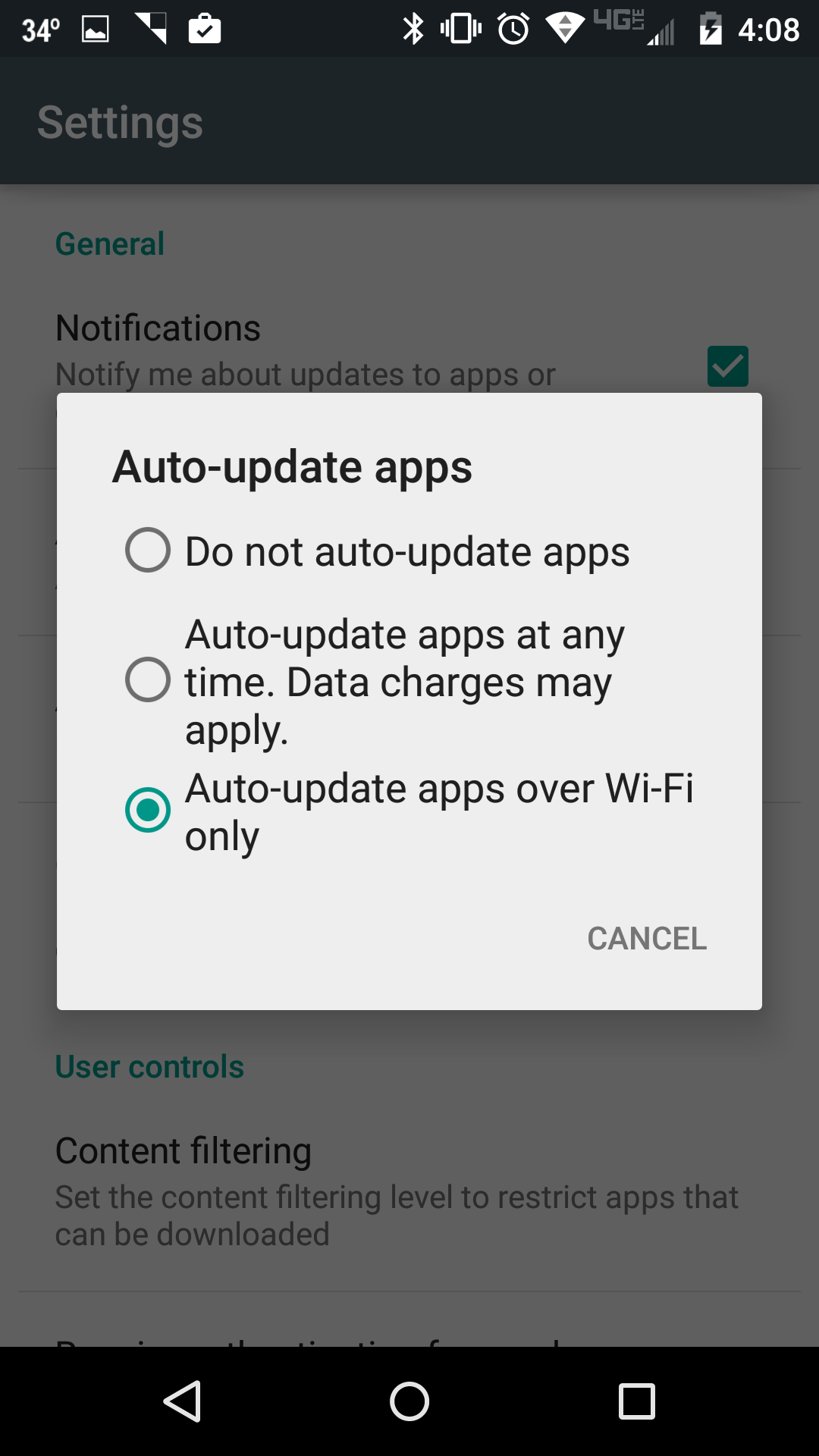
auto_update_apps

Indeed, you can enable your handset to automatically update apps. You can have it done in bulk or on a per-app basis; users can specify whether the device must be connected to WiFi to save on data connections.

To toggle the setting, open the menu in Google Play Store and tap on Settings. There ought to be a spot that says Auto-update apps or something similar. From there you’ll be able to to make you selection. Additionally, you can look for the menu button when viewing a specific app in the Play Store. Found in the top right, it’s a simple check box that says whether or not you want that app updated without your having to do any work.


You can share just about anything to anywhere

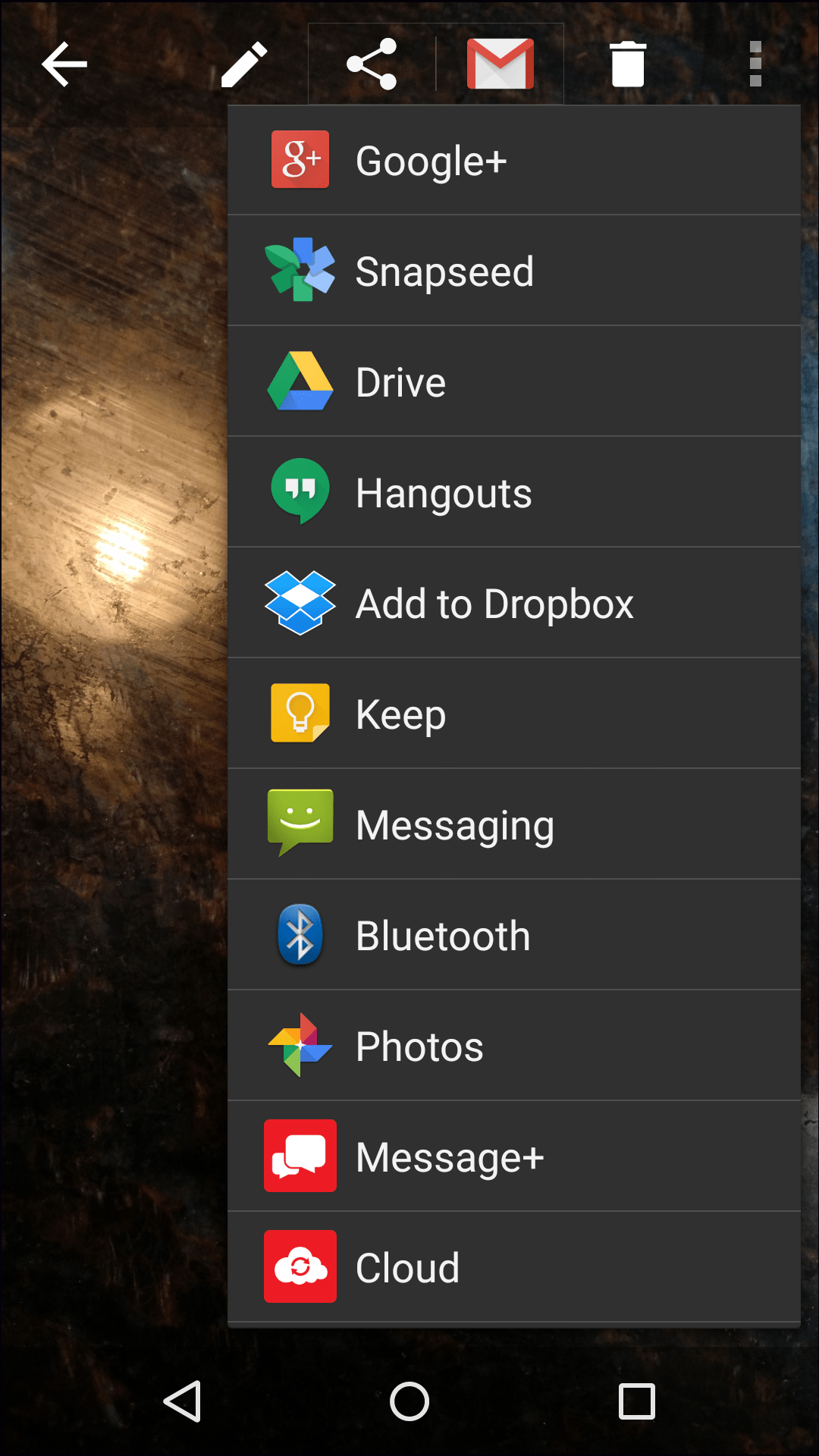
android_sharingAvailable from Android’s first release, sharing is one of those things that we tend to take for granted. Whether it’s a picture, a video, web link, or something else, there’s a chance you can share it somehow.

Just took a picture and now you want to send to your friend’s email addresses? Easy. Want to upload to Facebook? Maybe you want back it up to Dropbox or Google Drive. Android makes it very easy to share documents, links, media, and other items. In nearly every case you’ll find a simple “share” listed in menu options. In other cases it might say “send to” or something else.


You can back up photos and videos to the cloud

Once you start snapping a bunch of pictures or videos you’ll want to ensure they stick around for the long haul. In other words, you will need to make sure they’re not lost or deleted. Drop your phone in water? Perhaps you replace your handset with something else down the road.

Backing things up to the cloud is a great, and often inexpensive way to hold on to your cherished moments. Sure, you can swap out microSD cards in many cases, but sometimes phones only offer internal storage. What to do then? Let’s make sure you still have access to that media!

There are a number of options available to keep a copy of your files, some of which are pre-loaded on your device. Google, for instance, will back up your pictures and videos automatically through its Google+ service. That is, of course, provided you turn that option on. Dropbox, Google Drive, Box, and other players are more than happy to do the same. Just be sure to figure out what, if any, costs you could be looking at down the road.


Google Now is one heck of an assistant

For those running Android 4.1 or later, which should be a large swath of you, there’s an incredibly useful tool waiting to be used. Built into Google is the ability to have all sorts of notifications sent to you. Be it weather updates, stocks, sports, or websites, Google can learn your habits and deliver a truly impressive “wow” experience.

Do you have specific places you tend to visit on regular days? Google will learn your habits and begin to notify you of delays and ETA’s. Have some specific interests for television or find yourself searching certain things online? Let Google push that stuff to you!

google_now

The great thing about Google Now is that it’s tied to your general Google login. So, stuff that you do online in the PC browser or on your phone will be counted. Order something from Amazon when you were at work? Watch how cool it is when you’re notified on your phone that it has shipped… and then you can track it.

There are sorts of cool things you can do with Google Now. We’ve outlined a number of commands you can give the tool but the list grows all the time. And, thanks to recent advances, it works even tighter with a variety of Android apps.


You can return app and game purchases

Find yourself with a bit of buyer’s remorse? That game that you thought was going to be awesome turned out to have bugs or not play nice with your phone? If you act quickly you can return the purchase for a refund.

Google lets users refund their purchases through the Google Play Store for up to two hours. Although the early days of Android saw 24 hour time frames, Google did scale it back to 15 minutes for a few years. But, thankfully, it has since moved up to two hours. That should be plenty of time to find out whether that $5 game was truly worth the money.

Do note that this does not for in-app purchases; those extra lives or boosts are non-refundable. You are welcome, however, to take it up with the developer directly.

You can track previous purchases

In the event you were looking for an app or game that you previously purchased but can’t recall the name or developer, it’s possible to find it. Let’s say you had a game on your phone last winter that you’d really like to install on your new tablet today. You paid for it once, it’s yours to own, regardless of how many devices or how long ago it was. Finding previous purchases isn’t all that hard and there’s a number of ways to go about it. In addition to apps and games you can also track in-app purchases, too. And, because it’s Google Play Store, you’ll also see all the movies, books, and other media purchased there.


You can password protect against accidental or unwanted purchases

password_play_storeWorried that you’ll accidentally purchase an Android app? Or, perhaps, you’re more concerned that your son or daughter will once you let them play with the tablet? Put your mind at ease; it’s possible to password protect the Google Play store from within your phone.

To be clear, this doesn’t restrict any access on your device; it only puts a password in front of the user. That password, by the way, is the same one you use for Gmail or your Google account. The user can choose from asking for a password every single purchase or once every 30 minutes. Also an option, disabling the password.

In many cases the feature is now turned on by default; however, do know that you can always go back in and change things.


It’s possible to keep an eye on your data usage

For a lot of smartphone users, particularly those on shared plans, we’re restricted to using a set amount of data each month. And, while we’d like to think we’re in a plan that leaves us worry-free, that’s not always the case. Indeed, we have to keep an eye on just how much data we’re using.

Screenshot_2015-02-27-13-01-28Introduced a few versions back, Android has a built-in feature that lets us see exactly what our data usage looks like. What’s more, we’re able to pare down and see which apps are chewing through things first. Here’s a hint: video services like Netflix, Hulu, WWE, and others will gobble data up. After that it’s typically your music streaming apps. This is not to say you won’t tear through data by using Facebook or Reddit apps, either.

On your Android phone, navigate to Settings>Data Usage and you’ll have a nice set of options waiting for you. If you’d like, you can set a threshold to alert you when you reach a set amount. This way, if you are concerned about hitting that 3GB ceiling you can set a warning for say, 2GB or something.


You can add credit to a Google Play account

Have a child who likes to buy apps or games for their Android? Why not set up a credit account within Google Play? Tied to a Google account, it’s possible to purchase credit directly within Google Play either through the app or the website. You can also find Google Play cards at stores, gas stations, and other locations which can be added to an account.

The nice thing about setting up the credits is that you’re essentially pre-paying for apps, games, and in-app content. Indeed, it also works for books, movies, music, and other media, too. Much like Apple does with iTunes, you can build up your own account or help out others.

Not all countries have the same setup so be sure to do a little extra homework if you’re interested in credits.


You can hunt down your misplaced or stolen phone

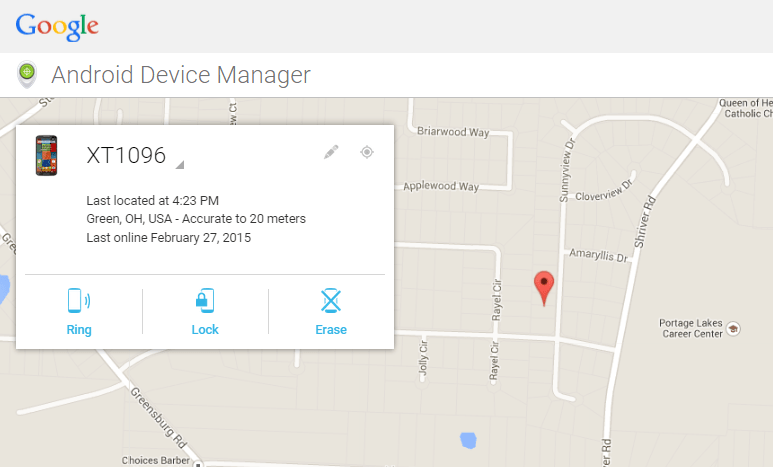
So you went out last night and somehow ended up at home without your beloved Android. It’s possible, but not guaranteed, that you might be able to locate it. Google offers an Android Device Manager tool which can pinpoint where your Android was last known to be.

Android Device Manager

Should you have simply misplaced the phone the resource might be able to jog your memory. If it’s actually stolen you can take some additional steps such as locking the device with a password or remotely erasing it.

Micromax Yu Yureka review: A new benchmark for budget smartphones?

This phone has been making waves since the day its specifications were leaked. Running on the much talked about CyanogenMod OS, Micromax’s budget smartphone comes packed with hardware that can send many mid-rangers running for cover. But is the performance of the Yu Yureka worth its hype, let’s find out.

Design

back


At the first glance, I didn’t find anything extraordinary about its design. In fact, it is difficult to differentiate it from hundreds of other smartphones available in the market. But if you take a look at its back panel, you can see its uncanny resemblance with the OnePlus One’s sandstone finish. Micromax has decided to call it ‘moonstone finish,’ which doesn’t feel the same if you ask me but makes it easier to hold than many slippery smartphones. Despite it being a 5.5-inch phablet, the phone is lightweight and easy to operate with a single hand. It features textured volume buttons on its right, the 3.5mm headphone jack is on the top, and the microUSB port has been placed at the bottom. The camera lens and LED flash have been positioned on the back along with the loudspeaker as it has become a standard now a days. Beneath its back panel, you will find a removable battery, two SIM card slots and a microSD card slot.

The device features a 5.5-inch IPS LCD display with a 720p resolution, which is a reasonably sharp for its price. The viewing angles are pretty good even under direct sunlight, its color output is quite accurate and vibrant and the touch screen is responsive enough.

Performance

And it runs CyanogenMod! Do I need to say more? In case you have been living under a rock, CyanogenMod looks like stock Android and comes with countless customization options including theme change, root access, bootloading and hardware tweaks such as overclocking. There is also an option to limit applications from getting access to your personal data, which is awesome if you ask me. Adding the Android KitKat based custom ROM in the Yureka was a good move by Micromax especially since it is now trying to compete with the likes of Xiaomi, Huawei and OnePlus. What can be considered as the cherry on the top, users of the Yu Yureka have been promised Android updates for a span of two years – something that even many high-end phones can’t assure you of.

The Yu Yureka again scores brownie points with its hardware. How many phones under 150 dollar or even mid-range segment can boast featuring a 64-bit octa-core Snapdragon 615 processor and 2GB RAM? Qualcomm’s MSM8939 comprises of a quad-core Cortex A53 CPU clocked at 1.5 GHz and a 1 GHz quad-core Cortex A53 based CPU. The hardware performance is quite impressive and inter-switching between apps was very smooth. There was no frame drop or lag even while playing heavy-duty games such as Asphalt 8 – something that can be attributed to the Adreno 405 GPU. However, I faced some heating issues while playing games and browsing the web.

performance


The audio quality of the Yu Yureka, however, proved to be a dampener of sorts. While playing music, its loudspeaker was quite silent and I even missed some calls due to its low audio output. The audio quality improved significantly after using headphones and manually adjusting the equalizer.

Battery

It houses a 2500mAh battery that kept it going for 26 hours on full charge. Before you think that all mobile phones last that long on moderate usage, let me tell you that I ran four social networking  apps, six email accounts and indulged in some serious gaming – taking the screen on time to a total of five hours. And yes my device was always connected to Wi-Fi.

In terms of connectivity, the handset comes packed with plenty of options, including LTE – again something that we don’t often see in many low-cost devices. It also supports data with other standard options such as WLAN (Wi-Fi b/g/n), Wi-Fi Direct, Bluetooth 4.0 and a microUSB 2.0 port.

Camera

The Yureka sports a whopping 13-megapixel primary snapper with autofocus and single-LED flash as well as a 5-megapixel front camera. While I was not expecting this dirt-cheap phone to be an imaging marvel as the Samsung Galaxy S6 is expected to be, it still took some good images. The camera focuses swiftly, captures adequate details but the color tone is slightly on the warmer side that can be improved by adjusting the white balance. You can change exposure, ISO value and use various camera modes by going to the settings menu of the default camera app. The rear camera is also capable of recording full HD videos and slow-motion 720p. The selfie camera gives above average results and frankly speaking it won’t be fair to expect a budget device to take wide-angle self-portraits.

Final Thought: The Micromax Yu Yureka is currently the best smartphone available under 150 dollars hands down. The only glitch is its availability. To buy one, you are required to participate in its weekly online flash sales which is held once every week. Hopefully, Micromax takes its high demand into consideration and starts producing more units. Considering its performance in all aspects, I am giving it an overall rating of 8 out of 10.

Specifications

  • Operating System: Android 4.4.4, KitKat
  • Processor: Snapdragon 615 octa-core
  • RAM: 2GB
  • Storage: 16 GB
  • Camera: Rear 13 MP, Front 5MP
  • Display: 5.5″ IPS